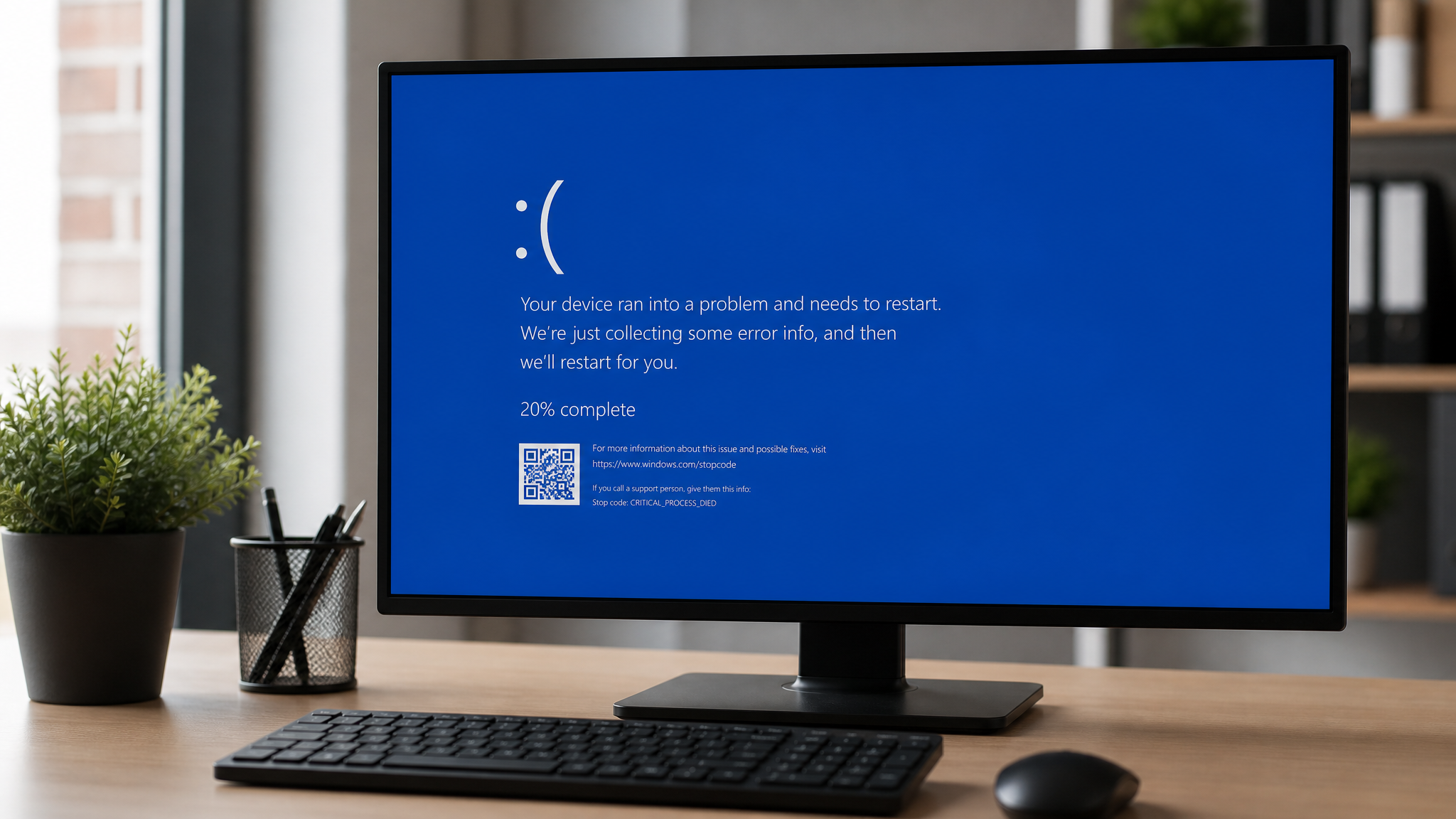
Blue Screen of Death (BSOD) errors are one of the most common — and most alarming — issues Windows users face. That sudden blue screen with a cryptic error code can feel catastrophic, but in most cases, the fix is straightforward.
What Causes Blue Screen Errors?
BSOD errors occur when Windows encounters a critical error it can't recover from. Common causes include:
Driver conflicts — Outdated or incompatible drivers are the #1 cause
Hardware failures — Failing RAM, overheating CPU, or dying hard drives
Software conflicts — Incompatible software or corrupted system files
Windows Update issues — A bad update can introduce instability
Most Common BSOD Error Codes
IRQL_NOT_LESS_OR_EQUAL
This usually means a driver is trying to access memory it shouldn't. Update your drivers — especially graphics, network, and chipset drivers.
KERNEL_DATA_INPAGE_ERROR
This points to a problem reading data from your hard drive or SSD. Run chkdsk /f /r from an elevated Command Prompt to check for disk errors.
SYSTEM_SERVICE_EXCEPTION
Often caused by antivirus software or outdated drivers. Try booting into Safe Mode and uninstalling recently installed software.
CRITICAL_PROCESS_DIED
A critical Windows process has stopped. Run sfc /scannow in an elevated Command Prompt to repair system files.
How to Diagnose the Problem
**Check Event Viewer** — Open Event Viewer and look at the System log for errors around the time of the crash
**Run our diagnostic tool** — Our AI-powered analyzer examines your event logs and system configuration to pinpoint the exact cause
**Update drivers** — Use Device Manager to check for driver updates
**Run Windows Memory Diagnostic** — Type `mdsched.exe` in the Start menu to test your RAM
Prevention Tips
Keep Windows and drivers updated
Don't install software from untrusted sources
Monitor your PC's temperature
Run regular diagnostics to catch issues early
If you're still experiencing blue screens, try running our free diagnostic tool — it analyzes your system logs and identifies the specific driver or component causing the crash.
Found this helpful?
Share it with someone who could use it.
DiagnoseMyPC Team
Expert PC diagnostics and troubleshooting guides to help you keep your Windows system running smoothly.
Frequently Asked Questions
How do I find out exactly what's causing my PC problem?
The fastest way is to let an AI analyzer read your actual system data instead of guessing. You can paste an error message, upload a screenshot, or run a quick diagnostic and get the specific cause ranked by severity. Try a free AI diagnosis at diagnosemypc.com — no account needed to get started.
Is it safe to run fix commands on my own PC?
Yes, as long as you understand what each command does. PC Diagnostic Analyzer always shows you the exact fix script first so you stay in full control of what runs on your computer — nothing is executed automatically without your review.
Do I need to reinstall Windows to fix this?
Usually not. Most performance, crash, driver, and startup problems can be fixed with targeted steps once you know the real cause. A full reinstall should be a last resort — start with a proper diagnosis before wiping anything.
When should I take my PC to a repair shop instead?
If a diagnosis points to failing hardware (a dying drive, bad RAM, or overheating components) and you're not comfortable opening the case, a shop is worth it. For software, driver, and configuration issues, you can almost always fix it yourself with step-by-step guidance.