How to Fix Windows Update Errors and Keep Your PC Current
Windows Update is one of the most important tools for keeping your PC secure and running smoothly. But when it breaks, it can be frustrating — cryptic error codes, updates that fail repeatedly, or a system that gets stuck in an endless restart loop. This guide walks you through the most effective methods to diagnose and fix Windows Update errors so your PC stays current and protected.
Why Windows Update Errors Happen
Before diving into fixes, it helps to understand what causes update failures. Common culprits include:
Corrupted system files that prevent update packages from installing correctly
Insufficient disk space on the system drive (Windows needs at least 10–20 GB free)
Conflicting third-party software, especially antivirus tools that block update processes
Damaged Windows Update cache that stores partially downloaded update files
Network connectivity issues that interrupt downloads mid-transfer
Registry errors that point update services to incorrect paths
Identifying the root cause is the first step. DiagnoseMyPc can scan your system and flag many of these underlying issues automatically, saving you hours of manual investigation.
Step 1: Note the Error Code
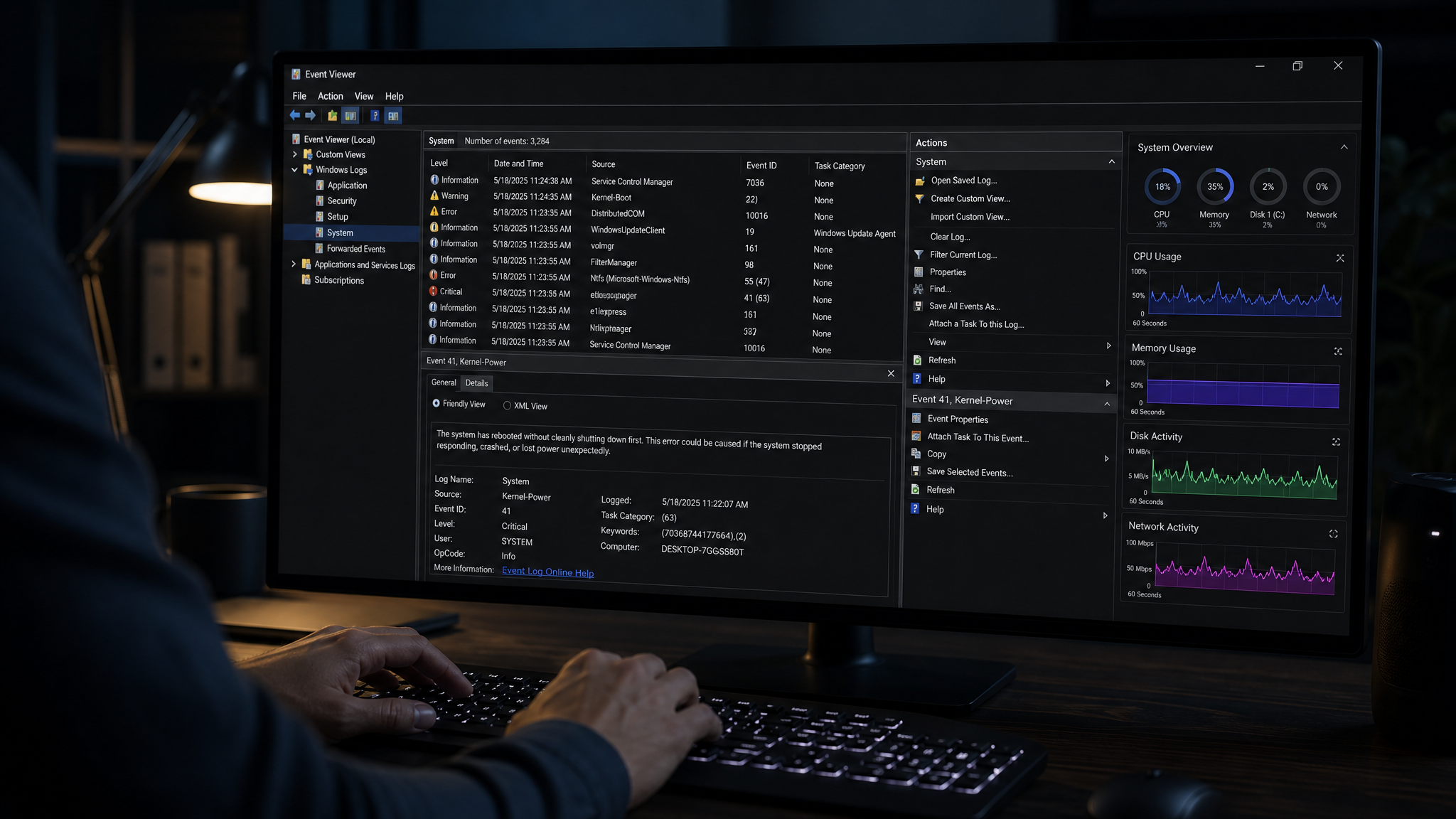
Every Windows Update failure produces an error code. Common ones include:
0x80070005 — Access denied (permissions issue)
0x80073712 — A file needed by Windows Update is damaged or missing
0x800705B4 — Timeout error, often caused by network problems
0x8024402F — Cannot connect to Windows Update servers
0x80070422 — Windows Update service is disabled
Open Settings → Windows Update → View update history to find the exact code. Searching Microsoft's support site with the code often reveals targeted fixes.
Step 2: Run the Windows Update Troubleshooter
Windows includes a built-in troubleshooter that resolves many common update problems automatically:
Press Win + I to open Settings
Navigate to System → Troubleshoot → Other troubleshooters
Click Run next to Windows Update
Follow the on-screen prompts and apply any recommended fixes
This tool resets update components, clears temporary files, and restarts relevant services. It resolves a surprising number of issues without any manual intervention.
Step 3: Clear the Windows Update Cache
A corrupted update cache is one of the most frequent causes of persistent failures. Clearing it forces Windows to re-download clean update files:
Open Command Prompt as Administrator (right-click Start → Terminal (Admin))
Stop the update services:
   net stop wuauserv
   net stop cryptSvc
   net stop bits
net stop msiserverRename the cache folders:
   ren C:\Windows\SoftwareDistribution SoftwareDistribution.old
ren C:\Windows\System32\catroot2 catroot2.oldRestart the services:
   net start wuauserv
   net start cryptSvc
   net start bits
net start msiserverRestart your PC and try Windows Update again
Step 4: Repair System Files With SFC and DISM
Corrupted system files are a leading cause of update failures. Two built-in tools can repair them:
System File Checker (SFC) scans and restores protected Windows files:
sfc /scannowRun this in an elevated Command Prompt and wait for it to complete. If it finds and repairs files, restart and try updating again.
DISM (Deployment Image Servicing and Management) repairs the Windows component store that SFC relies on:
DISM /Online /Cleanup-Image /RestoreHealthThis command connects to Windows Update servers to download replacement files, so ensure you have an internet connection. Run DISM first if SFC keeps failing.
Step 5: Check and Free Up Disk Space
Windows Update requires adequate free space to download and stage update packages. If your system drive is nearly full, updates will fail silently or with vague errors.
Open Settings → System → Storage to see what's consuming space
Run Disk Cleanup (cleanmgr) and select Clean up system files to remove old update remnants
Use Get-ChildItem C:\ -Recurse -ErrorAction SilentlyContinue | Sort-Object Length -Descending | Select-Object -First 20 in PowerShell to identify large files
Aim for at least 15 GB free on your C: drive before attempting major updates
Step 6: Reset Windows Update Components Manually
If the troubleshooter didn't fully resolve the issue, a manual reset of all update-related components often does the trick. Microsoft provides a script for this, or you can run the following PowerShell commands:
Stop-Service -Name wuauserv, cryptSvc, bits, msiserver -Force
Remove-Item -Path "$env:SystemRoot\SoftwareDistribution" -Recurse -Force
Remove-Item -Path "$env:SystemRoot\System32\catroot2" -Recurse -Force
Start-Service -Name wuauserv, cryptSvc, bits, msiserver
After running these commands, open Windows Update and check for updates again.
Step 7: Ensure Windows Update Services Are Running
Sometimes update services get disabled by third-party software or group policy settings. Verify they're running:
Press Win + R, type services.msc, and press Enter
Locate Windows Update in the list
Right-click and select Properties
Set Startup type to Automatic (Delayed Start)
Click Start if the service isn't running, then OK
Also check Background Intelligent Transfer Service (BITS) and Cryptographic Services — both must be running for updates to work.
Step 8: Use the Media Creation Tool as a Last Resort
If a specific feature update keeps failing through Windows Update, download it directly using the Media Creation Tool from Microsoft's website. This bypasses the standard update mechanism entirely and installs the update as an in-place upgrade, preserving your files and settings.
This approach is particularly effective for major version upgrades (e.g., moving from Windows 10 to Windows 11) that fail through the normal update channel.
Preventing Future Update Failures
Once your updates are working, a few habits will keep them that way:
Keep at least 20 GB free on your system drive at all times
Pause updates only temporarily — never indefinitely
Run DiagnoseMyPc regularly to catch disk errors, driver conflicts, and system file issues before they cause update failures
Restart your PC weekly to allow pending updates to install properly
Avoid disabling Windows Update services through registry tweaks or third-party tools
When to Seek Additional Help
If you've tried all the steps above and updates still fail, the issue may be deeper — a failing hard drive, a corrupted Windows installation, or a hardware compatibility problem. Signs that something more serious is wrong include:
Multiple different error codes appearing
SFC and DISM both reporting errors they cannot fix
The system becoming unstable after update attempts
In these cases, running a full system diagnostic is essential before attempting further repairs.
Having this problem on your own PC?
Describe what's happening and get a real AI diagnosis in seconds — no account needed.
Take Control of Your PC's Health
Windows Update errors are annoying, but they're almost always fixable with the right approach. By working through these steps systematically — clearing the cache, repairing system files, freeing disk space, and verifying services — you can resolve the vast majority of update failures without reinstalling Windows.
For a faster diagnosis, try DiagnoseMyPc — our free tool scans your system for the underlying issues that cause update failures, driver conflicts, and performance problems, giving you a clear action plan in minutes. Don't let update errors leave your PC exposed; run a free diagnostic today and get your system back on track.
Found this helpful?
Share it with someone who could use it.
DiagnoseMyPC Team
Expert PC diagnostics and troubleshooting guides to help you keep your Windows system running smoothly.
Get the free Windows Troubleshooting Checklist
Subscribe and instantly download our 50-point Windows troubleshooting checklist — plus practical fixes, performance tips, and security alerts from the DiagnoseMyPC team.
No spam. Unsubscribe anytime.
Frequently Asked Questions
How do I find out exactly what's causing my PC problem?
The fastest way is to let an AI analyzer read your actual system data instead of guessing. You can paste an error message, upload a screenshot, or run a quick diagnostic and get the specific cause ranked by severity. Try a free AI diagnosis at diagnosemypc.com — no account needed to get started.
Is it safe to run fix commands on my own PC?
Yes, as long as you understand what each command does. DiagnoseMyPc always shows you the exact fix script first so you stay in full control of what runs on your computer — nothing is executed automatically without your review.
Do I need to reinstall Windows to fix this?
Usually not. Most performance, crash, driver, and startup problems can be fixed with targeted steps once you know the real cause. A full reinstall should be a last resort — start with a proper diagnosis before wiping anything.
When should I take my PC to a repair shop instead?
If a diagnosis points to failing hardware (a dying drive, bad RAM, or overheating components) and you're not comfortable opening the case, a shop is worth it. For software, driver, and configuration issues, you can almost always fix it yourself with step-by-step guidance.