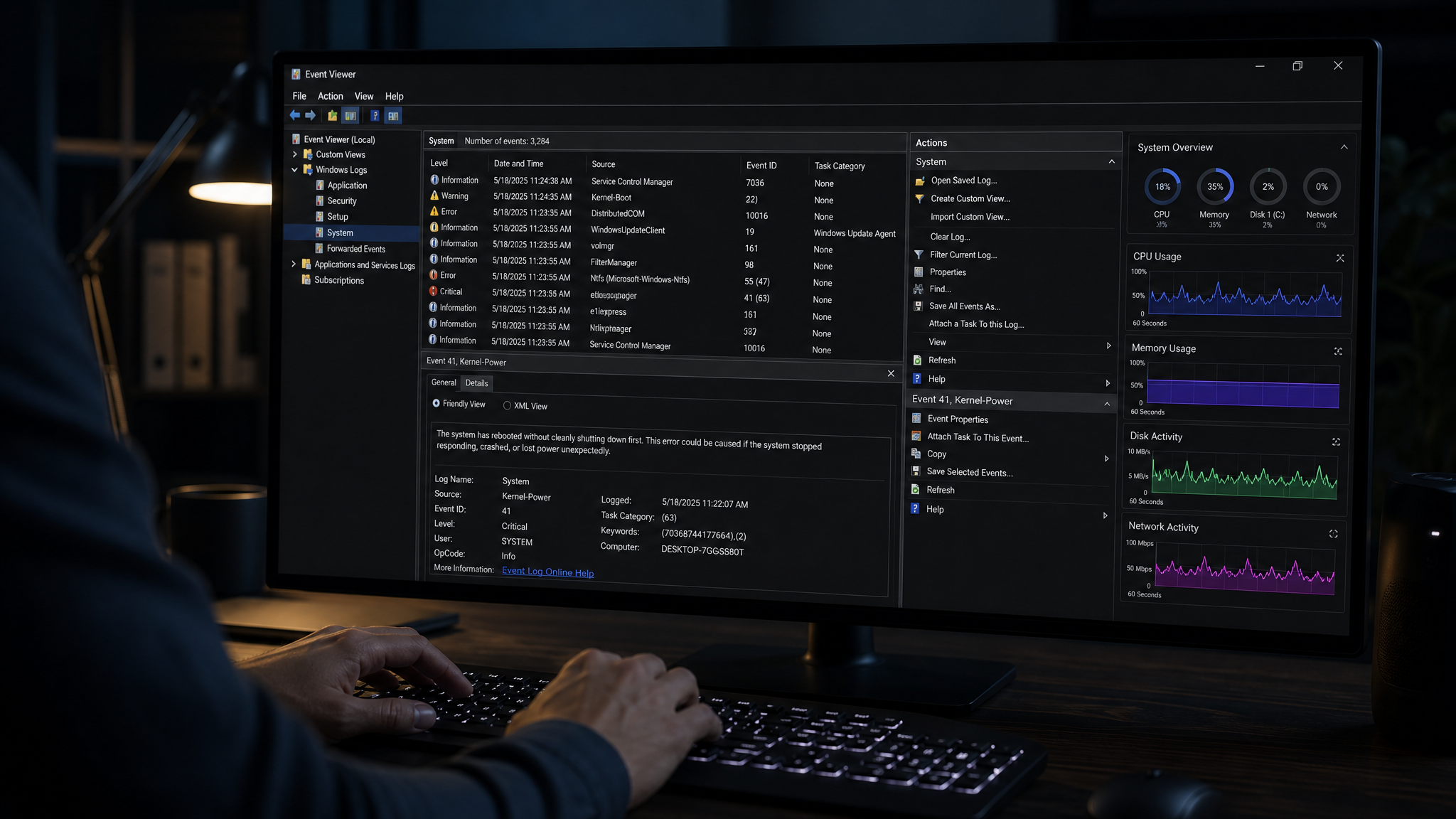
If you've ever opened Windows Event Viewer, you've probably been overwhelmed by hundreds of warnings and errors. The good news? Most of them are harmless. The trick is knowing which ones actually indicate a problem.
Understanding Event Severity Levels
Information (blue) — Normal system activity. Always safe to ignore.
Warning (yellow) — Something unusual happened but the system recovered. Worth monitoring if they repeat.
Error (red) — Something failed. May or may not indicate a real problem depending on the source.
Critical (red with X) — A serious failure occurred. These always deserve attention.
Common Errors You Can Safely Ignore
DistributedCOM (Event ID 10016)
This is the most common Event Viewer error and is completely harmless. It's a permissions issue with COM objects that Microsoft has never bothered to fix.
Kernel-PnP (Event ID 411)
Usually appears when a USB device is disconnected. Normal behavior.
ESENT (Event IDs 455, 489, 490)
Database-related errors from Windows Search or other services. Usually self-resolving.
Errors That Need Attention
Disk (Event IDs 7, 11, 15, 51, 153)
These indicate actual disk read/write failures. If you see these repeatedly, your hard drive or SSD may be failing. Back up your data immediately.
Kernel-Power (Event ID 41)
This means your PC shut down unexpectedly — either a crash, power loss, or forced shutdown. Occasional occurrences after power outages are normal, but frequent ones suggest a hardware problem.
WHEA-Logger (Event ID 18, 19, 47)
Windows Hardware Error Architecture errors indicate actual hardware failures — typically CPU, RAM, or PCIe bus issues.
Ntfs (Event IDs 55, 137, 138)
File system corruption detected. Run chkdsk /f immediately.
How Our Tool Helps
Our AI diagnostic analyzer reads through your entire Event Viewer history and separates the noise from genuine problems. It cross-references errors across multiple logs to identify patterns that point to specific hardware or software issues — something that would take an experienced technician hours to do manually.
Instead of scrolling through hundreds of cryptic entries, you get a clear report telling you exactly what needs fixing and how to fix it.
Found this helpful?
Share it with someone who could use it.
DiagnoseMyPC Team
Expert PC diagnostics and troubleshooting guides to help you keep your Windows system running smoothly.
Frequently Asked Questions
I'm not technical — can I still use a PC diagnostic tool?
Absolutely. PC Diagnostic Analyzer is built for non-experts: you paste an error or run a quick scan, and it explains what's wrong in plain language with clear next steps. No jargon or technical background required.
Do I need to install anything to get a diagnosis?
No. You can paste an error message, upload a screenshot, or paste command output and get an instant AI diagnosis right in your browser. There's an optional lightweight collector for a deeper analysis, but it's not required to start.
How is this different from just asking a regular AI chatbot?
It's purpose-built for Windows troubleshooting. Instead of generic advice, you get issues ranked by severity, findings tied to your actual system data, and ready-to-run fix scripts — not guesswork.
Is it really free to try?
Yes. You can run a free AI diagnosis with no account, and a free account gives you 5 full scans every month. One-click fix scripts and detailed guides are available with an affordable one-time $4.99 Fix Pass or a Pro plan.