What Is a GPU? How Graphics Cards Affect PC Performance
When most people think about PC performance, they focus on the CPU or RAM. But the Graphics Processing Unit (GPU) — commonly called a graphics card or video card — plays a critical role that extends well beyond gaming. Whether you're editing videos, running machine learning workloads, or simply watching 4K content, your GPU is working hard behind the scenes.
In this guide, we'll break down exactly what a GPU does, how it differs from a CPU, and how you can tell if your graphics card is limiting your PC's potential.
Having this problem on your own PC?
Describe what's happening and get a real AI diagnosis in seconds — no account needed.
What Does a GPU Actually Do?
A GPU is a specialized processor designed to handle parallel computations at massive scale. While a CPU might have 8 to 32 cores optimized for sequential tasks, a modern GPU can have thousands of smaller cores built to process many operations simultaneously.
This architecture makes GPUs ideal for:
Rendering graphics — calculating millions of pixels per frame in games and 3D applications
Video encoding and decoding — hardware-accelerated playback and export in apps like DaVinci Resolve or Premiere Pro
AI and machine learning — training neural networks and running inference workloads
Scientific computing — simulations, data analysis, and cryptocurrency mining
Display output — driving your monitor(s) at the correct resolution and refresh rate
Even if you never play a single game, your GPU is active every time you move a window, scroll a webpage, or watch a YouTube video.
Integrated vs. Dedicated GPUs
There are two main types of GPUs found in Windows PCs:
Integrated Graphics
Integrated GPUs are built directly into the CPU die and share system RAM. Examples include Intel UHD Graphics and AMD Radeon Graphics (found in Ryzen APUs). They're energy-efficient and sufficient for everyday tasks like web browsing, document editing, and light media consumption.
However, integrated graphics have significant limitations:
No dedicated VRAM — they borrow from system RAM, reducing available memory
Limited performance for gaming, video editing, or 3D rendering
Can bottleneck systems running GPU-accelerated software
Dedicated (Discrete) GPUs
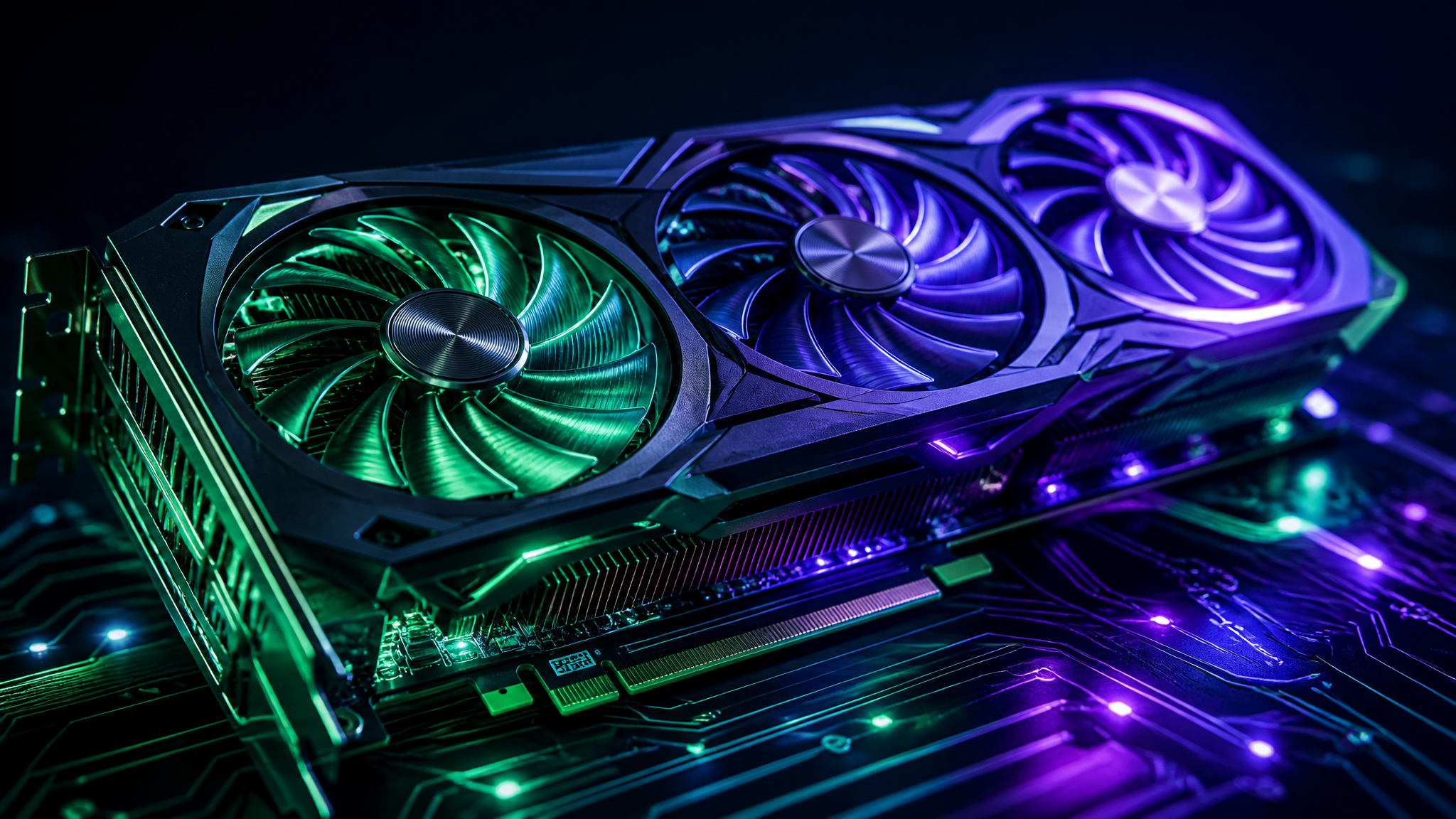
Dedicated GPUs are separate cards with their own VRAM (Video RAM), cooling system, and power supply connectors. Major manufacturers include NVIDIA (GeForce RTX/GTX series) and AMD (Radeon RX series).
Benefits of a dedicated GPU:
Significantly higher performance for graphics-intensive tasks
Dedicated VRAM (typically 4GB to 24GB on consumer cards)
Hardware-accelerated encoding/decoding (NVIDIA NVENC, AMD VCE)
Support for multiple high-resolution monitors
Key GPU Specifications Explained
When evaluating a GPU, these are the specs that matter most:
VRAM (Video RAM)
VRAM is dedicated memory on the GPU used to store textures, frame buffers, and other graphical data. More VRAM allows higher resolutions and more complex scenes without stuttering. For 1080p gaming, 4-8GB is typical; for 4K or content creation, 12GB or more is recommended.
Core Clock Speed
Measured in MHz or GHz, the GPU clock speed determines how fast the cores process data. Higher clocks generally mean better performance, though architecture matters more than raw clock speed alone.
Memory Bandwidth
This measures how quickly data moves between the GPU cores and VRAM, expressed in GB/s. Higher bandwidth reduces bottlenecks when handling large textures or high-resolution outputs.
TDP (Thermal Design Power)
The TDP indicates how much power the GPU consumes under load, measured in watts. This affects your power supply requirements and how much heat the card generates — both important for system stability.
How to Check Your GPU in Windows
You can quickly identify your GPU and monitor its performance using built-in Windows tools:
Check GPU model:
dxdiagRun this command in the Start menu search or Win + R dialog. Navigate to the Display tab to see your GPU name, manufacturer, and VRAM.
Monitor GPU usage in Task Manager:
Ctrl + Shift + EscGo to the Performance tab and select GPU from the left panel. You'll see real-time utilization, VRAM usage, temperature (on supported hardware), and clock speeds.
Check GPU driver version via PowerShell:
Get-WmiObject Win32_VideoController | Select-Object Name, DriverVersion, AdapterRAMThis returns your GPU name, current driver version, and total adapter RAM — useful for diagnosing driver-related issues.
Signs Your GPU May Be Bottlenecking Your PC
Not sure if your GPU is the weak link? Watch for these warning signs:
Low FPS in games even at reduced graphics settings
Stuttering or frame drops during video playback or screen recording
Long export times in video editing software
GPU usage consistently at 99% while CPU usage remains low
Display artifacts — flickering, screen tearing, or visual glitches
Driver crashes with error messages like Display driver stopped responding and has recovered
If you're experiencing any of these symptoms, it's worth running a full system diagnostic to isolate whether the GPU, drivers, or another component is responsible.
GPU Drivers: Why They Matter
Your GPU's driver is the software layer that lets Windows communicate with the hardware. Outdated or corrupted drivers are one of the most common causes of GPU-related problems.
Best practices for GPU driver management:
Update regularly — NVIDIA and AMD release drivers frequently with performance improvements and bug fixes
Use DDU (Display Driver Uninstaller) for clean driver reinstalls when troubleshooting
Avoid beta drivers on production machines unless you need a specific fix
Check Windows Update — some driver updates are delivered through Windows Update automatically
To update NVIDIA drivers, use GeForce Experience or download directly from nvidia.com/drivers. For AMD, use AMD Software: Adrenalin Edition or visit amd.com/support.
How DiagnoseMyPc Can Help
Understanding your GPU specs is one thing — knowing whether it's actually performing as expected is another. DiagnoseMyPc provides a comprehensive hardware scan that includes your GPU model, VRAM, driver version, and real-time utilization metrics. Instead of manually running multiple commands and cross-referencing specs, you get a clear, consolidated report in seconds.
If your GPU is running hot, underperforming, or showing signs of driver instability, DiagnoseMyPc flags these issues with actionable recommendations — whether that's updating a driver, adjusting power settings, or identifying a hardware fault before it causes permanent damage.
Conclusion
Your GPU is one of the most important components in your PC, influencing everything from gaming and video editing to everyday desktop responsiveness. Understanding the difference between integrated and dedicated graphics, knowing which specs matter, and keeping your drivers up to date are all essential steps toward a well-performing system.
Ready to see exactly how your GPU is performing right now? Try DiagnoseMyPc for free — get a full hardware report, spot performance bottlenecks, and take action with clear, expert-backed recommendations. Your PC will thank you.
Found this helpful?
Share it with someone who could use it.
DiagnoseMyPC Team
Expert PC diagnostics and troubleshooting guides to help you keep your Windows system running smoothly.
Get the free Windows Troubleshooting Checklist
Subscribe and instantly download our 50-point Windows troubleshooting checklist — plus practical fixes, performance tips, and security alerts from the DiagnoseMyPC team.
No spam. Unsubscribe anytime.
Frequently Asked Questions
I'm not technical — can I still use a PC diagnostic tool?
Absolutely. DiagnoseMyPc is built for non-experts: you paste an error or run a quick scan, and it explains what's wrong in plain language with clear next steps. No jargon or technical background required.
Do I need to install anything to get a diagnosis?
No. You can paste an error message, upload a screenshot, or paste command output and get an instant AI diagnosis right in your browser. There's an optional lightweight collector for a deeper analysis, but it's not required to start.
How is this different from just asking a regular AI chatbot?
It's purpose-built for Windows troubleshooting. Instead of generic advice, you get issues ranked by severity, findings tied to your actual system data, and ready-to-run fix scripts — not guesswork.
Is it really free to try?
Yes. You can run a free AI diagnosis with no account, and a free account gives you 5 full scans every month. One-click fix scripts and detailed guides are available with an affordable one-time $4.99 Fix Pass or a Pro plan.