Why Does Windows Keep Freezing or Crashing?
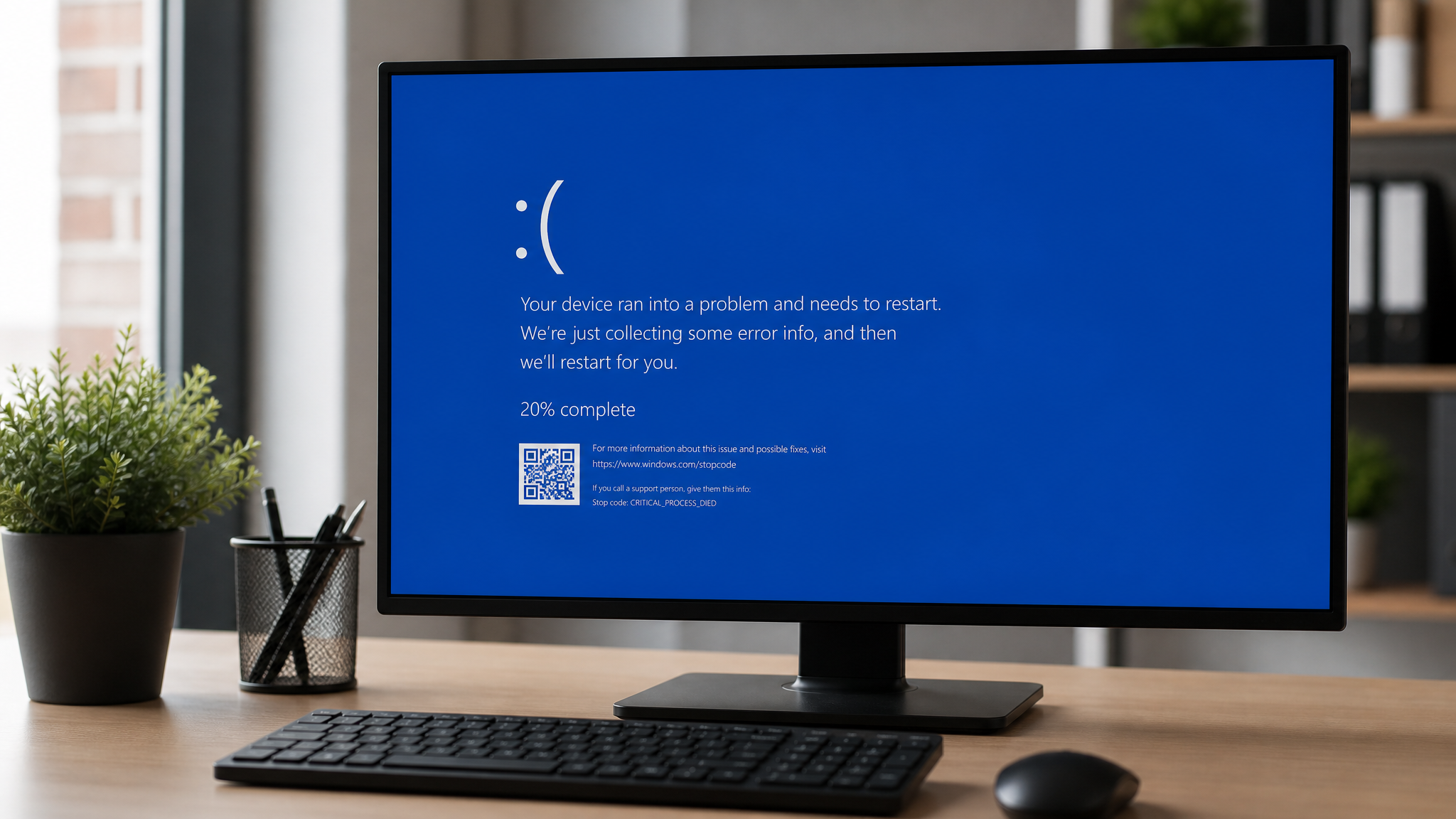
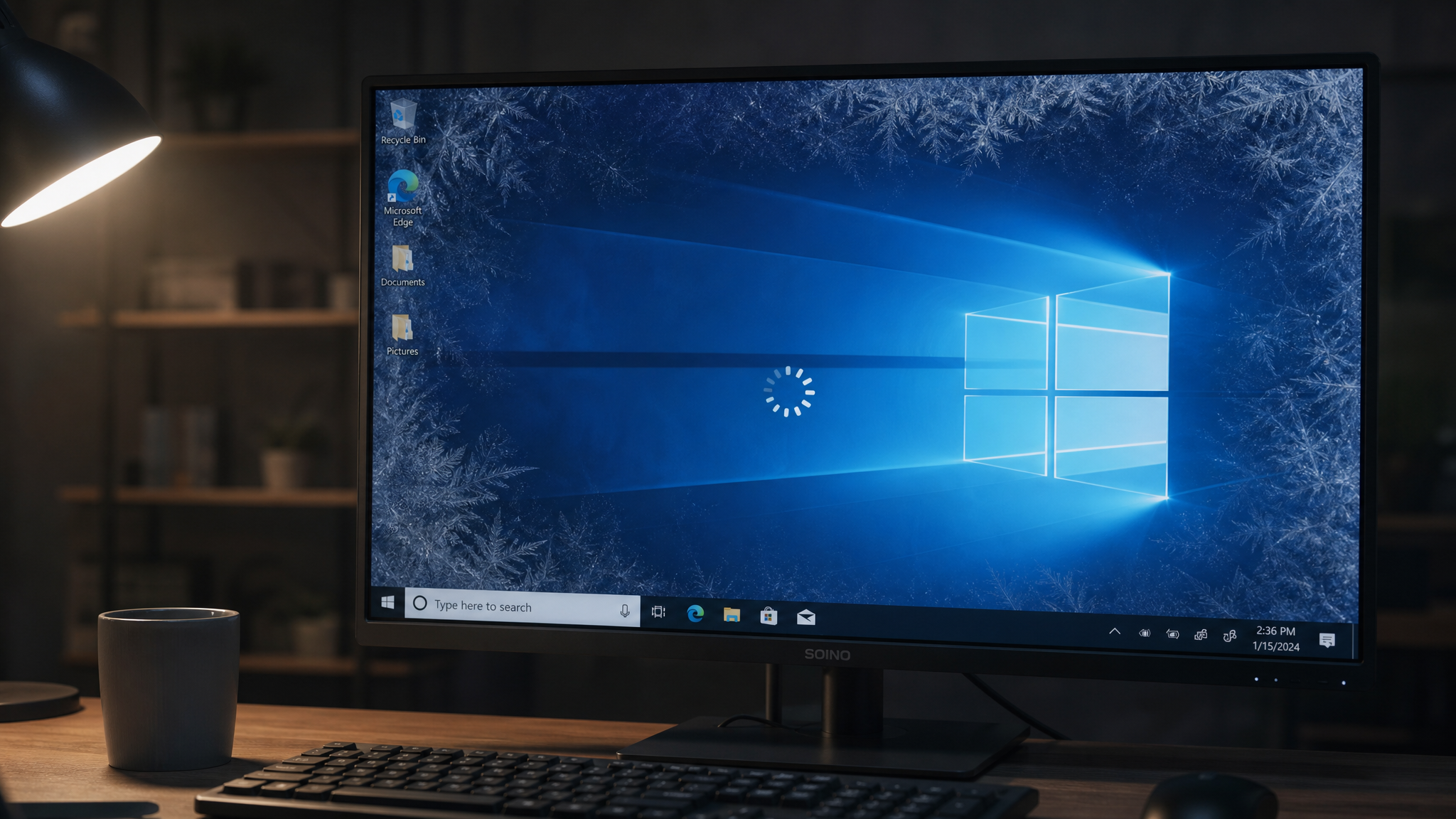
Few things are more frustrating than a PC that freezes mid-task or crashes with a dreaded Blue Screen of Death (BSOD). These symptoms rarely appear out of nowhere — they are almost always the result of an underlying hardware or software problem that can be identified and fixed. This guide walks you through a systematic troubleshooting process so you can stop the crashes for good.
Common Causes of Windows Freezes and Crashes
Before diving into fixes, it helps to understand what typically causes instability:
Overheating CPU or GPU — thermal throttling and emergency shutdowns
Faulty or incompatible RAM — memory errors corrupt data in transit
Corrupt system files — damaged Windows components cause unpredictable behavior
Outdated or broken drivers — especially graphics and chipset drivers
Failing hard drive or SSD — bad sectors and read errors stall the OS
Malware infections — rogue processes consume resources and destabilize the system
Insufficient virtual memory — the system runs out of addressable memory space
---
Step 1: Check Event Viewer for Crash Clues
Windows logs every critical error in **Event Viewer**, making it your first stop for diagnosis.
Press `Win + R`, type `eventvwr.msc`, and press Enter.
Navigate to **Windows Logs → System**.
Filter for **Critical** and **Error** events around the time of each crash.
Note the **Event ID** — for example, Event ID `41` (Kernel-Power) indicates an unexpected shutdown, while `1001` points to a BSOD dump.
You can also run the following PowerShell command to export the last 20 critical events to a text file for easier review:
```powershell
Get-WinEvent -LogName System | Where-Object {$_.LevelDisplayName -eq 'Critical'} | Select-Object -First 20 | Format-List > C:\crash_log.txt
```
---
Step 2: Run Windows Memory Diagnostic
Defective RAM is one of the most common — and most overlooked — causes of random freezes. Windows includes a built-in tool to test your memory modules.
Press `Win + R`, type `mdsched.exe`, and press Enter.
Choose **Restart now and check for problems**.
The tool runs two passes by default; select **Extended** mode for a thorough test.
After the reboot, results appear in Event Viewer under **Windows Logs → System** (search for `MemoryDiagnostics-Results`).
If errors are found, try reseating your RAM sticks. If errors persist, replace the faulty module.
---
Step 3: Repair Corrupt System Files
Corrupt Windows system files are a silent killer. Two built-in utilities can detect and repair them:
System File Checker (SFC)
Open an elevated Command Prompt (Win + X → Windows Terminal (Admin)) and run:
```cmd
sfc /scannow
```
This scans all protected system files and replaces corrupted versions from a cached copy. The scan takes 10–15 minutes.
DISM (Deployment Image Servicing and Management)
If SFC reports errors it cannot fix, follow up with DISM to repair the Windows image itself:
```cmd
DISM /Online /Cleanup-Image /RestoreHealth
```
After DISM completes, run sfc /scannow again to confirm all files are repaired.
---
Step 4: Update or Roll Back Drivers
A bad driver update — especially for your **graphics card** or **network adapter** — can trigger BSODs immediately after installation.
To update: Open **Device Manager** (`devmgmt.msc`), right-click the suspect device, and choose **Update driver**.
To roll back: Right-click the device → **Properties → Driver tab → Roll Back Driver**.
For NVIDIA and AMD GPUs, always download drivers directly from the manufacturer's website rather than relying on Windows Update, as manufacturer packages include additional stability fixes.
---
Step 5: Monitor Temperatures in Real Time
Overheating is a leading cause of sudden shutdowns. Use a free tool like **HWMonitor** or **Core Temp** to watch your CPU and GPU temperatures under load.
**Safe temperature ranges:**
CPU idle: 30–50 °C
CPU under load: 60–85 °C (above 90 °C is dangerous)
GPU under load: 65–85 °C
If temperatures are too high:
Clean dust from heatsinks and fans with compressed air
Reapply **thermal paste** to the CPU if the system is more than 3–4 years old
Ensure your case has adequate airflow (intake fans at front/bottom, exhaust at rear/top)
---
Step 6: Check Your Drive Health
A failing hard drive or SSD can cause the OS to stall while waiting for data that never arrives. Check drive health using the built-in wmic command:
```cmd
wmic diskdrive get status
```
A result of OK is good; anything else warrants further investigation. For a deeper S.M.A.R.T. analysis, use **CrystalDiskInfo** (free) to check for **Reallocated Sectors**, **Pending Sectors**, or **Uncorrectable Errors** — any non-zero value in these attributes is a red flag.
---
Step 7: Scan for Malware
Malware can consume CPU and RAM, corrupt files, and cause system instability that mimics hardware failure. Run a full scan with **Windows Defender**:
```powershell
Start-MpScan -ScanType FullScan
```
For a second opinion, boot into **Windows Safe Mode** (msconfig → Boot → Safe boot) and run a scan with **Malwarebytes Free** to catch threats that hide from normal-mode scans.
---
Let PC Diagnostic Analyzer Do the Heavy Lifting
Manually working through each of these steps is time-consuming, especially when you are not sure which problem is causing the crash. **PC Diagnostic Analyzer** automates the entire diagnostic process — it scans your hardware health, driver versions, system file integrity, and temperature logs in minutes and presents a clear, prioritized list of issues to fix.
Instead of spending hours in Event Viewer and Command Prompt, you get an instant snapshot of everything wrong with your system. **PC Diagnostic Analyzer** even tracks changes over time, so you can confirm that your fixes actually worked.
---
Quick Reference: Troubleshooting Checklist
[ ] Review **Event Viewer** for Critical/Error events at crash time
[ ] Run `mdsched.exe` to test RAM
[ ] Run `sfc /scannow` and `DISM /Online /Cleanup-Image /RestoreHealth`
[ ] Update or roll back suspect **drivers**
[ ] Monitor **CPU/GPU temperatures** under load
[ ] Check drive health with `wmic diskdrive get status` or CrystalDiskInfo
[ ] Perform a full **malware scan** in Safe Mode
---
Take Action Today
Windows freezes and crashes are not something you have to live with. By following the steps above — or letting **PC Diagnostic Analyzer** guide you through them automatically — you can identify the root cause and restore your system to rock-solid stability. Try the free diagnostic tool today and get a complete health report for your PC in under five minutes.
Found this helpful?
Share it with someone who could use it.
DiagnoseMyPC Team
Expert PC diagnostics and troubleshooting guides to help you keep your Windows system running smoothly.
Frequently Asked Questions
How do I find out exactly what's causing my PC problem?
The fastest way is to let an AI analyzer read your actual system data instead of guessing. You can paste an error message, upload a screenshot, or run a quick diagnostic and get the specific cause ranked by severity. Try a free AI diagnosis at diagnosemypc.com — no account needed to get started.
Is it safe to run fix commands on my own PC?
Yes, as long as you understand what each command does. PC Diagnostic Analyzer always shows you the exact fix script first so you stay in full control of what runs on your computer — nothing is executed automatically without your review.
Do I need to reinstall Windows to fix this?
Usually not. Most performance, crash, driver, and startup problems can be fixed with targeted steps once you know the real cause. A full reinstall should be a last resort — start with a proper diagnosis before wiping anything.
When should I take my PC to a repair shop instead?
If a diagnosis points to failing hardware (a dying drive, bad RAM, or overheating components) and you're not comfortable opening the case, a shop is worth it. For software, driver, and configuration issues, you can almost always fix it yourself with step-by-step guidance.