What Is the Windows Registry?
Every time you install software, change a setting, or plug in a new device, Windows quietly records that information in a massive internal database called the Windows Registry. It is the backbone of your operating system — a hierarchical store of configuration data that Windows and third-party applications read thousands of times per second.
Understanding the Registry helps you diagnose problems, clean up leftover junk from uninstalled programs, and make sense of the error messages that appear in tools like Event Viewer. This guide explains what the Registry is, how it is structured, and how to explore it without putting your PC at risk.
Having this problem on your own PC?
Describe what's happening and get a real AI diagnosis in seconds — no account needed.
Why the Registry Exists
Before Windows 95, applications stored their settings in plain .ini text files scattered across the hard drive. That approach was slow, hard to search, and easy to corrupt. Microsoft replaced it with the Registry — a single, structured, binary database that Windows can query almost instantly.
Today the Registry stores:
Hardware configuration — device drivers, IRQ assignments, plug-and-play data
Software settings — application preferences, license keys, file associations
User preferences — desktop wallpaper, accessibility options, recent documents
Security policies — account restrictions, UAC behavior, group policy overrides
Startup entries — programs that launch automatically when Windows boots
How the Registry Is Structured
The Registry is organized like a folder tree. At the top level are five root keys, each identified by a long name that always starts with HKEY_.
The Five Root Keys
`HKEY_LOCAL_MACHINE` (HKLM) — settings that apply to every user on the PC, including hardware and installed software
`HKEY_CURRENT_USER` (HKCU) — settings for the currently logged-in user only
`HKEY_USERS` (HKU) — settings for all user profiles loaded on the system
`HKEY_CLASSES_ROOT` (HKCR) — file type associations and COM object registrations (a merged view of HKLM and HKCU)
`HKEY_CURRENT_CONFIG` (HKCC) — hardware profile information for the current session
Below each root key are subkeys (like subfolders) and values (like files). Each value has a name, a data type, and data. Common data types include:
REG_SZ — a plain text string (e.g., a file path)
REG_DWORD — a 32-bit integer (e.g., 1 to enable a feature, 0 to disable it)
REG_BINARY — raw binary data
REG_MULTI_SZ — a list of strings
Opening the Registry Editor
Windows includes a built-in tool called Registry Editor (regedit.exe) for browsing and editing the Registry.
Press Win + R, type regedit, and press Enter.
Click Yes when User Account Control asks for permission.
The left pane shows the key tree; the right pane shows values inside the selected key.
You can jump directly to any key by pasting its full path into the address bar at the top — for example:
HKEY_LOCAL_MACHINE\SOFTWARE\Microsoft\Windows\CurrentVersion\RunThat particular key lists programs that launch for all users at startup. The equivalent for the current user only is:
HKEY_CURRENT_USER\SOFTWARE\Microsoft\Windows\CurrentVersion\RunCommon Registry Locations Worth Knowing
| Purpose | Registry Path |
|---|---|
| All-users startup programs | HKLM\SOFTWARE\Microsoft\Windows\CurrentVersion\Run |
| Current-user startup programs | HKCU\SOFTWARE\Microsoft\Windows\CurrentVersion\Run |
| Installed programs list | HKLM\SOFTWARE\Microsoft\Windows\CurrentVersion\Uninstall |
| File type associations | HKCR (root level, e.g., .txt, .pdf) |
| Environment variables | HKLM\SYSTEM\CurrentControlSet\Control\Session Manager\Environment |
Registry Safety Rules
The Registry is powerful — and unforgiving. A wrong edit can prevent Windows from booting or cause applications to crash. Follow these rules every time:
Back up before you edit. In Registry Editor, go to File → Export, choose All, and save the .reg file somewhere safe. You can restore it later with File → Import.
Never delete a key unless you are certain what it does. Deleting the wrong key can break a driver or an application permanently.
Do not use "registry cleaner" software. Studies and Microsoft's own guidance consistently show that registry cleaners provide no measurable performance benefit and frequently delete keys that applications still need.
Run Registry Editor as Administrator when editing HKEY_LOCAL_MACHINE keys — standard user accounts cannot write to most HKLM paths.
Search before you edit. Use Edit → Find (Ctrl + F) to locate all instances of a value name before changing any of them.
How Registry Problems Show Up
Registry corruption or misconfiguration can cause a wide range of symptoms:
Slow startup — too many entries in the Run keys launch programs you no longer need
Missing file associations — double-clicking a .pdf opens the wrong app or nothing at all
Application crashes on launch — a corrupted settings key causes the app to fail before its window appears
Driver errors — a bad value in HKLM\SYSTEM\CurrentControlSet\Services can prevent a device from loading
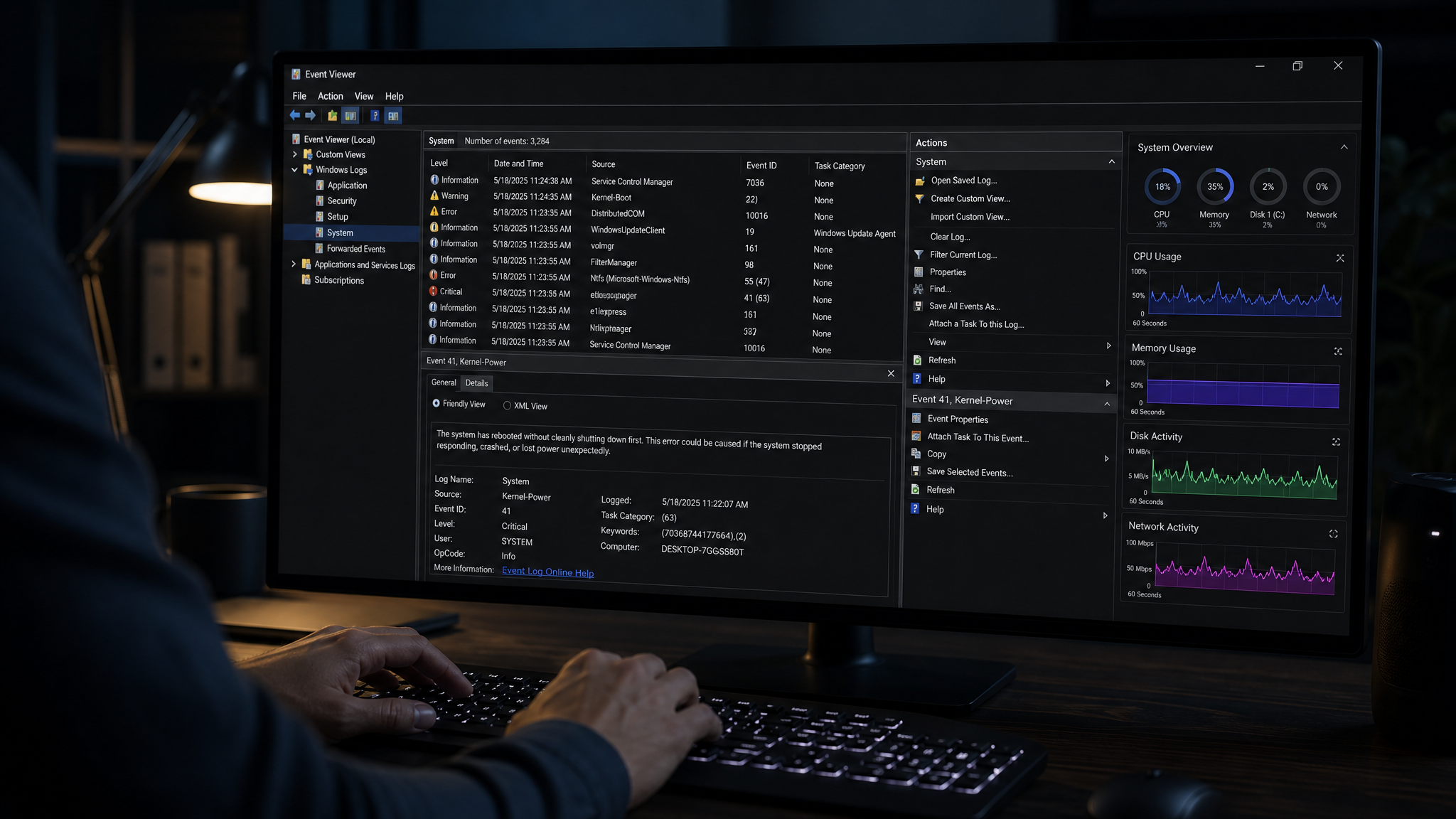
Event ID errors in Event Viewer — many registry-related failures generate entries in the System or Application log
When you see cryptic error codes or Event IDs, the Registry is often involved — either a missing key, a wrong value, or a leftover entry from a program that was not cleanly uninstalled.
Let DiagnoseMyPc Do the Heavy Lifting
Manually hunting through thousands of Registry keys is time-consuming and risky. DiagnoseMyPc is designed to surface the issues that matter without requiring you to become a Registry expert.
You can describe your problem in plain English, paste the output of a command like Get-EventLog or sfc /scannow, or upload a screenshot of an error message — and DiagnoseMyPc will analyze it and explain what is likely wrong. If you want a deeper look, the optional Windows scan tool collects system data (including relevant Registry state) and produces a structured report that pinpoints driver conflicts, startup bloat, and configuration errors.
The free plan includes 5 analyses per month — more than enough to diagnose most Registry-related issues without touching a single key yourself.
Key Takeaways
The Windows Registry is a hierarchical database that stores hardware, software, and user configuration for your entire PC.
It is organized into five root keys (HKLM, HKCU, HKU, HKCR, HKCC), each containing subkeys and typed values.
Registry Editor (regedit) lets you browse and edit the Registry, but always export a backup first.
Avoid registry cleaner utilities — they are ineffective and can cause harm.
Many common Windows errors (slow startup, driver failures, app crashes) trace back to Registry misconfiguration.
If your PC is behaving strangely and you suspect a Registry issue, start with DiagnoseMyPc — describe the symptom, share a screenshot, or run the scan tool, and get a clear explanation of what needs fixing before you open Registry Editor at all.
Found this helpful?
Share it with someone who could use it.
DiagnoseMyPC Team
Expert PC diagnostics and troubleshooting guides to help you keep your Windows system running smoothly.
Get the free Windows Troubleshooting Checklist
Subscribe and instantly download our 50-point Windows troubleshooting checklist — plus practical fixes, performance tips, and security alerts from the DiagnoseMyPC team.
No spam. Unsubscribe anytime.
Frequently Asked Questions
I'm not technical — can I still use a PC diagnostic tool?
Absolutely. DiagnoseMyPc is built for non-experts: you paste an error or run a quick scan, and it explains what's wrong in plain language with clear next steps. No jargon or technical background required.
Do I need to install anything to get a diagnosis?
No. You can paste an error message, upload a screenshot, or paste command output and get an instant AI diagnosis right in your browser. There's an optional lightweight collector for a deeper analysis, but it's not required to start.
How is this different from just asking a regular AI chatbot?
It's purpose-built for Windows troubleshooting. Instead of generic advice, you get issues ranked by severity, findings tied to your actual system data, and ready-to-run fix scripts — not guesswork.
Is it really free to try?
Yes. You can run a free AI diagnosis with no account, and a free account gives you 5 full scans every month. One-click fix scripts and detailed guides are available with an affordable one-time $4.99 Fix Pass or a Pro plan.