What Are Windows Services?
Every time you start your PC, Windows quietly launches dozens of background programs before you even see the desktop. These are called Windows Services — long-running processes that handle core system tasks like networking, printing, security scanning, and hardware communication.
Unlike regular apps you open and close, services run in the background without a visible window. They start automatically (or on demand), run under special system accounts, and keep running even when no user is logged in. Understanding them helps you troubleshoot slowdowns, fix broken features, and keep your PC running efficiently.
Having this problem on your own PC?
Describe what's happening and get a real AI diagnosis in seconds — no account needed.
How to Open the Services Manager
Windows includes a built-in tool called Services (services.msc) that lets you view and control every service on your system.
To open it:
Press Win + R, type services.msc, and press Enter
Or search for Services in the Start menu
You'll see a list of every service with four key columns:
Name — the friendly display name
Description — a brief explanation of what it does
Status — Running, Stopped, or blank
Startup Type — Automatic, Manual, Disabled, or Automatic (Delayed Start)
Understanding Startup Types
The Startup Type column tells you when a service launches:
Automatic — starts as soon as Windows boots
Automatic (Delayed Start) — starts a short time after boot to reduce startup load
Manual — only starts when another program or Windows itself requests it
Disabled — will not start under any circumstances
Most services you'll want to leave on Automatic or Manual. Setting a critical service to Disabled can break Windows features or prevent your PC from booting correctly.
Key Services You Should Know
Here are some important services and what they do:
`Windows Update (wuauserv)` — downloads and installs Windows updates; keep this on Automatic
`Windows Defender Antivirus Service (WinDefend)` — real-time malware protection; never disable this
`Print Spooler (Spooler)` — manages print jobs; safe to set to Manual if you don't print
`Bluetooth Support Service (bthserv)` — enables Bluetooth devices; disable if you never use Bluetooth
`Remote Registry` — allows remote editing of your registry; disable this for security on home PCs
`Superfetch / SysMain` — preloads frequently used apps into RAM; can be disabled on SSDs if RAM usage is high
`Windows Search (WSearch)` — indexes files for fast search; disable only if you never use Windows Search
`DHCP Client` — gets your IP address from your router; always keep this running
How to Start, Stop, or Restart a Service
You can control any service directly from services.msc:
Right-click the service name
Choose Start, Stop, Pause, or Restart
You can also use PowerShell for faster control:
# Stop a service
Stop-Service -Name "Spooler"

# Start a service
Start-Service -Name "Spooler"

# Restart a service
Restart-Service -Name "Spooler"

# Check a service's status
Get-Service -Name "Spooler"
Or use the classic Command Prompt with sc commands:
sc stop Spooler
sc start Spooler
sc query Spooler
Services That Are Safe to Disable on Home PCs
Some services are designed for enterprise environments and add no value on a home PC. Disabling them can free up a small amount of RAM and reduce background activity:
`Fax` — only needed if you use a fax modem
`Remote Registry` — no reason to keep this on for home users
`Bluetooth Support Service` — disable if you have no Bluetooth devices
`Xbox Live Auth Manager / Xbox Live Game Save` — disable if you don't use Xbox Game Pass or Xbox features
`Geolocation Service` — disable if you don't use location-aware apps
Important: Always research a service before disabling it. Some services have hidden dependencies — disabling one can break another feature you rely on.
How to Check Service Dependencies
Before disabling a service, check what depends on it:
Double-click the service in services.msc
Click the Dependencies tab
Review both panels: services this one needs, and services that need this one
If other services depend on it, disabling it will stop those too.
Diagnosing Service Problems
When a Windows feature stops working, a failed service is often the cause. Here's how to investigate:
Open services.msc and look for services with a Stopped status that should be running
Try right-clicking and selecting Start — if it fails, note the error code
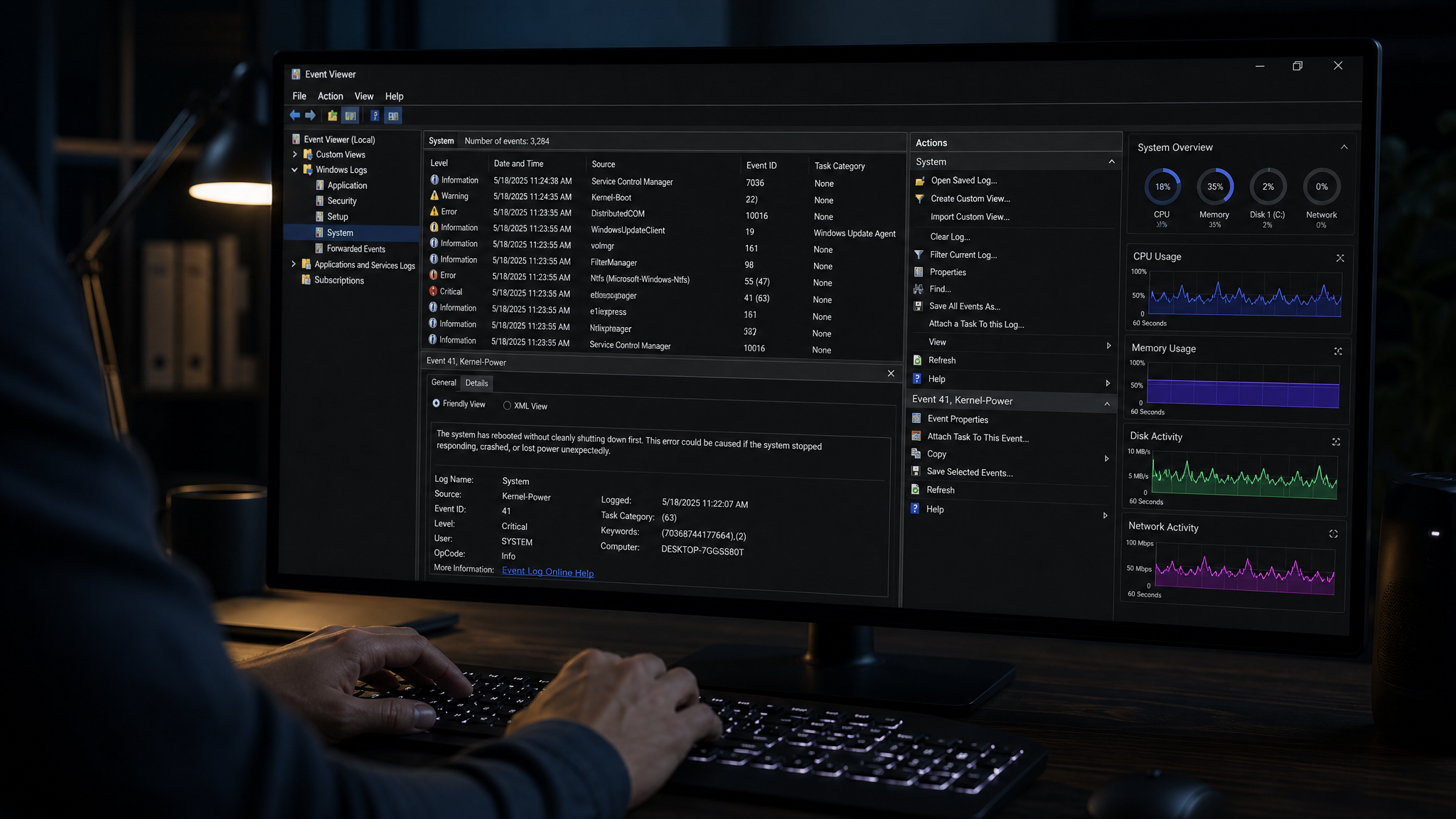
Open Event Viewer (eventvwr.msc) → Windows Logs → System and filter for errors around the time the problem started
Search for the service name and error code together to find known fixes
Common error codes include:
Error 1053 — the service did not respond in time (often a corrupted service or missing dependency)
Error 1067 — the process terminated unexpectedly (check Event Viewer for details)
Error 5 — access denied (run services.msc as Administrator)
Let DiagnoseMyPc Do the Heavy Lifting
Manually reviewing dozens of services is time-consuming, and it's easy to accidentally disable something important. DiagnoseMyPc can analyze your PC's configuration and flag service-related issues automatically — no guesswork required.
With the free plan (5 analyses per month), you can describe the problem you're experiencing, paste command output, upload a screenshot, or run the optional Windows scan tool to get a guided diagnosis. DiagnoseMyPc identifies which services are misconfigured, stopped unexpectedly, or consuming excessive resources — and explains exactly what to do about it.
If your PC feels sluggish, a feature has stopped working, or you just want to understand what's running in the background, try DiagnoseMyPc free and get clear, actionable answers in minutes.
Found this helpful?
Share it with someone who could use it.
DiagnoseMyPC Team
Expert PC diagnostics and troubleshooting guides to help you keep your Windows system running smoothly.
Get the free Windows Troubleshooting Checklist
Subscribe and instantly download our 50-point Windows troubleshooting checklist — plus practical fixes, performance tips, and security alerts from the DiagnoseMyPC team.
No spam. Unsubscribe anytime.
Frequently Asked Questions
I'm not technical — can I still use a PC diagnostic tool?
Absolutely. DiagnoseMyPc is built for non-experts: you paste an error or run a quick scan, and it explains what's wrong in plain language with clear next steps. No jargon or technical background required.
Do I need to install anything to get a diagnosis?
No. You can paste an error message, upload a screenshot, or paste command output and get an instant AI diagnosis right in your browser. There's an optional lightweight collector for a deeper analysis, but it's not required to start.
How is this different from just asking a regular AI chatbot?
It's purpose-built for Windows troubleshooting. Instead of generic advice, you get issues ranked by severity, findings tied to your actual system data, and ready-to-run fix scripts — not guesswork.
Is it really free to try?
Yes. You can run a free AI diagnosis with no account, and a free account gives you 3 full scans every month. One-click fix scripts and detailed guides are available with an affordable one-time $9.99 Fix Pass or a Pro plan.