HDD vs SSD vs NVMe: Which Storage Drive Does Your PC Need?
If your PC feels sluggish when opening apps, booting Windows, or loading files, your storage drive could be the bottleneck. Storage technology has evolved dramatically over the past decade, and the difference between an old spinning hard drive and a modern NVMe solid-state drive can feel like night and day. In this guide, we break down the three main storage types — HDD, SSD, and NVMe — so you can make an informed decision about upgrading or buying your next PC.
Having this problem on your own PC?
Describe what's happening and get a real AI diagnosis in seconds — no account needed.
What Is an HDD (Hard Disk Drive)?
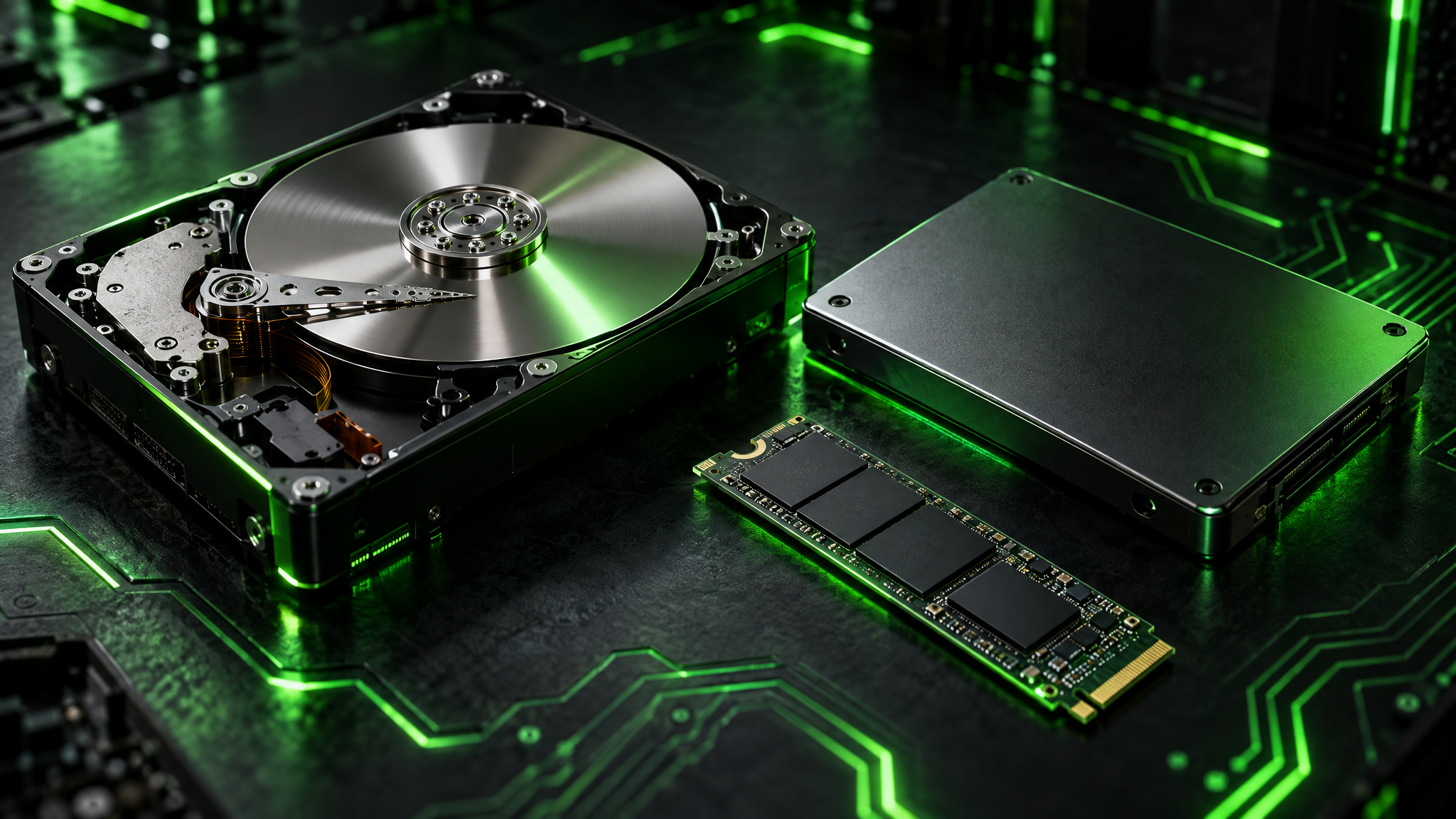
A Hard Disk Drive (HDD) is the traditional form of PC storage. It uses spinning magnetic platters and a mechanical read/write head to store and retrieve data. Think of it like a vinyl record player — the needle (read head) has to physically move to the right spot on the spinning disk to find your data.
Key Characteristics of HDDs
Speed: Typically 80–160 MB/s sequential read speeds
Capacity: Available in large sizes (1 TB to 20 TB) at low cost
Price: Cheapest per gigabyte of the three types
Durability: Vulnerable to physical shock and vibration due to moving parts
Noise: Audible clicking and spinning sounds during operation
Lifespan: 3–5 years average, though many last longer
HDDs are still useful for bulk storage — storing large video libraries, backups, or archives where speed is less critical. However, using an HDD as your primary Windows drive in 2024 means accepting noticeably slower boot times and app launches.
Common HDD form factors: 3.5-inch (desktop) and 2.5-inch (laptop)
To check if your PC has an HDD, open Command Prompt and run:
wmic diskdrive get model, mediatypeIf the MediaType shows Fixed hard disk media, you likely have an HDD.
What Is an SSD (Solid-State Drive)?
A Solid-State Drive (SSD) stores data on flash memory chips — no moving parts, no spinning platters. Data is accessed electronically, which is why SSDs are dramatically faster and more reliable than HDDs.
Key Characteristics of SSDs
Speed: Typically 400–600 MB/s sequential read speeds (SATA SSDs)
Capacity: Commonly 250 GB to 4 TB
Price: More expensive per GB than HDDs, but prices have dropped significantly
Durability: Resistant to shock and vibration; no mechanical failure risk
Noise: Completely silent
Lifespan: Measured in TBW (terabytes written); typically 150–600 TBW for consumer drives
Upgrading from an HDD to an SSD is one of the single biggest performance improvements you can make to an older PC. Windows boot times can drop from 60+ seconds to under 15 seconds, and apps open almost instantly.
Most SATA SSDs use the same 2.5-inch form factor as laptop HDDs, making them easy drop-in replacements. They connect via the SATA interface, which is the same cable used by HDDs.
Check your SSD health in PowerShell:
Get-PhysicalDisk | Select FriendlyName, MediaType, HealthStatusWhat Is an NVMe Drive?
NVMe (Non-Volatile Memory Express) is the newest and fastest consumer storage technology. NVMe drives plug directly into your motherboard's M.2 slot or PCIe slot, bypassing the older SATA interface entirely. This allows them to use the full bandwidth of the PCIe bus.
Key Characteristics of NVMe Drives
Speed: 3,000–7,000+ MB/s sequential read speeds (Gen 3 to Gen 5)
Capacity: Commonly 250 GB to 4 TB
Price: Slightly more expensive than SATA SSDs, but prices are competitive
Form factor: Small M.2 stick (typically 2280 — 22mm wide, 80mm long)
Durability: Same as SATA SSD — no moving parts
Noise: Completely silent
NVMe drives are 5–10x faster than SATA SSDs for sequential reads and writes. For everyday tasks like web browsing and document editing, you may not notice a huge difference over a SATA SSD. But for video editing, game loading, large file transfers, and software compilation, NVMe speed is transformative.
To check if your PC has an M.2 NVMe slot, look in Device Manager under Disk Drives or run:
wmic diskdrive get model, interfacetypeNVMe drives typically show SCSI as the interface type in Windows (this is normal — it's how Windows reports NVMe).
Quick Comparison
HDD: ~100–160 MB/s reads, cheapest per GB (~$0.02–$0.03/GB), best for bulk backup storage
SATA SSD: ~400–600 MB/s reads, mid-range price (~$0.06–$0.10/GB), ideal OS drive upgrade for older PCs
NVMe SSD: ~3,000–7,000 MB/s reads, slightly pricier (~$0.07–$0.12/GB), best for new builds and power users
How to Find Out What Storage Drive You Have Right Now
Before upgrading, you need to know what's already in your PC. Here are three quick ways to check:
Method 1 — Task Manager:
Press Ctrl + Shift + Esc to open Task Manager
Click the Performance tab
Select Disk in the left panel — it will show the drive model and type
Method 2 — PowerShell:
Get-PhysicalDisk | Select FriendlyName, MediaType, SizeThis returns HDD, SSD, or Unspecified (NVMe often shows as Unspecified).
Method 3 — DiagnoseMyPc:
The easiest way is to run DiagnoseMyPc, which automatically detects your storage hardware, reports drive health, and flags any performance issues. It gives you a clear picture of your current storage setup without needing to dig through Device Manager or run PowerShell commands.
Should You Upgrade Your Storage Drive?
Here's a simple decision guide:
You have an HDD as your primary drive → Upgrade to at least a SATA SSD immediately. This is the highest-impact upgrade you can make.
You have a SATA SSD and want more speed → Consider an NVMe drive if your motherboard has an M.2 slot.
You have an NVMe drive → You're already on the fastest consumer storage. Focus on capacity or drive health instead.
You need lots of cheap storage → Add an HDD as a secondary drive for files, while keeping an SSD/NVMe as your boot drive.
Signs Your Storage Drive May Be Failing
Slow file transfers that worsen over time
Frequent freezing when opening apps
chkdsk errors in Event Viewer
Clicking or grinding sounds (HDD only)
Run this command to check S.M.A.R.T. health:
wmic diskdrive get statusAnything other than OK means your drive may be failing.
Get a Full Storage Health Report With DiagnoseMyPc
Understanding your storage type is just the first step. Knowing whether your drive is healthy, degraded, or at risk of failure is what really matters for protecting your data and keeping your PC running smoothly.
DiagnoseMyPc scans your entire system — including storage drives — and delivers a detailed health report in minutes. It identifies warning signs before they become catastrophic failures, so you can back up your data and plan an upgrade before you lose anything important.
Ready to find out exactly what's inside your PC and whether your storage drive is holding you back? Try DiagnoseMyPc for free today and get a complete picture of your system's health, performance, and upgrade opportunities — no technical expertise required.
Found this helpful?
Share it with someone who could use it.
DiagnoseMyPC Team
Expert PC diagnostics and troubleshooting guides to help you keep your Windows system running smoothly.
Get the free Windows Troubleshooting Checklist
Subscribe and instantly download our 50-point Windows troubleshooting checklist — plus practical fixes, performance tips, and security alerts from the DiagnoseMyPC team.
No spam. Unsubscribe anytime.
Frequently Asked Questions
I'm not technical — can I still use a PC diagnostic tool?
Absolutely. DiagnoseMyPc is built for non-experts: you paste an error or run a quick scan, and it explains what's wrong in plain language with clear next steps. No jargon or technical background required.
Do I need to install anything to get a diagnosis?
No. You can paste an error message, upload a screenshot, or paste command output and get an instant AI diagnosis right in your browser. There's an optional lightweight collector for a deeper analysis, but it's not required to start.
How is this different from just asking a regular AI chatbot?
It's purpose-built for Windows troubleshooting. Instead of generic advice, you get issues ranked by severity, findings tied to your actual system data, and ready-to-run fix scripts — not guesswork.
Is it really free to try?
Yes. You can run a free AI diagnosis with no account, and a free account gives you 5 full scans every month. One-click fix scripts and detailed guides are available with an affordable one-time $4.99 Fix Pass or a Pro plan.