Speed Up Your PC: 10 Proven Performance Boosters
A sluggish PC is more than just an annoyance — it costs you time, productivity, and patience. Whether your machine takes forever to boot, stutters during everyday tasks, or grinds to a halt when multitasking, the good news is that most performance problems are fixable without buying new hardware. In this guide, we walk through ten proven techniques to breathe new life into your computer.
Before diving in, it's worth running a full system scan with **PC Diagnostic Analyzer** to get a baseline picture of where your bottlenecks actually are. Guessing at the cause wastes time; data-driven diagnosis gets you to the fix faster.
---
1. Disable Startup Programs
One of the biggest culprits behind slow boot times is an overcrowded startup list. Every application that launches at boot competes for CPU and RAM before you've even opened a browser tab.
**How to fix it:**
Press `Ctrl + Shift + Esc` to open Task Manager.
Click the **Startup** tab.
Right-click any program you don't need immediately at login and select **Disable**.
Common offenders include Spotify, Discord, OneDrive sync agents, and manufacturer bloatware. Disabling them doesn't uninstall them — they'll still run when you open them manually.
---
2. Adjust Your Power Plan
Windows ships with a **Balanced** power plan by default, which throttles CPU speed to save energy. On a desktop or a plugged-in laptop, switching to **High Performance** can yield a noticeable speed boost.
```
powercfg /setactive SCHEME_MIN
```
Alternatively, open **Control Panel → Power Options** and select *High Performance*. On Windows 11, search for "Power mode" in Settings and set it to **Best performance**.
---
3. Free Up Disk Space
Windows needs roughly 10–15% of your drive free to operate efficiently. When storage fills up, the OS struggles to write temporary files and virtual memory pages.
Quick wins:
Run the built-in **Disk Cleanup** tool: press `Win + R`, type `cleanmgr`, and hit Enter.
Delete the contents of `%temp%` (press `Win + R`, type `%temp%`, select all, delete).
Uninstall applications you no longer use via **Settings → Apps**.
Move large media files to an external drive or cloud storage.
---
4. Upgrade to an SSD (or Optimize Your Existing One)
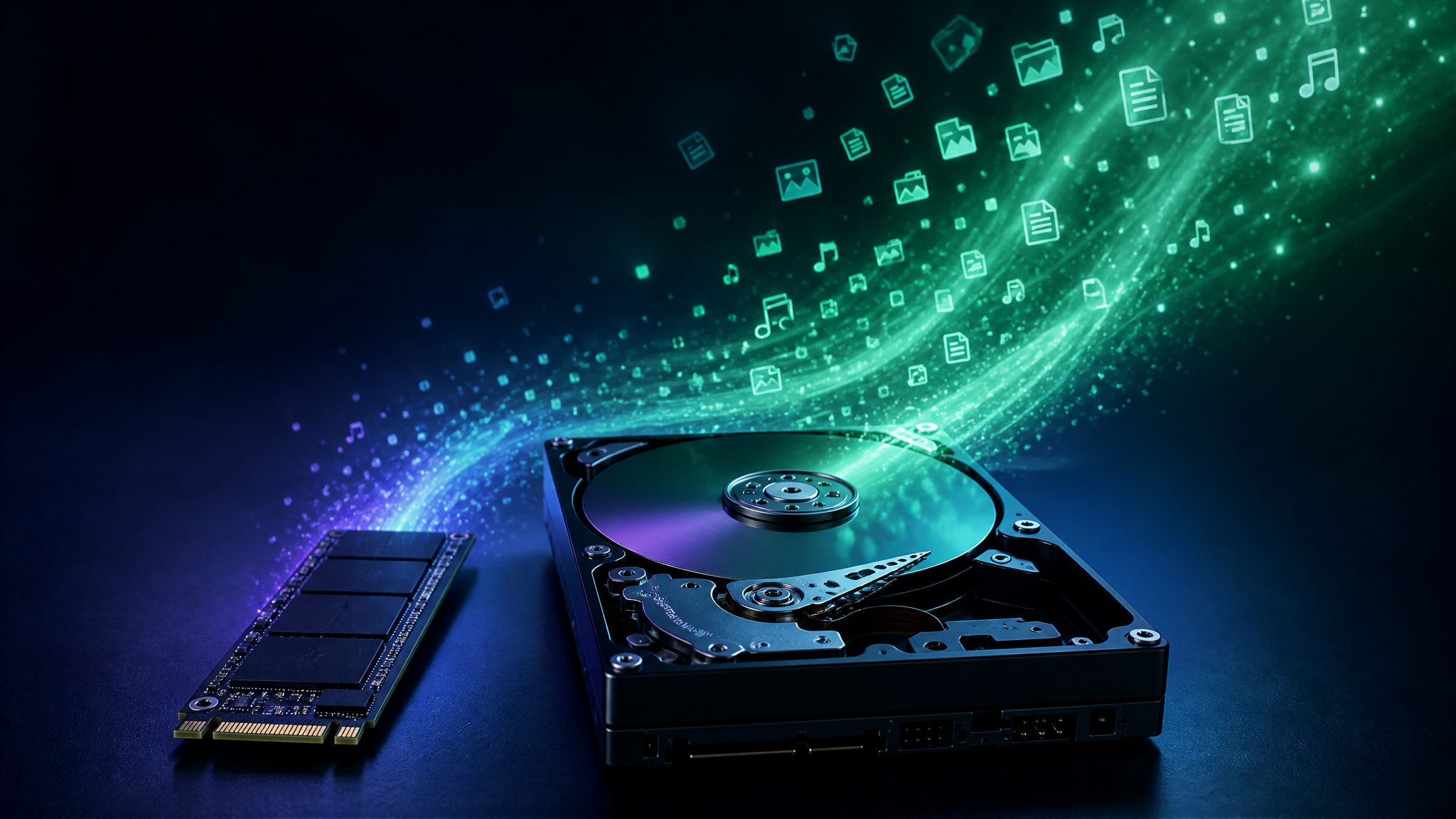
If you're still running Windows from a traditional spinning hard drive (**HDD**), upgrading to a **solid-state drive (SSD)** is the single biggest performance leap you can make. Boot times drop from minutes to seconds, and application launches feel instant.
Already on an SSD? Make sure **TRIM** is enabled:
```
fsutil behavior query DisableDeleteNotify
```
A result of 0 means TRIM is active. If it returns 1, enable it with:
```
fsutil behavior set DisableDeleteNotify 0
```
---
5. Increase Virtual Memory
When physical RAM runs low, Windows uses a portion of your hard drive as **virtual memory** (the page file). If the page file is too small, performance tanks.
**To adjust it:**
Search for **"Adjust the appearance and performance of Windows"** in the Start menu.
Click the **Advanced** tab → **Change** under Virtual Memory.
Uncheck *Automatically manage* and set a custom size: Initial = 1.5× your RAM, Maximum = 3× your RAM.
---
6. Update Drivers — Especially GPU and Chipset
Outdated drivers cause stuttering, crashes, and poor frame rates. GPU drivers in particular receive frequent optimizations.
NVIDIA: Use [GeForce Experience](https://www.nvidia.com/en-us/geforce/geforce-experience/) or download directly from nvidia.com.
AMD: Use AMD Software: Adrenalin Edition.
Chipset/other drivers: Visit your motherboard manufacturer's support page.
**PC Diagnostic Analyzer** can automatically flag outdated or missing drivers, saving you the manual hunt across multiple vendor sites.
---
7. Scan for Malware
Malware silently consumes CPU cycles and network bandwidth in the background, making everything feel slow. Run a full scan with **Windows Defender** or a trusted third-party tool:
```powershell
Start-MpScan -ScanType FullScan
```
Also check **Task Manager → CPU** column for any unknown process consistently using more than 5% CPU at idle.
---
8. Defragment HDDs (Skip for SSDs)
On spinning hard drives, files become fragmented over time, forcing the read head to travel farther to assemble data. Defragmentation reorganizes files for faster sequential reads.
```
defrag C: /U /V
```
**Important:** Never defragment an SSD. Windows handles SSD optimization automatically via TRIM. Running defrag on an SSD wastes write cycles and shortens its lifespan.
---
9. Tweak Visual Effects for Speed
Windows' animations and transparency effects look polished but consume GPU and CPU resources. On older hardware, disabling them can make the UI feel snappier.
Search **"Adjust the appearance and performance of Windows"**.
Select **"Adjust for best performance"** to disable all effects, or manually uncheck specific ones like *Animate windows when minimizing and maximizing*.
---
10. Check RAM Health and Usage
Insufficient or failing RAM is a hidden performance killer. Open Task Manager and check the **Memory** tab under Performance. If you're consistently above 80% usage at idle, it's time to add more RAM.
To test RAM integrity, run the built-in **Windows Memory Diagnostic**:
```
mdsched.exe
```
The tool will schedule a test on next reboot and report any errors. Faulty RAM sticks cause random slowdowns, BSODs, and application crashes that are easy to misdiagnose.
---
Putting It All Together
Performance optimization isn't a one-time event — it's an ongoing practice. Startup lists grow back, drivers fall behind, and disk space fills up again. Building a monthly maintenance habit around these ten steps keeps your system running at its best.
Not sure where to start? Let **PC Diagnostic Analyzer** do the heavy lifting. Its free diagnostic scan identifies your top performance bottlenecks in minutes — from driver issues and RAM problems to disk health and startup bloat — so you can focus your effort where it matters most. Try the free diagnostic tool today and discover exactly what's slowing your PC down.
Found this helpful?
Share it with someone who could use it.
DiagnoseMyPC Team
Expert PC diagnostics and troubleshooting guides to help you keep your Windows system running smoothly.
Frequently Asked Questions
Why is my PC still slow after I cleaned it up?
Generic cleanup often misses the real bottleneck — a background process pinning your disk, a driver conflict, or low available RAM. An AI diagnosis reads your actual system data to pinpoint what's actually slowing you down instead of deleting files at random. Run a free scan at diagnosemypc.com.
Will adding more RAM speed up my computer?
It helps if you're regularly running out of memory (high RAM usage, lots of open tabs or apps). But if the bottleneck is a slow hard drive, a startup bloat problem, or a background process, more RAM won't fix it. Diagnose first, then upgrade.
How often should I check my PC's performance?
A quick monthly check is enough for most people, plus a scan any time you notice new slowdowns, crashes, or after a big Windows update. Catching issues early keeps small problems from turning into crashes or data loss.
Is a free performance scan actually useful?
Yes — a free AI scan gives you a real, prioritized list of what's wrong with your system. For one-click fix scripts and detailed step-by-step guides, there's an affordable $4.99 Fix Pass, but the diagnosis itself is free.