Nothing kills productivity like a slow computer. Whether your PC takes forever to boot, freezes during basic tasks, or stutters when multitasking, there's almost always a fixable cause.
1. Too Many Startup Programs
Many programs set themselves to launch at startup, which slows down boot time and consumes resources in the background.
**Fix:** Press Ctrl+Shift+Esc to open Task Manager, click the "Startup" tab, and disable programs you don't need at boot.
2. Low Disk Space
When your system drive (usually C:) is nearly full, Windows struggles to manage virtual memory and temporary files.
**Fix:** Use Disk Cleanup (search for it in the Start menu) or manually delete files you no longer need. Aim to keep at least 15-20% of your drive free.
3. Outdated Drivers
Old drivers — especially for your graphics card, chipset, and storage controller — can cause significant performance issues.
**Fix:** Open Device Manager, right-click each device, and select "Update driver." Or use our diagnostic tool to identify outdated drivers automatically.
4. Malware or Spyware
Malicious software running in the background can consume CPU, memory, and network resources without your knowledge.
**Fix:** Run a full scan with Windows Defender or your preferred antivirus. Consider running Malwarebytes for a second opinion.
5. Insufficient RAM
If you're running 4GB of RAM or less, modern applications and browser tabs can easily overwhelm your system.
**Fix:** Check your RAM usage in Task Manager. If it's consistently above 80%, consider upgrading to 8GB or 16GB.
6. Fragmented Hard Drive
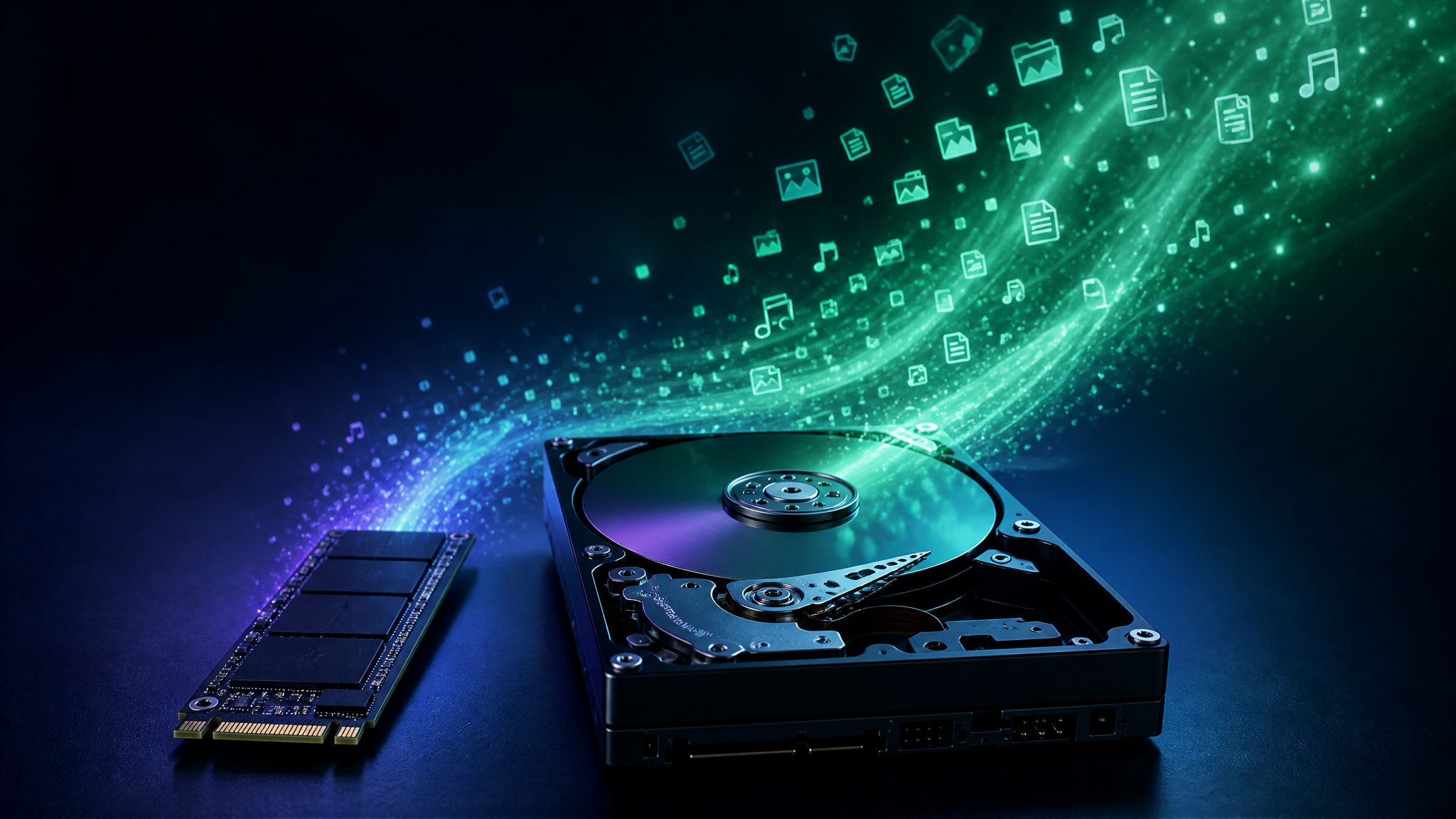
If you're still using a traditional HDD (not SSD), file fragmentation can significantly slow down read/write operations.
**Fix:** Search for "Defragment" in the Start menu and optimize your drives. Note: Never defragment an SSD — it's unnecessary and can reduce its lifespan.
7. Visual Effects
Windows' visual effects (animations, transparency, shadows) consume GPU and CPU resources.
**Fix:** Search for "Adjust the appearance and performance of Windows" and select "Adjust for best performance" or customize which effects to keep.
8. Windows Update Running
Windows Update downloads and installs updates in the background, which can temporarily slow your PC significantly.
**Fix:** Check Settings > Windows Update to see if an update is in progress. Let it finish, then restart.
9. Overheating
When your CPU or GPU overheats, they throttle their speed to prevent damage, causing slowdowns.
**Fix:** Clean dust from your PC's fans and vents. Consider replacing thermal paste if your PC is several years old. Monitor temperatures with our diagnostic tool.
10. Failing Hardware
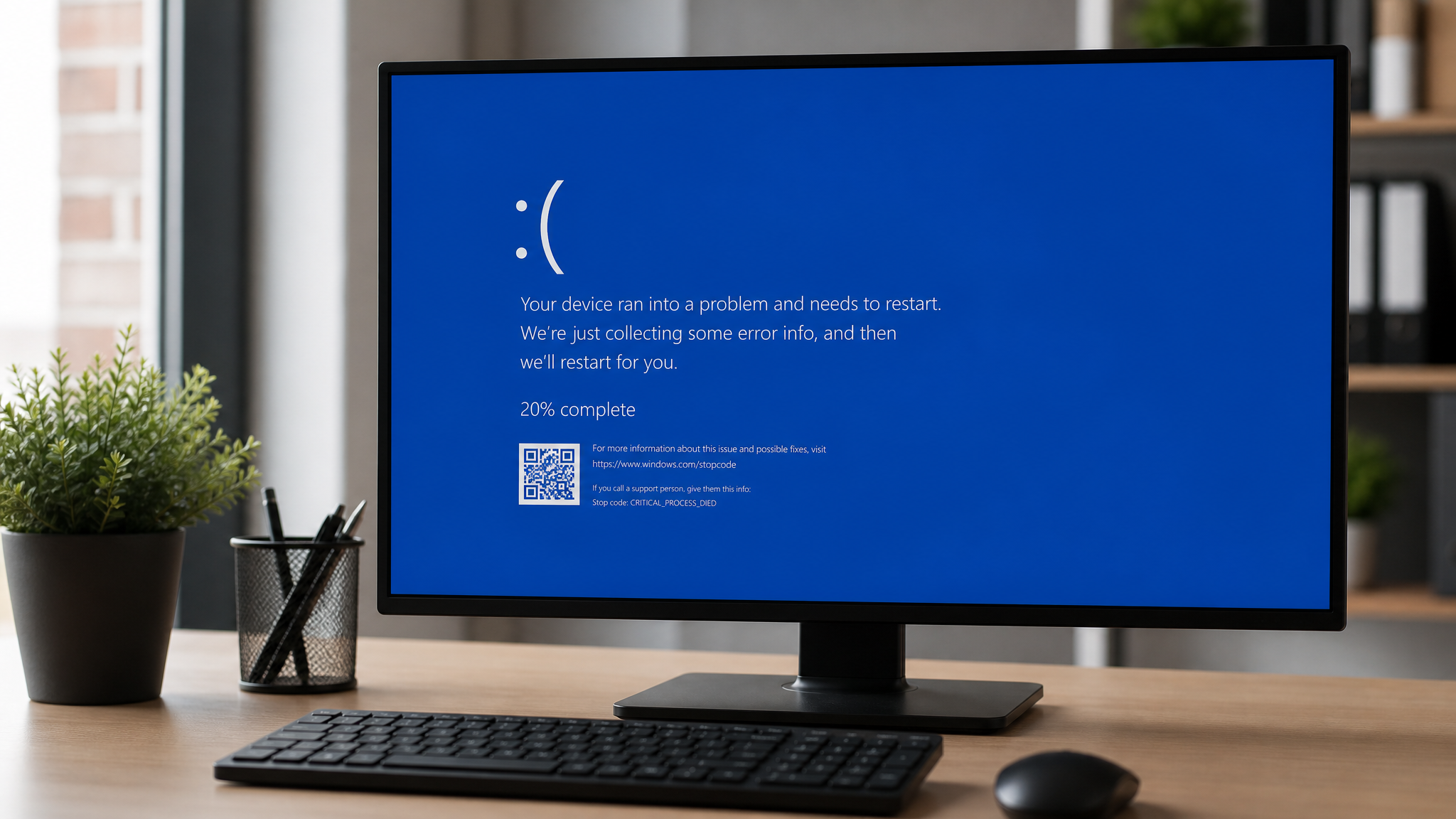
A dying hard drive, failing RAM stick, or degraded SSD can cause intermittent slowdowns and crashes.
**Fix:** Run our diagnostic tool to check for hardware warning signs. Windows Memory Diagnostic can test RAM, and CrystalDiskInfo can check drive health.
The Fastest Way to Diagnose
Instead of checking each of these manually, run our free AI-powered diagnostic tool. It analyzes your system in minutes and tells you exactly what's slowing things down, ranked by severity.
Found this helpful?
Share it with someone who could use it.
DiagnoseMyPC Team
Expert PC diagnostics and troubleshooting guides to help you keep your Windows system running smoothly.
Frequently Asked Questions
Why is my PC still slow after I cleaned it up?
Generic cleanup often misses the real bottleneck — a background process pinning your disk, a driver conflict, or low available RAM. An AI diagnosis reads your actual system data to pinpoint what's actually slowing you down instead of deleting files at random. Run a free scan at diagnosemypc.com.
Will adding more RAM speed up my computer?
It helps if you're regularly running out of memory (high RAM usage, lots of open tabs or apps). But if the bottleneck is a slow hard drive, a startup bloat problem, or a background process, more RAM won't fix it. Diagnose first, then upgrade.
How often should I check my PC's performance?
A quick monthly check is enough for most people, plus a scan any time you notice new slowdowns, crashes, or after a big Windows update. Catching issues early keeps small problems from turning into crashes or data loss.
Is a free performance scan actually useful?
Yes — a free AI scan gives you a real, prioritized list of what's wrong with your system. For one-click fix scripts and detailed step-by-step guides, there's an affordable $4.99 Fix Pass, but the diagnosis itself is free.