Understanding PC Hardware: A Beginner's Complete Guide
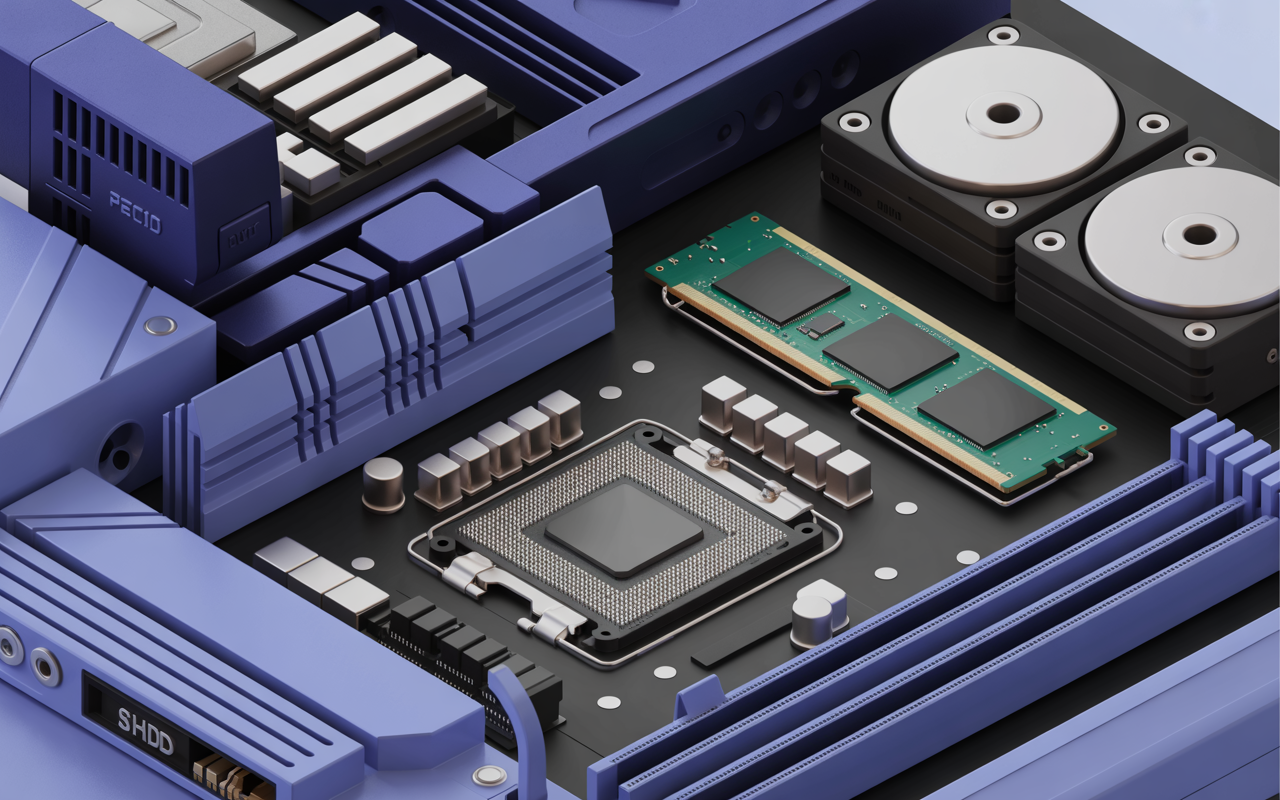
Every PC is a collection of interconnected components working in harmony. Whether you're buying a new machine, planning an upgrade, or simply trying to diagnose a slowdown, understanding what each part does — and how they interact — is the foundation of smart computing. This guide walks you through every major hardware component in plain English, with practical tips you can act on today.
---
Having this problem on your own PC?
Describe what's happening and get a real AI diagnosis in seconds — no account needed.
The Central Processing Unit (CPU)
The **CPU** (Central Processing Unit) is the brain of your computer. It executes instructions from programs, performs calculations, and coordinates every other component.
Key CPU Terms to Know
Cores: Modern CPUs have multiple cores, each capable of handling tasks independently. A quad-core processor can juggle four threads simultaneously, while an 8-core chip handles eight.
Clock Speed: Measured in GHz (gigahertz), this indicates how many cycles per second the CPU completes. Higher clock speeds generally mean faster single-task performance.
Cache: A small, ultra-fast memory pool built directly into the CPU. L1, L2, and L3 caches store frequently accessed data to reduce wait times.
TDP (Thermal Design Power): The maximum heat a CPU generates under load, measured in watts. Higher TDP chips need better cooling solutions.
To check your CPU details on Windows, open PowerShell and run:
```
Get-WmiObject -Class Win32_Processor | Select-Object Name, NumberOfCores, MaxClockSpeed
```
This returns your processor name, core count, and maximum clock speed in MHz.
---
RAM: Your System's Short-Term Memory
**RAM** (Random Access Memory) is where your PC stores data it's actively using. Unlike storage drives, RAM is volatile — it clears when you power off.
How Much RAM Do You Need?
8 GB: Adequate for basic tasks — web browsing, email, and document editing.
16 GB: The sweet spot for most users, including light gaming and multitasking.
32 GB+: Recommended for video editing, 3D rendering, virtual machines, and professional workloads.
RAM Speed and Type
Modern systems use **DDR4** or **DDR5** RAM. Speed is measured in MHz (e.g., DDR4-3200). Faster RAM can improve performance in memory-bandwidth-sensitive tasks, but the gains are often modest for everyday use.
To see your installed RAM in Windows, press Win + R, type msinfo32, and press Enter. Look for **Installed Physical Memory (RAM)** in the System Summary.
---
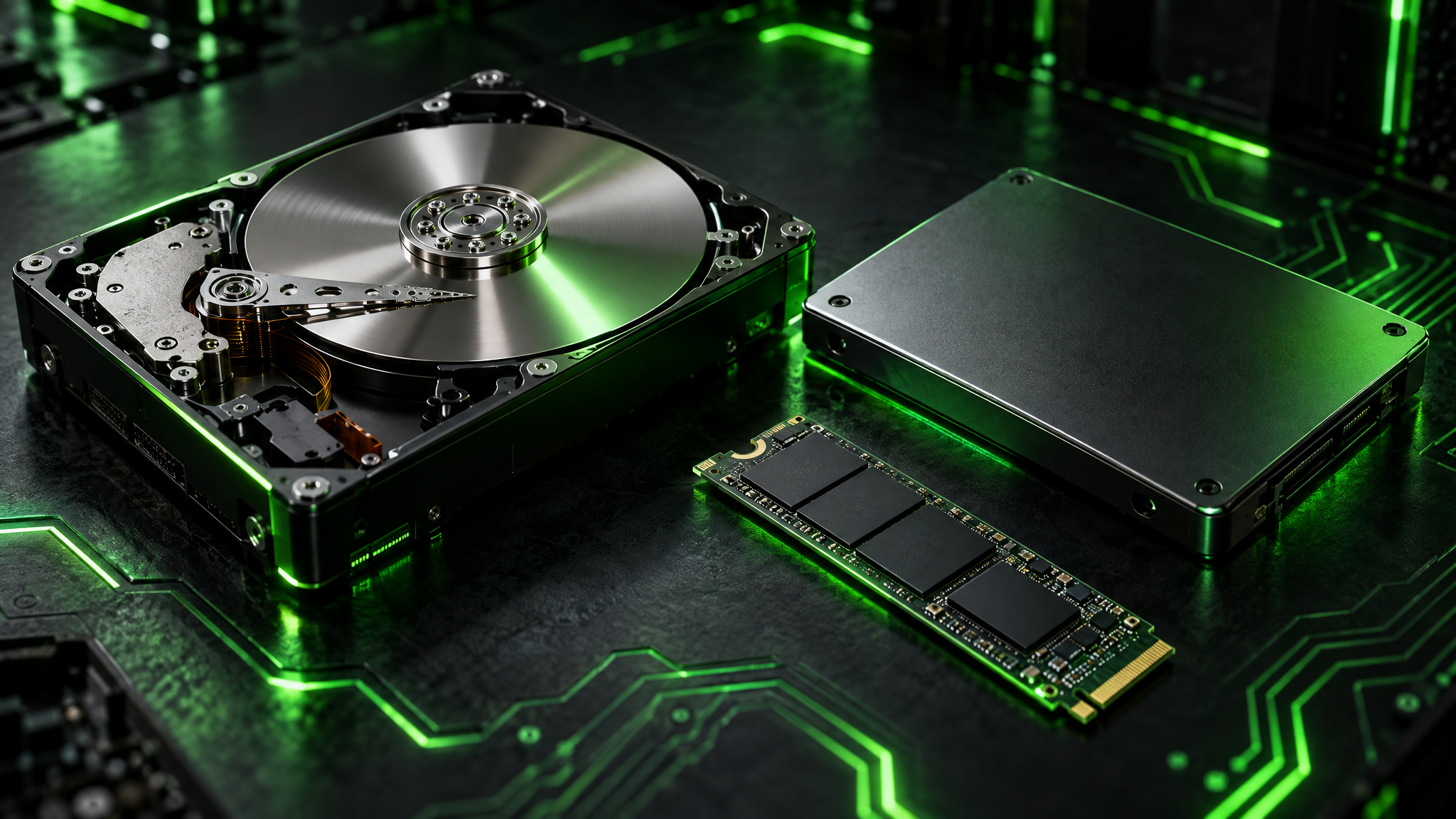
Storage: HDDs, SSDs, and NVMe Drives
Storage is where your operating system, applications, and files live permanently.
Hard Disk Drives (HDDs)
**HDDs** use spinning magnetic platters to read and write data. They offer large capacities at low cost but are significantly slower than solid-state alternatives. Typical read/write speeds hover around 80–160 MB/s.
Solid State Drives (SSDs)
**SSDs** use flash memory with no moving parts. They're dramatically faster, more durable, and quieter than HDDs. A SATA SSD typically achieves 500–550 MB/s sequential reads.
NVMe Drives
**NVMe** (Non-Volatile Memory Express) drives connect via the PCIe bus rather than the SATA interface, unlocking speeds of 3,000–7,000 MB/s on modern drives. If your motherboard has an M.2 slot, an NVMe upgrade is one of the highest-impact improvements you can make.
Check your drive health from Command Prompt:
```
wmic diskdrive get model,status
```
A status of OK means your drive is reporting no errors. For deeper diagnostics, **PC Diagnostic Analyzer** scans your storage health, flags bad sectors, and estimates remaining drive life — all in a single automated report.
---
The GPU: Graphics Processing Unit
The **GPU** handles rendering images, video, and animations. It's critical for gaming, video editing, machine learning, and any visually intensive workload.
Integrated vs. Dedicated GPUs
Integrated graphics are built into the CPU (e.g., Intel UHD Graphics, AMD Radeon Vega). They share system RAM and are suitable for everyday tasks and light media consumption.
Dedicated GPUs have their own VRAM (Video RAM) and processing cores. They're essential for gaming at high resolutions, 3D modeling, and GPU-accelerated applications.
To check your GPU in Windows:
```
DXDiag
```
Press Win + R, type dxdiag, and navigate to the **Display** tab for full GPU details including driver version and VRAM.
---
Motherboard: The Central Hub
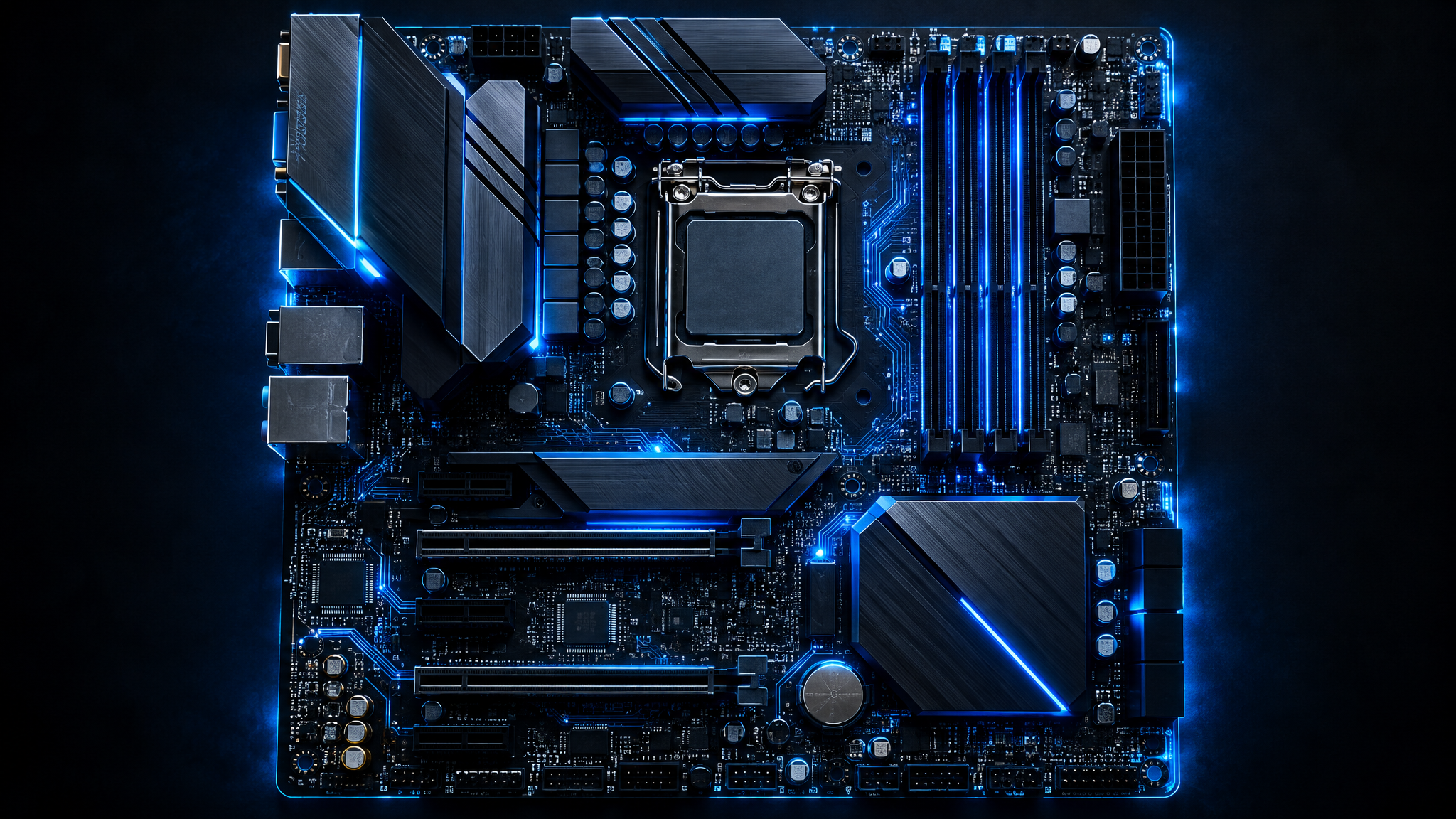
The **motherboard** connects every component. It determines which CPUs, RAM types, and expansion cards your system supports.
Key Motherboard Features
Socket Type: Must match your CPU (e.g., Intel LGA1700, AMD AM5).
RAM Slots: Most boards have 2 or 4 DIMM slots. Dual-channel configurations (two matched sticks) improve memory bandwidth.
PCIe Slots: Used for GPUs, NVMe drives, and expansion cards.
Chipset: Determines overclocking support, USB ports, and connectivity options.
---
Power Supply Unit (PSU)
The **PSU** converts AC power from your wall outlet into the DC voltages your components need. An undersized or failing PSU can cause random shutdowns, instability, and even hardware damage.
PSU Efficiency Ratings
Look for **80 PLUS** certification — Bronze, Silver, Gold, Platinum, or Titanium — indicating the PSU's efficiency at converting power. A Gold-rated 650W PSU is a reliable choice for most mid-range builds.
To check if your PSU might be struggling, monitor voltages via the registry path:
```
HKEY_LOCAL_MACHINE\SYSTEM\CurrentControlSet\Services\CmBatt
```
Or use a hardware monitoring tool. **PC Diagnostic Analyzer** includes a power delivery health check that flags voltage irregularities before they cause component failures.
---
Cooling: Keeping Temperatures in Check
Heat is the enemy of hardware longevity. Every component has a maximum safe operating temperature (Tjmax), and sustained overheating degrades performance and lifespan.
Cooling Options
Stock coolers: Bundled with most CPUs. Adequate for standard workloads.
Aftermarket air coolers: Tower coolers with larger heatsinks and fans offer significantly better thermal performance.
All-in-one (AIO) liquid coolers: Closed-loop water cooling systems for high-TDP CPUs and overclocked builds.
Monitor CPU temperature in PowerShell:
```
Get-WmiObject MSAcpi_ThermalZoneTemperature -Namespace "root/wmi" | Select-Object CurrentTemperature
```
Note: The value is in tenths of Kelvin — subtract 2732 and divide by 10 to convert to Celsius.
---
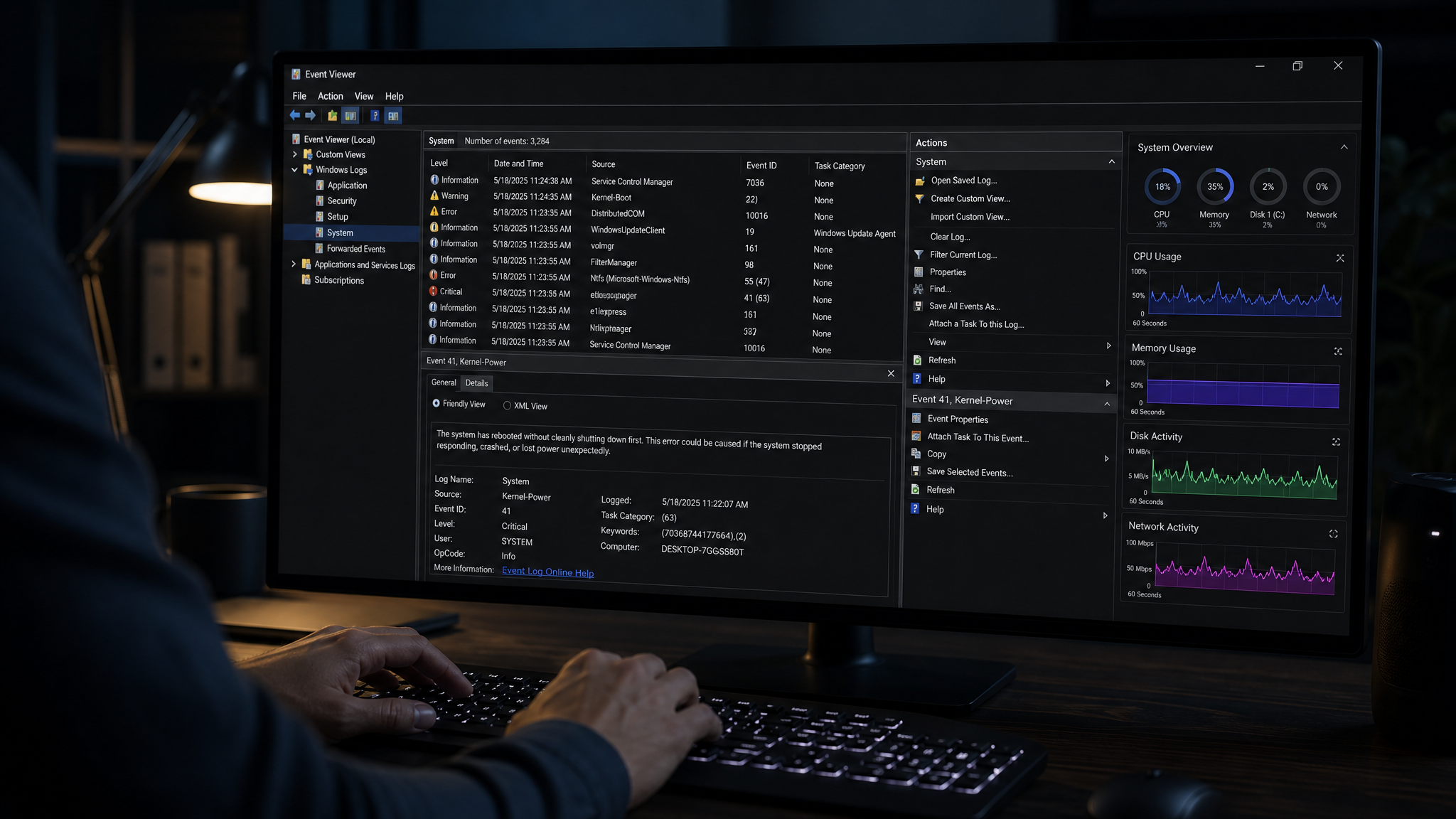
Diagnosing Hardware Issues
Knowing your components is only half the battle. Common hardware warning signs include:
Unexpected shutdowns → Often PSU or overheating
Blue screens (BSODs) → RAM errors, driver conflicts, or storage failures
Slow boot times → Aging HDD or fragmented storage
Graphical glitches → GPU driver issues or overheating GPU
System freezes → RAM instability or CPU thermal throttling
Rather than guessing, run a structured hardware audit. **PC Diagnostic Analyzer** tests CPU performance, RAM integrity, storage health, and thermal readings in one pass — giving you a clear picture of what's working and what needs attention.
---
Take Action Today
Understanding your PC hardware transforms you from a passive user into an informed owner who can spot problems early, make cost-effective upgrades, and extend the life of your machine. Start by identifying your current specs using the commands above, then benchmark your system against expected performance baselines.
Ready to see exactly how your hardware is performing? Try the **PC Diagnostic Analyzer** free diagnostic tool — it scans your entire system in minutes and delivers an easy-to-read report with actionable recommendations. Don't wait for a crash to find out what's wrong; get ahead of hardware issues before they become expensive problems.
Found this helpful?
Share it with someone who could use it.
DiagnoseMyPC Team
Expert PC diagnostics and troubleshooting guides to help you keep your Windows system running smoothly.
Frequently Asked Questions
I'm not technical — can I still use a PC diagnostic tool?
Absolutely. PC Diagnostic Analyzer is built for non-experts: you paste an error or run a quick scan, and it explains what's wrong in plain language with clear next steps. No jargon or technical background required.
Do I need to install anything to get a diagnosis?
No. You can paste an error message, upload a screenshot, or paste command output and get an instant AI diagnosis right in your browser. There's an optional lightweight collector for a deeper analysis, but it's not required to start.
How is this different from just asking a regular AI chatbot?
It's purpose-built for Windows troubleshooting. Instead of generic advice, you get issues ranked by severity, findings tied to your actual system data, and ready-to-run fix scripts — not guesswork.
Is it really free to try?
Yes. You can run a free AI diagnosis with no account, and a free account gives you 5 full scans every month. One-click fix scripts and detailed guides are available with an affordable one-time $4.99 Fix Pass or a Pro plan.