What Is a Motherboard? The Backbone of Your PC Explained
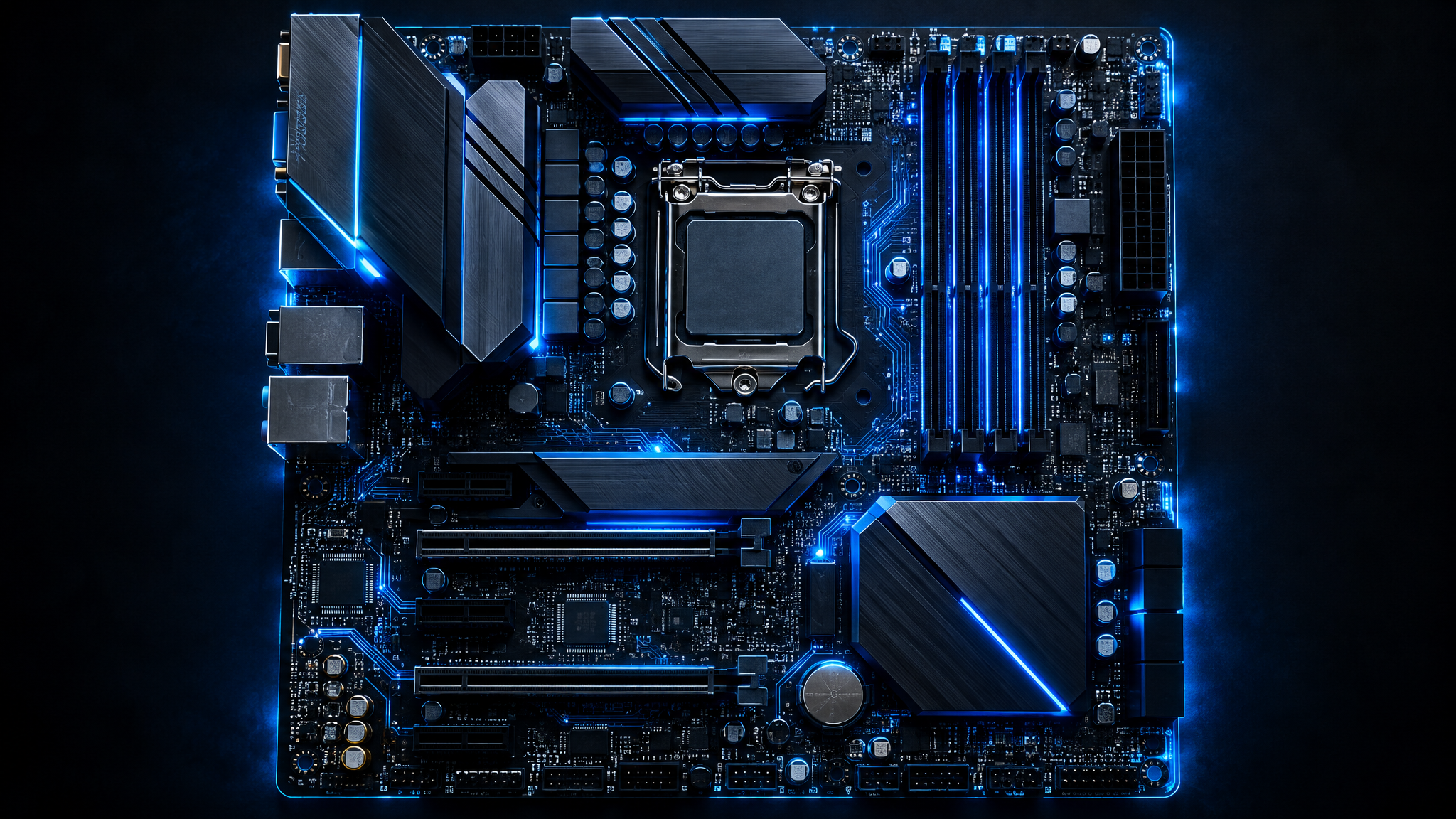
Every desktop and laptop computer has one component that ties everything else together — the motherboard. Also called the mainboard or system board, it is the large printed circuit board that physically and electrically connects your CPU, RAM, storage drives, graphics card, and every other piece of hardware. Without it, none of those parts could communicate, and your PC simply would not function.
Understanding what a motherboard does — and how to keep it in good shape — is essential knowledge for any Windows user who wants to get the most out of their machine. This guide breaks it all down in plain language.
Having this problem on your own PC?
Describe what's happening and get a real AI diagnosis in seconds — no account needed.
The Core Job of a Motherboard
Think of the motherboard as the central nervous system of your PC. Its primary responsibilities are:
Providing physical slots and sockets for every component (CPU, RAM, GPU, storage)
Routing data between components via high-speed electrical pathways called traces
Distributing power from the PSU to each part of the system
Managing communication through chipsets, controllers, and firmware (BIOS/UEFI)
Every byte of data that moves between your processor and your RAM, between your SSD and your GPU, travels across the motherboard. Its design and quality directly affect system stability, maximum supported speeds, and upgrade potential.
Key Components Found on a Motherboard
CPU Socket
The CPU socket is the large square or rectangular slot near the center-top of the board. It holds your processor and connects it to the rest of the system. Sockets are not universal — Intel and AMD use different socket standards (e.g., LGA1700 for Intel 12th/13th/14th Gen, AM5 for AMD Ryzen 7000 series). Choosing a motherboard with the right socket for your CPU is the first compatibility check you must make.
RAM Slots (DIMM Slots)
Most desktop motherboards have two or four DIMM slots for DDR4 or DDR5 memory modules. The number of slots determines your maximum RAM capacity and whether you can run dual-channel mode (which improves memory bandwidth). Check your board's manual for the correct slot population order — filling the wrong slots can cut performance in half.
Chipset
The chipset is a set of chips on the motherboard that manages data flow between the CPU, RAM, storage, and peripheral devices. Intel chipsets (e.g., Z790, B760) and AMD chipsets (e.g., X670, B650) differ in features like PCIe lane counts, overclocking support, and the number of USB and SATA ports they provide. Higher-end chipsets unlock more features but cost more.
PCIe Slots
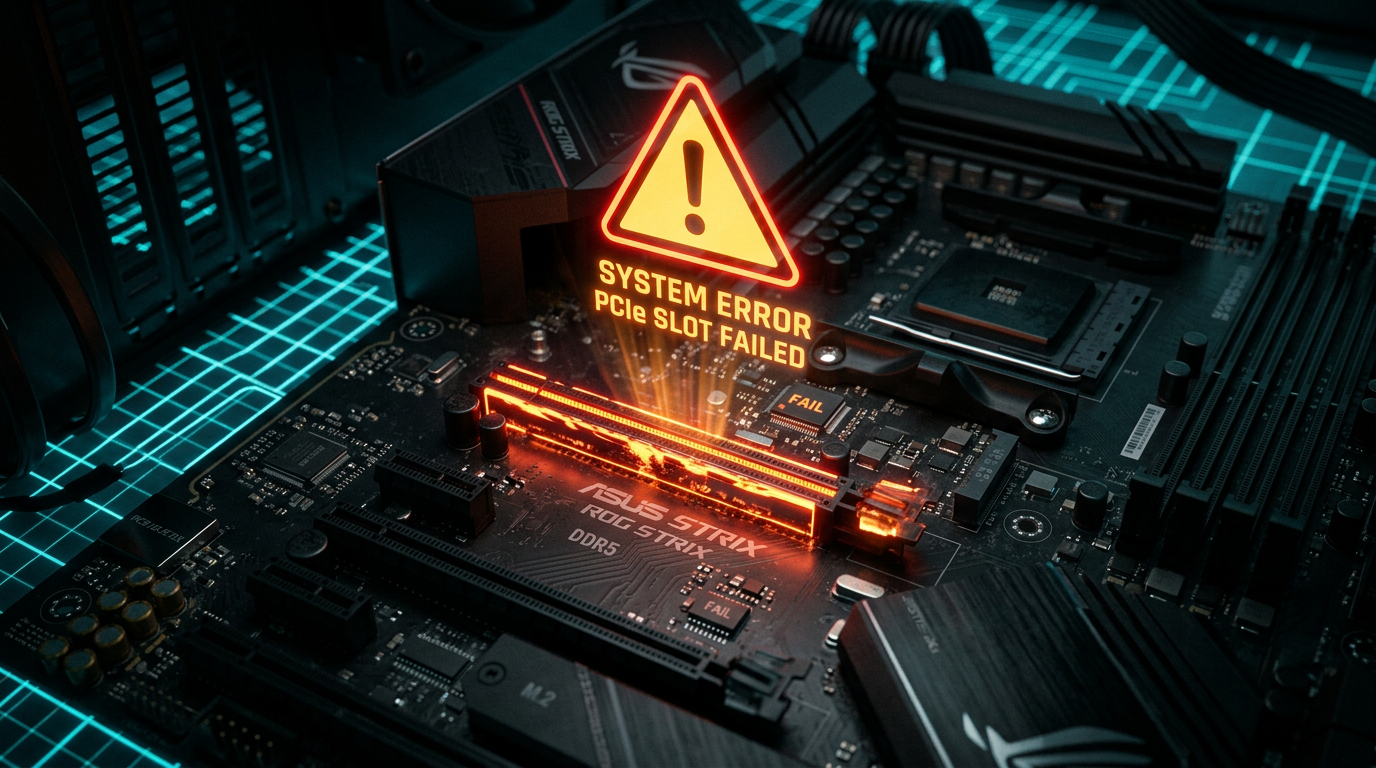
PCIe (Peripheral Component Interconnect Express) slots are the long horizontal connectors used for graphics cards, NVMe SSDs (via M.2 slots), and expansion cards like sound cards or Wi-Fi adapters. The primary x16 slot is where your GPU lives. PCIe 4.0 and 5.0 slots offer double the bandwidth of their predecessors, which matters most for high-speed NVMe drives.
M.2 and SATA Connectors
Modern motherboards include M.2 slots for compact NVMe SSDs and SATA ports for traditional 2.5-inch SSDs and HDDs. M.2 NVMe drives connect directly to the CPU or chipset via PCIe lanes, delivering far faster speeds than SATA. Most mid-range boards offer two to four M.2 slots and four to six SATA ports.
BIOS/UEFI Chip
The BIOS (Basic Input/Output System) — now modernized as UEFI (Unified Extensible Firmware Interface) — is firmware stored on a small chip on the motherboard. It initializes hardware at startup, lets you configure boot order, enable XMP/EXPO memory profiles, and adjust CPU and fan settings. You access it by pressing Del, F2, or F10 during boot, depending on your board manufacturer.
VRM (Voltage Regulator Module)
The VRM converts the raw voltage from your power supply into the precise, stable voltage your CPU needs. A high-quality VRM with more phases delivers cleaner power, which is critical for overclocking and for keeping a high-core-count processor stable under load. Budget boards often cut corners here, which can cause instability or throttling.
Rear I/O Panel
The back of your PC case exposes the motherboard's I/O panel — a cluster of ports including USB-A, USB-C, HDMI/DisplayPort (if your CPU has integrated graphics), audio jacks, Ethernet, and sometimes Wi-Fi antennas. The number and type of ports vary widely between boards.
Form Factors: ATX, Micro-ATX, and Mini-ITX
Motherboards come in standardized sizes called form factors:
ATX — the most common desktop size (305 × 244 mm); fits full-tower and mid-tower cases; offers the most slots and ports
Micro-ATX (mATX) — smaller (244 × 244 mm); fewer expansion slots; fits mid and mini-tower cases
Mini-ITX — compact (170 × 170 mm); only one PCIe slot; ideal for small form factor builds
Your case must support the form factor of your chosen motherboard, so always check compatibility before buying.
How to Check Your Motherboard in Windows
You can identify your motherboard model without opening your PC. Open a Command Prompt and run:
wmic baseboard get product, manufacturer, versionOr use PowerShell:
Get-WmiObject Win32_BaseBoard | Select-Object Manufacturer, Product, VersionThis returns your board's manufacturer (e.g., ASUS, MSI, Gigabyte, ASRock) and model number, which you can look up for specs, driver downloads, and BIOS updates.
Common Motherboard Problems and Warning Signs
Motherboard issues can be subtle. Watch for these symptoms:
Random crashes or BSODs — often caused by failing VRMs, bad RAM slots, or corrupted BIOS
PC won't POST — the board fails to initialize; could be a dead CMOS battery or a failed component
USB ports stop working — chipset or controller failure
Burning smell or visible capacitor bulge — physical damage; replace the board immediately
Instability after overclocking — VRM overheating or insufficient power delivery
Keeping your BIOS updated and ensuring good airflow inside your case are the two most effective ways to extend motherboard life.
How DiagnoseMyPc Helps
Diagnosing motherboard-related issues manually can be time-consuming. DiagnoseMyPc scans your Windows system and surfaces hardware warnings, driver conflicts, and stability indicators that often point back to motherboard-level problems — such as outdated chipset drivers, failing USB controllers, or power delivery anomalies.
Running DiagnoseMyPc regularly means you catch these issues early, before a minor instability turns into data loss or a failed component. The tool reads system event logs, hardware identifiers, and driver states to give you a clear picture of your PC's health — including the components that live on your motherboard.
Conclusion
The motherboard is the foundation every other component depends on. Understanding its key parts — the CPU socket, RAM slots, chipset, PCIe slots, and BIOS — helps you make smarter upgrade decisions, troubleshoot problems faster, and keep your system running reliably for years.
Ready to see how your motherboard and its connected components are performing right now? Try the free DiagnoseMyPc tool and get a full health report in minutes — no technical expertise required.
Found this helpful?
Share it with someone who could use it.
DiagnoseMyPC Team
Expert PC diagnostics and troubleshooting guides to help you keep your Windows system running smoothly.
Get the free Windows Troubleshooting Checklist
Subscribe and instantly download our 50-point Windows troubleshooting checklist — plus practical fixes, performance tips, and security alerts from the DiagnoseMyPC team.
No spam. Unsubscribe anytime.
Frequently Asked Questions
I'm not technical — can I still use a PC diagnostic tool?
Absolutely. DiagnoseMyPc is built for non-experts: you paste an error or run a quick scan, and it explains what's wrong in plain language with clear next steps. No jargon or technical background required.
Do I need to install anything to get a diagnosis?
No. You can paste an error message, upload a screenshot, or paste command output and get an instant AI diagnosis right in your browser. There's an optional lightweight collector for a deeper analysis, but it's not required to start.
How is this different from just asking a regular AI chatbot?
It's purpose-built for Windows troubleshooting. Instead of generic advice, you get issues ranked by severity, findings tied to your actual system data, and ready-to-run fix scripts — not guesswork.
Is it really free to try?
Yes. You can run a free AI diagnosis with no account, and a free account gives you 5 full scans every month. One-click fix scripts and detailed guides are available with an affordable one-time $4.99 Fix Pass or a Pro plan.