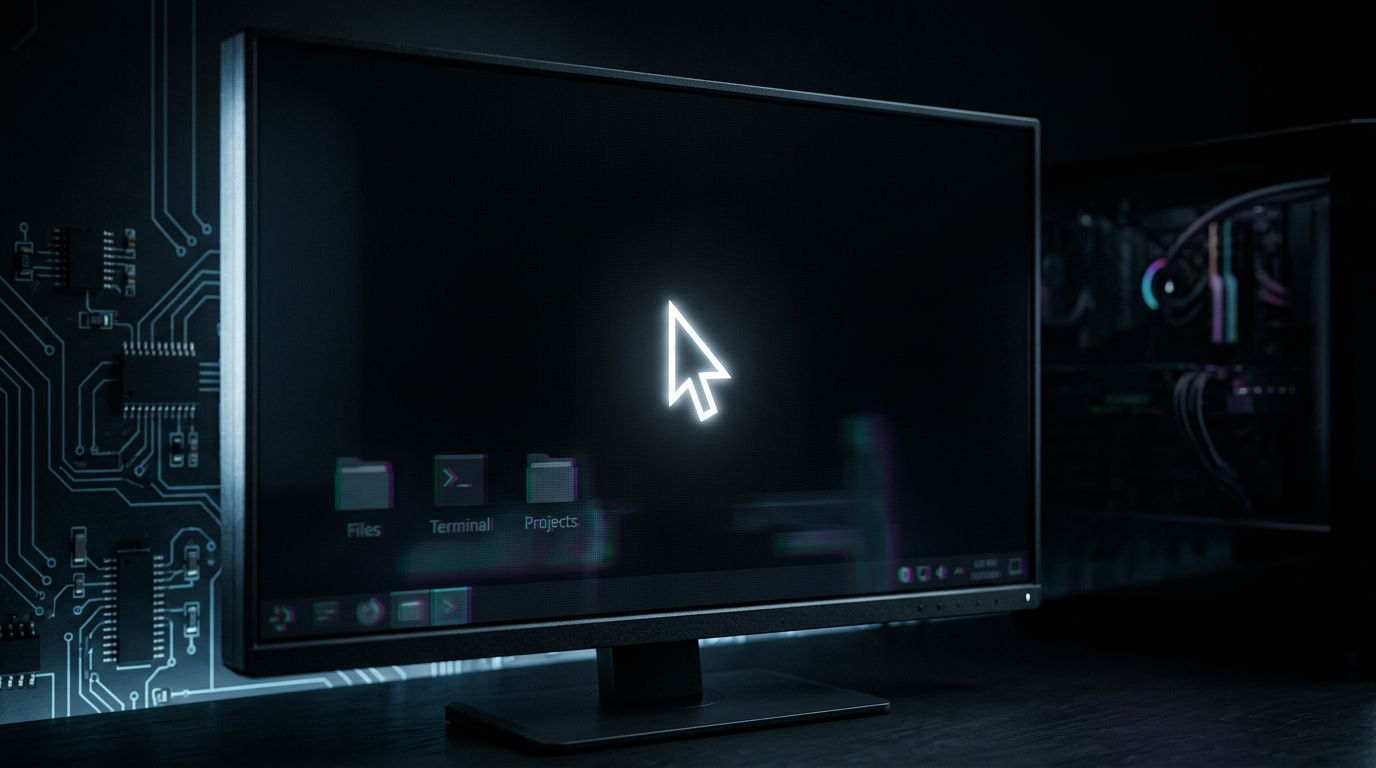
You type your password, Windows 11 accepts it, and then... nothing. Just a black screen with a mouse cursor you can move around. The fact that the cursor is there is the single most useful clue you have: your PC is running, Windows is loaded, and something after login is failing to draw. This guide walks you through diagnosing that failure in the right order — from the safest checks to the ones that touch drivers — so you fix the actual cause instead of guessing.
Before You Change Anything
Don't force a hard shutdown yet. If the cursor moves, Windows is alive. Give it 2–3 minutes first; some systems finish loading a stuck service or profile.
Note what changed recently. A Windows Update, a GPU driver update, a new monitor, or a docking station is the most common trigger. Write down the date.
Have a second device handy. You'll want it to look up your exact GPU model and to reach support if you get stuck.
Back up nothing yet — but don't wipe anything either. Avoid "Reset this PC" until you've exhausted the steps below. Resets destroy the evidence you need.
Know your escape hatch. If you can't reach Task Manager, hold the power button for 10 seconds to shut down, then boot into Safe Mode (covered below).
Don't install random "black screen fixer" utilities. Every step here uses tools already built into Windows.
Having this problem on your own PC?
Describe what's happening and get a real AI diagnosis in seconds — no account needed.
Confirm You Have This Problem
This article is specifically about a *black screen with a visible, movable cursor after login*. That detail separates it from other failures:
Cursor visible, screen black → Windows is running; the desktop shell (Explorer) or the display output is failing. This is our target.
No cursor, no signal, monitor says "No Signal" → the display isn't receiving output at all. That's a cable, port, or GPU output problem, not a login problem.
Black screen before the login screen → a boot or driver-load failure, not a post-login shell failure.
Black screen with a spinning dots animation that never ends → a boot hang, different diagnosis path.
If you can wiggle the mouse and the pointer tracks smoothly, you're in the right place. That cursor is proof the graphics driver is at least partially working — which is why the fix is usually the desktop shell, not the GPU itself.
Possible Causes
| Evidence Observed | Likely Cause | Next Check |
|---|---|---|
| Cursor moves, no desktop, Ctrl+Alt+Del works | Explorer.exe (shell) crashed or failed to start | Open Task Manager, check for Explorer process |
| Cursor moves, screen flickers or goes black after a driver update | Faulty GPU driver | Roll back the display driver |
| Black screen only on the external monitor, laptop panel fine | Display output / cable / port issue | Win+P, check cable and input source |
| Black screen on all displays, started after Windows Update | Update broke shell or driver | Boot Safe Mode, uninstall recent update |
| Cursor moves, Taskbar flashes then disappears | Corrupt user profile or shell loop | Test with a new local user account |
| Black screen with cursor after docking/undocking | Display topology confusion | Win+Ctrl+Shift+B, then Win+P |
Step-by-Step Diagnostic (Lowest Risk First)
Step 1: Wait and try the keyboard wake-up
Give it a full 2–3 minutes. Then press Ctrl+Alt+Del. If the security screen appears, Windows is healthy and only the shell is missing — a strong sign this is an Explorer problem, not a hardware one. Press Esc to return.
Step 2: Reset the graphics driver with Win+Ctrl+Shift+B
This is the fastest, safest fix and it changes nothing permanently. Hold Windows + Ctrl + Shift + B together. Your screen will flash black for a second and you'll hear a beep — that's the display driver restarting. If the desktop appears, you've confirmed a driver-level glitch. If nothing changes, move on; you've lost nothing.
Step 3: Restart Explorer through Task Manager
Press Ctrl+Shift+Esc to open Task Manager (or Ctrl+Alt+Del → Task Manager). Click More details if needed, then:
Go to the Processes tab and look for Windows Explorer.
If it's there, right-click it and choose Restart.
If it's not there, click File → Run new task, type explorer.exe, and press Enter.
If the desktop, taskbar, and icons appear, Explorer was the culprit. This is the single most common cause of a black screen with a working cursor.
> Still unsure what's causing the issue? Run a free AI diagnosis at DiagnoseMyPc.com — no download required, 5 free analyses per month.
Step 4: Check your external display and output mode
If you're on a laptop or dock, the desktop may simply be rendering to a display that's off or on the wrong input. Press Win + P and choose PC screen only (or Duplicate). Then check the monitor's input source button and reseat the cable. Try a different port — HDMI instead of DisplayPort, or vice versa. A surprising number of "black screen" tickets are a monitor sitting on the wrong input.
Step 5: Boot into Safe Mode
If the desktop still won't load, restart into Safe Mode, which loads only basic drivers:
Hold Shift while clicking Restart from the power menu (or interrupt boot three times to reach Recovery).
Go to Troubleshoot → Advanced options → Startup Settings → Restart.
Press 4 or F4 for Safe Mode.
If the desktop loads normally in Safe Mode, the problem is a driver or a third-party startup app — not your hardware. That narrows the field dramatically.
Step 6: Roll back or clean-install the display driver
In Safe Mode, open Device Manager (right-click Start → Device Manager), expand Display adapters, right-click your GPU, and choose Properties → Driver → Roll Back Driver. If rollback is greyed out, use Uninstall device (check "Delete the driver software") and reboot — Windows will install a basic driver, and you can then get the correct one from your GPU maker's official site.
Step 7: Rule out a corrupt user profile
Create a fresh local account from Safe Mode (Settings → Accounts → Other users) and sign into it. If the new profile shows a normal desktop, your original profile is damaged. You can migrate your files rather than resetting the whole PC.
Step 8: Check for a bad recent update
In Safe Mode, open Settings → Windows Update → Update history → Uninstall updates and remove the most recent quality or driver update. Reboot and test. If the black screen returns only after Windows reinstalls it, pause updates temporarily and report the issue.
Step 9: Run a native system integrity check
Open an elevated Command Prompt (search cmd, right-click → Run as administrator) and run:
sfc /scannowThen, if issues persist:
DISM /Online /Cleanup-Image /RestoreHealthThese built-in tools repair corrupted Windows system files that can break the shell. They're safe, free, and part of Windows itself.
Step 10: Last resort — System Restore
If you have a restore point from before the problem started, use Recovery → Advanced options → System Restore. This rolls back system files and drivers without touching your personal documents. Only reach for "Reset this PC" after everything above has failed.
How to Know It's Fixed
The desktop, taskbar, and Start menu load within a few seconds of login.
You can open File Explorer, right-click the desktop, and see the context menu.
A normal restart (not just a wake from sleep) reproduces a working desktop.
The fix survives a second reboot — a one-time recovery that fails again on restart means you treated a symptom, not the cause.
When to Stop and Get Help
Stop and seek help if:
The screen is black with no cursor and the monitor reports no signal — that's a hardware or cable fault, not a shell issue.
Safe Mode also fails to load a desktop, which points to deeper system or storage problems.
You see repeated crashes, disk errors, or SMART warnings — back up your data immediately.
You've rolled back drivers and updates and the problem returns within a day; you may have failing GPU hardware or a bad RAM stick.
In my years running a corporate help desk, the black-screen-with-cursor ticket almost always ended one of two ways: a quick Explorer restart, or a driver rollback after a bad update. The cursor being there is genuinely good news — it means your hardware is fine and you're chasing software. Work the steps in order, and you'll usually be back on the desktop in under fifteen minutes.
Dealing with this one-time? The $4.99 Fix Pass gives you 7 days of full Pro access — no subscription needed.
Found this helpful?
Share it with someone who could use it.
DiagnoseMyPC Team
Expert PC diagnostics and troubleshooting guides to help you keep your Windows system running smoothly.
Get the free Windows Troubleshooting Checklist
Subscribe and instantly download our 50-point Windows troubleshooting checklist — plus practical fixes, performance tips, and security alerts from the DiagnoseMyPC team.
No spam. Unsubscribe anytime.
Frequently Asked Questions
How do I find out exactly what's causing my PC problem?
The fastest way is to let an AI analyzer read your actual system data instead of guessing. You can paste an error message, upload a screenshot, or run a quick diagnostic and get the specific cause ranked by severity. Try a free AI diagnosis at diagnosemypc.com — no account needed to get started.
Is it safe to run fix commands on my own PC?
Yes, as long as you understand what each command does. PC Diagnostic Analyzer always shows you the exact fix script first so you stay in full control of what runs on your computer — nothing is executed automatically without your review.
Do I need to reinstall Windows to fix this?
Usually not. Most performance, crash, driver, and startup problems can be fixed with targeted steps once you know the real cause. A full reinstall should be a last resort — start with a proper diagnosis before wiping anything.
When should I take my PC to a repair shop instead?
If a diagnosis points to failing hardware (a dying drive, bad RAM, or overheating components) and you're not comfortable opening the case, a shop is worth it. For software, driver, and configuration issues, you can almost always fix it yourself with step-by-step guidance.