Seeing "Automatic Repair couldn't repair your PC" on a black or blue screen is one of the most frustrating moments in Windows troubleshooting. Your PC won't boot, and the built-in repair tool just gave up. Before you panic and reset Windows — which can wipe your files and installed programs — take a breath. In most cases the cause is narrow and fixable, and a few minutes of diagnosis can save you from losing everything.
I've spent 25 years in IT support, nine of them running a corporate help desk, and this exact error is one of the most common calls we took. The good news: the fix almost always comes down to a handful of known causes. The bad news: resetting Windows without diagnosing first is how people lose data they thought was safe. Let's work through this methodically.
Before You Change Anything
Stop and protect your data before you touch any repair option. These steps take minutes and can save you from permanent loss.
Do not click "Reset this PC" yet. A reset can remove your personal files, apps, and settings. It's a last resort, not a first step.
Try to back up your files first. If you can reach the Command Prompt from the recovery screen, you may be able to copy important files to a USB drive before doing anything else.
Have your BitLocker recovery key ready. If your drive is encrypted, Windows will ask for this key before it lets you repair or reset. Find it in your Microsoft account, or on the paper copy you saved when you set up encryption.
Note the exact error code. If the screen shows a stop code, error number, or file name, write it down. It's the single most useful clue you'll get.
Unplug unnecessary peripherals. Remove external drives, printers, and USB devices. A bad external device can sometimes cause boot failures.
Having this problem on your own PC?
Describe what's happening and get a real AI diagnosis in seconds — no account needed.
Confirm You Have This Problem
Before you start fixing, make sure you're actually dealing with the Automatic Repair loop and not something else. The signs are specific:
Your PC boots, shows the Windows logo, then fails and restarts.
After a few attempts, you land on a blue screen titled "Automatic Repair" with the message "Automatic Repair couldn't repair your PC."
You see options like Advanced options, Restart, and sometimes a Reset this PC button.
The loop may repeat: it tries to repair, fails, and boots back into the same screen.
If you see these, you're in the right place. If instead you get a completely black screen with no text, or a different error entirely, the cause may be different — but the diagnostic steps below will still help you narrow it down.
Possible Causes
| Evidence Observed | Likely Cause | Next Check |
|---|---|---|
| Error appears right after a Windows update or driver install | Corrupted or incompatible update/driver | Boot into Safe Mode or use System Restore |
| PC shut down unexpectedly (power loss, crash) before the error | Corrupted system files or boot configuration | Run sfc /scannow and chkdsk from Command Prompt |
Error mentions a specific file (e.g., winload.exe, ntoskrnl.exe) | Missing or corrupted boot/system file | Use bootrec /rebuildbcd and bootrec /fixmbr |
Error code like 0xc000000f or 0xc0000225 | Boot configuration or BCD problem | Run bootrec commands from Command Prompt |
| Drive is BitLocker-encrypted and key is unavailable | Encryption blocking access to repair | Locate the BitLocker recovery key first |
| Error appears after a hardware change (new RAM, drive, etc.) | Hardware or connection issue | Reseat hardware, check drive connections |
| No recent changes, no error code, random occurrence | Failing hard drive or SSD | Run chkdsk and check drive health |
Step-by-Step Diagnostic
Work through these steps in order, from lowest risk to highest. Stop as soon as one fixes the problem.
Step 1: Restart and let Windows try again
Sometimes the repair loop is a one-time glitch. From the Automatic Repair screen, click Restart. If the PC boots normally, you're done. If it returns to the same screen, move on.
Step 2: Unplug peripherals and try again
Shut down, unplug all external devices (USB drives, printers, docks), and restart. A faulty external device can occasionally cause boot failures. If it boots, reconnect devices one at a time to find the culprit.
Step 3: Use Command Prompt to run built-in repair tools
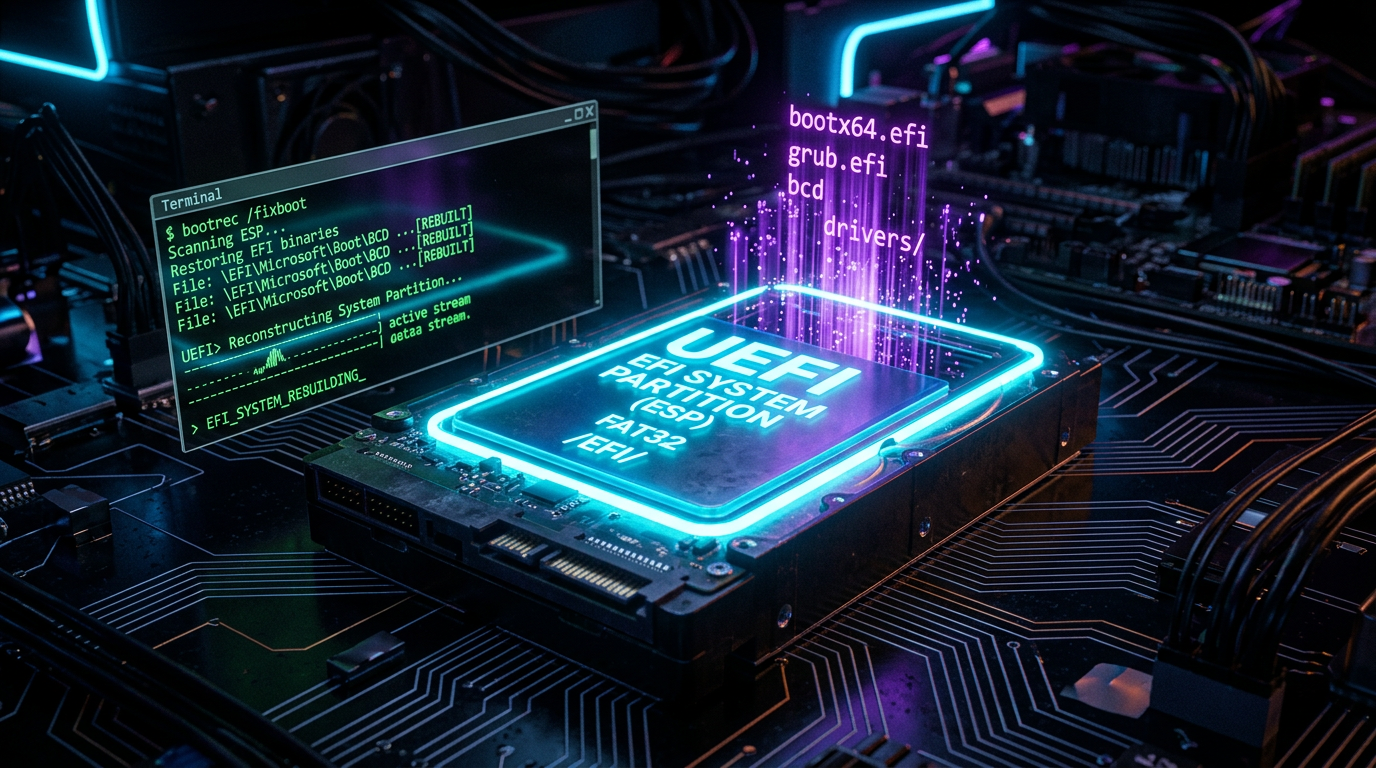
From the Automatic Repair screen, click Advanced options → Troubleshoot → Advanced options → Command Prompt. This opens a command line where you can run Windows' own repair tools. Run these one at a time, restarting after each:
bootrec /fixmbr
bootrec /fixboot
bootrec /scanos
bootrec /rebuildbcd
These commands repair the Master Boot Record and rebuild the Boot Configuration Data (BCD) — the most common fix for this error. If they report success, restart and see if Windows loads.
Step 4: Check and repair system files
Still in Command Prompt, run these to check for corrupted system files and disk errors:
sfc /scannow
chkdsk C: /f /r
sfc /scannow scans and repairs protected system files. chkdsk checks the drive for errors and bad sectors. Note that chkdsk can take a long time on a large drive, so be patient. If either finds and fixes problems, restart.
Still unsure what's causing the issue? Run a free AI diagnosis at DiagnoseMyPc.com — no download required, 5 free analyses per month.
Step 5: Try System Restore
If the error started after a recent change — an update, a driver, or new software — System Restore can roll your PC back to a working state without touching your files. From the recovery screen, go to Advanced options → System Restore, pick a restore point from before the problem started, and follow the prompts.
Step 6: Boot into Safe Mode
Safe Mode loads Windows with only the essentials, which can help you identify whether a driver or startup program is the culprit. From Advanced options → Startup Settings → Restart, then press the number for Safe Mode. If Windows loads in Safe Mode, the problem is likely a driver or startup item — you can uninstall recent updates or drivers from there.
Step 7: Use Startup Repair (one more time, deliberately)
Go back to Advanced options → Startup Repair. This is the same tool that failed, but running it after the bootrec and sfc steps above sometimes succeeds because the underlying problem is already fixed. It's worth one deliberate attempt.
Step 8: Check your drive's health
If nothing above worked, suspect the drive itself. From Command Prompt, run:
wmic diskdrive get statusIf it reports anything other than "OK," the drive may be failing. You can also check the drive's SMART status in your PC's BIOS/UEFI (usually by pressing F2, Del, or Esc during startup). A failing drive needs replacement — and your data needs backing up now, not later.
Step 9: Reset Windows (last resort)
If you've exhausted the steps above and nothing works, a reset is your remaining option. From the recovery screen, choose Reset this PC. Choose Keep my files if you want to preserve personal files (though installed apps will be removed), or Remove everything for a clean slate. This is the highest-risk step, which is why it's last — and why backing up first matters so much.
Dealing with this one-time? The $4.99 Fix Pass gives you 7 days of full Pro access — no subscription needed.
How to Know It's Fixed
The fix worked when your PC boots normally into the Windows desktop and stays there. Confirm with these checks:
Windows loads to the login screen and desktop without the Automatic Repair screen appearing.
Your files, folders, and installed programs are present and open correctly.
The PC restarts cleanly on its own (try a restart to confirm the loop is gone).
If you ran sfc /scannow or chkdsk, they completed without reporting unfixable errors.
Your drive's SMART status reports "OK" if you checked it.
If the PC boots but you're still worried, run a quick sfc /scannow from an elevated Command Prompt to confirm system files are healthy.
When to Stop and Get Help
Some situations are beyond what a home user should attempt alone. Stop and get professional help if:
Your drive is failing. If SMART status is bad, or chkdsk reports serious errors, stop using the drive immediately and get your data recovered by a professional before it fails completely.
You don't have your BitLocker recovery key. Without it, you cannot access an encrypted drive, and forcing a reset could make your data unrecoverable. Find the key before proceeding.
You've tried all the steps above and the error persists. Repeated failures after bootrec, sfc, and chkdsk point to a deeper hardware or firmware issue.
You're not comfortable with the Command Prompt steps. These tools are safe when used as described, but if you're unsure, a qualified technician can do it faster and without risk to your data.
From my help desk years, I'll tell you the honest truth: most of these errors are fixable with the steps above, and the ones that aren't are usually hardware. The biggest mistake people make is resetting too early and losing data. Diagnose first, protect your files, and only reset as a last resort. You'll almost always come out ahead.
Found this helpful?
Share it with someone who could use it.
DiagnoseMyPC Team
Expert PC diagnostics and troubleshooting guides to help you keep your Windows system running smoothly.
Get the free Windows Troubleshooting Checklist
Subscribe and instantly download our 50-point Windows troubleshooting checklist — plus practical fixes, performance tips, and security alerts from the DiagnoseMyPC team.
No spam. Unsubscribe anytime.
Frequently Asked Questions
How do I find out exactly what's causing my PC problem?
The fastest way is to let an AI analyzer read your actual system data instead of guessing. You can paste an error message, upload a screenshot, or run a quick diagnostic and get the specific cause ranked by severity. Try a free AI diagnosis at diagnosemypc.com — no account needed to get started.
Is it safe to run fix commands on my own PC?
Yes, as long as you understand what each command does. PC Diagnostic Analyzer always shows you the exact fix script first so you stay in full control of what runs on your computer — nothing is executed automatically without your review.
Do I need to reinstall Windows to fix this?
Usually not. Most performance, crash, driver, and startup problems can be fixed with targeted steps once you know the real cause. A full reinstall should be a last resort — start with a proper diagnosis before wiping anything.
When should I take my PC to a repair shop instead?
If a diagnosis points to failing hardware (a dying drive, bad RAM, or overheating components) and you're not comfortable opening the case, a shop is worth it. For software, driver, and configuration issues, you can almost always fix it yourself with step-by-step guidance.