Error 0xc000000e is Windows 11's way of saying it found the boot configuration it was told to use, but the device or entry it points to isn't there or isn't readable. It usually appears as a black screen with "Your PC needs to be repaired" and a message about a required device being inaccessible or missing. The fix depends entirely on why the boot chain broke — and the order you check things in matters more than the tools you use.
Before You Change Anything
Back up first if the drive still mounts. If you can reach the drive from another PC or a live environment, copy anything irreplaceable before you touch partitions or the BCD.
Do not run "Reset this PC" or a clean install as a first move. Both can wipe data and both are unnecessary for most 0xc000000e cases.
Write down what changed recently. A Windows update, a new drive, a clone, a BIOS update, or a moved cable is the single best clue you have.
Work on one change at a time. Reboot and re-test after each step so you know what actually fixed it.
Have a Windows 11 install USB ready. You'll need it for the recovery environment (WinRE) commands below.
Unplug extra drives (USB sticks, external HDDs, secondary SSDs) before you start — they can shift drive letters and confuse the boot order.
Having this problem on your own PC?
Describe what's happening and get a real AI diagnosis in seconds — no account needed.
Confirm You Have This Problem
You're in the right place if you see:
A black screen reading "Your PC needs to be repaired" with error code 0xc000000e.
Text like "A required device isn't connected or can't be accessed" or "The boot configuration data for your PC is missing or contains errors."
The failure happens before the Windows logo — you never reach the login screen.
The error is consistent across reboots (not a one-off glitch after a power cut).
If instead you get a blue screen after Windows starts loading, or a "Boot Device Not Found" message with no 0xc000000e code, you're looking at a different problem — check the drive and firmware first, then come back.
Possible Causes
| Evidence Observed | Likely Cause | Next Check |
|---|---|---|
| Drive not listed in BIOS/UEFI at all | Loose SATA/power cable, dead drive, or disabled port | Reseat cables, check BIOS drive list |
| Drive visible in BIOS but Windows won't boot | Corrupted or missing BCD store | Rebuild BCD from WinRE |
| Error appeared right after cloning to a new SSD | Boot entry still points to the old disk's partition | Verify active partition and BCD device path |
| Error after a Windows update or power loss | Damaged BCD data or interrupted write | Run bootrec and bcdedit checks |
| Multiple drives installed, letters shifted | Boot order or drive-letter mismatch | Disconnect extras, confirm boot device |
| Firmware set to Legacy/CSM after a BIOS reset | Wrong boot mode for a UEFI/GPT install | Match firmware mode to the install type |
Step-by-Step Diagnostic (Lowest Risk First)
Step 1 — Power down and reseat the drive connections
Shut down completely, unplug power, and open the case (desktop) or reseat the M.2/SATA drive if you're comfortable. A surprising number of 0xc000000e errors are a slightly loose SATA data cable or a drive that dropped off the bus. For laptops, at minimum confirm the drive is detected in firmware. This costs nothing and rules out the simplest cause.
Step 2 — Check the drive in BIOS/UEFI
Enter firmware setup (usually Del, F2, or F10 at power-on) and look at the storage list. Two outcomes:
Drive not detected → the problem is hardware or firmware, not Windows. Jump to the "drive not detected" branch below.
Drive detected → the hardware is fine; the boot entry is the suspect. Continue to Step 3.
Step 3 — Boot into the Windows Recovery Environment
Insert your Windows 11 install USB, boot from it, choose your language, then click Repair your computer → Troubleshoot → Advanced options → Command Prompt. Everything below runs from this prompt. Confirm you can see your Windows drive with:
diskpart
list volume
exit
Note which letter holds your Windows partition (it's often C: in WinRE, but can shift to D: or E:).
> Still unsure what's causing the issue? Run a free AI diagnosis at DiagnoseMyPc.com — no download required, 5 free analyses per month.
Step 4 — Verify the BCD and boot files
From the recovery Command Prompt, inspect the current boot configuration:
bcdedit /enumLook at the device and osdevice lines under the Windows Boot Loader entry. If they point to a partition that no longer exists, or the command reports the store can't be opened, the BCD is the problem. Also confirm the boot files exist on the system partition:
dir C:\Windows\System32\winload.efiIf winload.efi is missing, the boot files themselves are damaged, not just the BCD.
Step 5 — Rebuild the BCD (drive detected, entry missing)
This is the standard repair for a corrupted or missing boot entry. Run each command and read the output:
bootrec /fixmbr
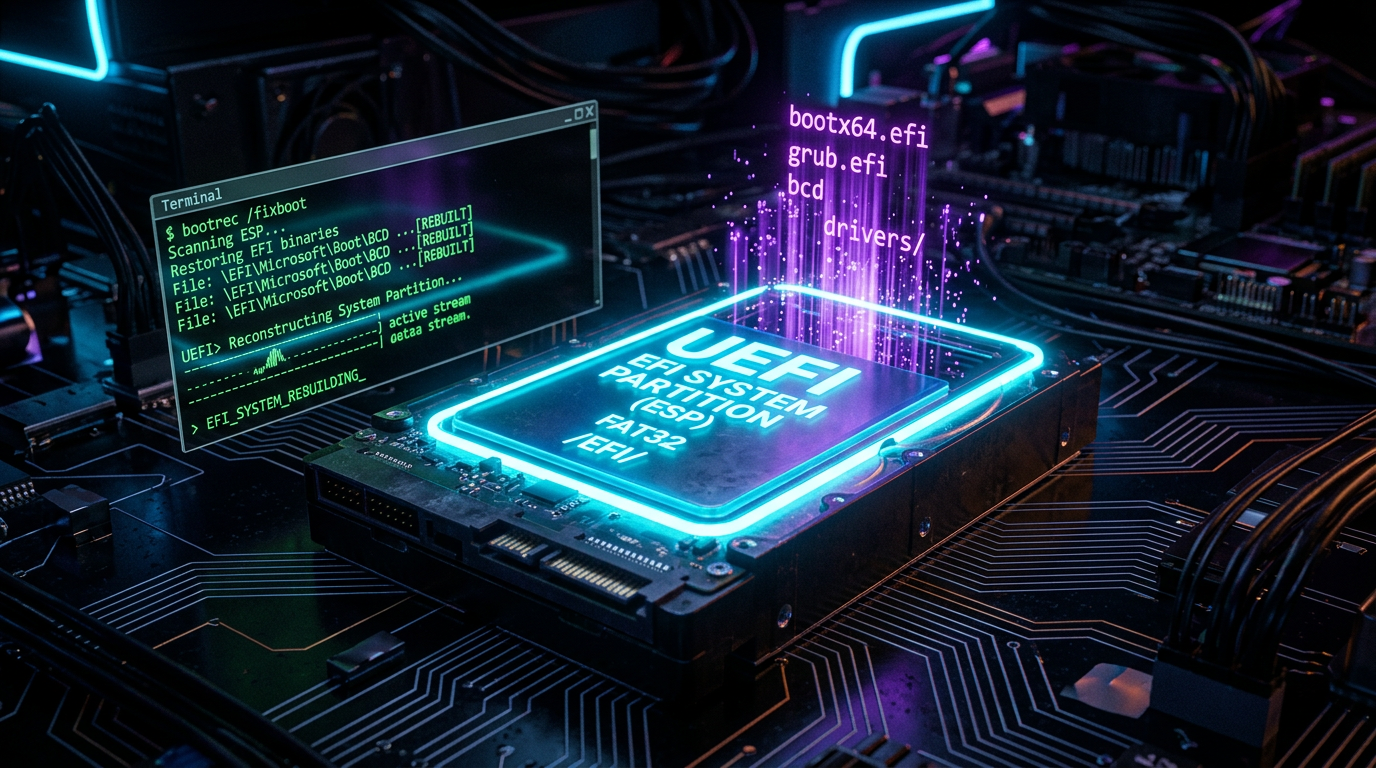
bootrec /fixboot
bootrec /scanos
bootrec /rebuildbcd
If bootrec /rebuildbcd finds a Windows installation, accept it when prompted. If it reports "Total identified Windows installations: 0", the BCD can't see your install — that's the "drive detected but boot entry missing" branch, and you'll need to recreate the entry manually with bcdboot:
bcdboot C:\Windows /s S: /f UEFIReplace C: with your Windows partition and S: with your EFI system partition (find it in diskpart — it's the small FAT32 volume). This rebuilds the boot files and entry from scratch.
Step 6 — Check the active partition and disk health
If rebuilds keep failing, the partition table or the disk itself may be failing. In diskpart, confirm the correct partition is marked active (for MBR installs) and that the EFI partition exists (for GPT/UEFI installs). Then check the drive's SMART status with a manufacturer tool or chkdsk C: /f from the recovery prompt. A drive that's throwing read errors will keep corrupting the BCD no matter how many times you rebuild it.
Step 7 — Match firmware mode to the install type
A BIOS reset or update can flip the boot mode. If your Windows 11 install is UEFI/GPT but firmware is set to Legacy/CSM (or vice versa), you'll get 0xc000000e every time. In firmware setup, set the boot mode to match your install and confirm the correct drive is first in boot order.
How to Know It's Fixed
The PC boots past the Windows logo to the login screen without the repair message.
bcdedit /enum shows a Windows Boot Loader entry pointing to the correct partition.
The error does not return after two or three clean restarts (a single lucky boot isn't proof).
Windows Update and normal shutdown/startup cycles complete without re-triggering the error.
When to Stop and Get Help
Stop and get professional help if:
The drive isn't detected in BIOS after reseating cables — that's a hardware failure, not a software fix.
chkdsk or SMART reports reallocated sectors or read errors — the drive is dying and data recovery should come before any repair.
You've rebuilt the BCD twice and the error returns — something deeper (partition table, failing controller, or a bad clone) is at play.
The data on the drive is irreplaceable — a recovery specialist is cheaper than a botched DIY attempt.
A Help Desk Perspective
After 25+ years in IT and 9 years running a corporate help desk, I can tell you 0xc000000e almost always has one of three stories: a loose cable, a corrupted BCD, or a bad clone. The mistake I see most is people jumping straight to bootrec /rebuildbcd before confirming the drive is even detected — you can't rebuild a boot entry for a disk the firmware can't see. Check the hardware first, then the boot entry, then the firmware mode. In that order, most machines are back up in under twenty minutes.
Dealing with this one-time? The $4.99 Fix Pass gives you 7 days of full Pro access — no subscription needed.
Found this helpful?
Share it with someone who could use it.
DiagnoseMyPC Team
Expert PC diagnostics and troubleshooting guides to help you keep your Windows system running smoothly.
Get the free Windows Troubleshooting Checklist
Subscribe and instantly download our 50-point Windows troubleshooting checklist — plus practical fixes, performance tips, and security alerts from the DiagnoseMyPC team.
No spam. Unsubscribe anytime.
Frequently Asked Questions
How do I find out exactly what's causing my PC problem?
The fastest way is to let an AI analyzer read your actual system data instead of guessing. You can paste an error message, upload a screenshot, or run a quick diagnostic and get the specific cause ranked by severity. Try a free AI diagnosis at diagnosemypc.com — no account needed to get started.
Is it safe to run fix commands on my own PC?
Yes, as long as you understand what each command does. PC Diagnostic Analyzer always shows you the exact fix script first so you stay in full control of what runs on your computer — nothing is executed automatically without your review.
Do I need to reinstall Windows to fix this?
Usually not. Most performance, crash, driver, and startup problems can be fixed with targeted steps once you know the real cause. A full reinstall should be a last resort — start with a proper diagnosis before wiping anything.
When should I take my PC to a repair shop instead?
If a diagnosis points to failing hardware (a dying drive, bad RAM, or overheating components) and you're not comfortable opening the case, a shop is worth it. For software, driver, and configuration issues, you can almost always fix it yourself with step-by-step guidance.