Why Is My Disk Stuck at 100%?
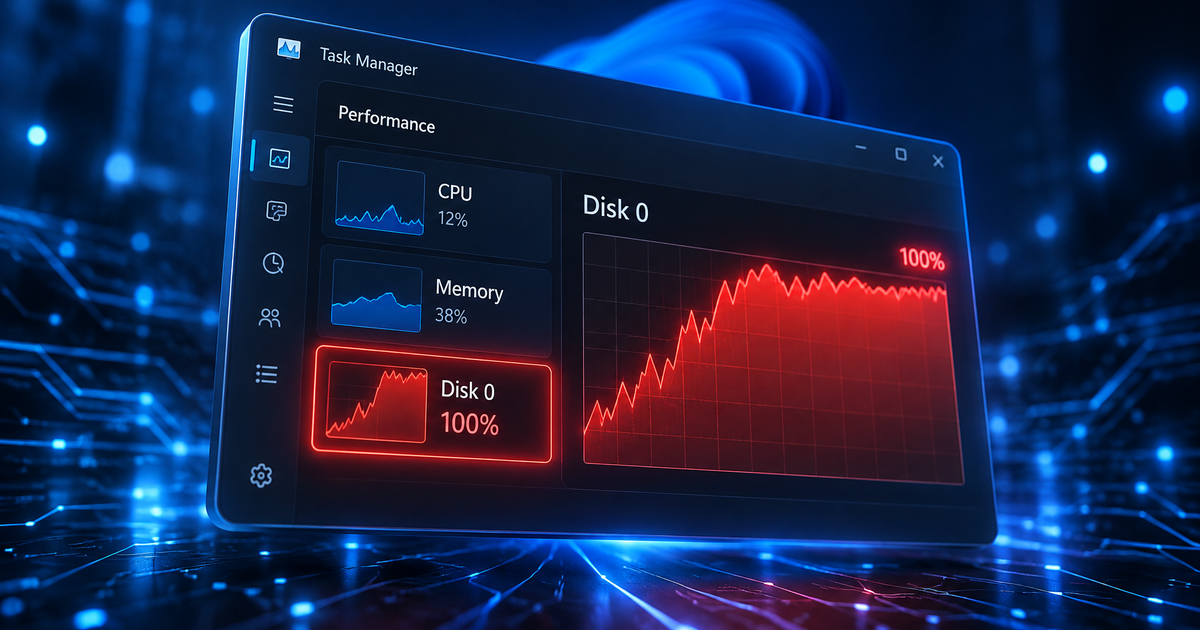
Open Task Manager (Ctrl+Shift+Esc) and click the Disk column. If it says 100% and your PC feels frozen, the problem is almost never the hard drive itself — it is a process hammering the disk with constant read/write operations.
The most common culprits on Windows 11:
SysMain (Superfetch) — pre-loads apps into memory but thrashes older HDDs
Windows Search Indexer — rebuilds its index after updates or large file changes
Connected User Experiences and Telemetry — Windows telemetry service
Antimalware Service Executable — Windows Defender running a scan
Outdated AHCI / SATA drivers — the single biggest hidden cause on many PCs
Having this problem on your own PC?
Describe what's happening and get a real AI diagnosis in seconds — no account needed.
Step 1: Identify the Guilty Process
In Task Manager, sort by the Disk column. The process at the top is your starting point.
| Process Name | Likely Fix |
|---|---|
| System | Driver issue (AHCI/StorAHCI) |
| Service Host: SysMain | Disable SysMain |
| SearchIndexer.exe | Rebuild or limit the index |
| MsMpEng.exe | Schedule Defender scans |
| DiagTrack / CompatTelRunner | Disable telemetry service |
If "System" is the top consumer, skip straight to Step 4 (driver fix) — it is the most effective solution.
Step 2: Disable SysMain (Superfetch)
SysMain pre-loads frequently used applications into RAM, which can cause constant disk thrashing on HDDs.
Press Win + R, type services.msc, and press Enter
Find SysMain in the list
Right-click → Properties
Set Startup type to Disabled
Click Stop, then OK
Check Task Manager — if disk usage drops to normal, SysMain was the cause. On SSDs this service is usually harmless, so you can re-enable it later if you upgrade your drive.
Step 3: Tame Windows Search Indexer
The indexer rebuilds after every major update, and on an HDD that rebuild can saturate the disk for hours.
Option A — Rebuild the index:
Open Settings → Privacy & security → Searching Windows
Click Advanced indexing options → Advanced → Rebuild
Let it finish (could take a few hours) — disk usage will normalize after
Option B — Limit what gets indexed:
In the same Advanced Indexing Options window, click Modify
Uncheck large folders you do not need to search (Downloads, game folders, media libraries)
Option C — Disable entirely (temporary):
sc stop WSearch
sc config WSearch start=disabled
This kills search suggestions in the Start menu, so only use it as a diagnostic step.
Step 4: Fix the StorAHCI / AHCI Driver (Most Effective)
A known firmware bug in the inbox Microsoft StorAHCI driver causes Message Signaled Interrupts (MSI) to fire incorrectly, pinning disk usage at 100%. This affects both HDDs and SSDs.
Open Device Manager → expand IDE ATA/ATAPI controllers
Right-click your AHCI controller → Properties → Driver tab
If the driver is storahci.sys (Microsoft's inbox driver), apply the registry fix:
reg add "HKLM\System\CurrentControlSet\Enum\PCI\<your-device-id>\Device Parameters\Interrupt Management\MessageSignaledInterruptProperties" /v MSISupported /t REG_DWORD /d 0 /fTo find <your-device-id>, look at Properties → Details → Device instance path.
Restart your PC — the fix only takes effect after a reboot
If your manufacturer provides an updated AHCI/RAID driver (Intel RST, AMD StoreMI), install that instead — it usually eliminates the issue entirely.
Step 5: Disable Connected User Experiences
Windows telemetry (DiagTrack) can spike disk usage in the background.
sc stop DiagTrack
sc config DiagTrack start=disabled
Also disable the Connected User Experiences and Telemetry scheduled tasks:
schtasks /Change /TN "Microsoft\Windows\Application Experience\Microsoft Compatibility Appraiser" /DisableStep 6: Schedule Windows Defender Scans
Rather than letting Defender scan whenever it wants, schedule it for off-hours:
Open Task Scheduler
Navigate to Microsoft → Windows → Windows Defender
Double-click Windows Defender Scheduled Scan
Go to the Triggers tab → set a specific time (e.g. 2:00 AM)
Under Conditions, check "Start the task only if the computer is idle"
Step 7: Check for Failing Hardware
If none of the above fixes the problem, your drive may be physically failing:
Run wmic diskdrive get status — it should say "OK"
Check S.M.A.R.T. data with Get-PhysicalDisk | Get-StorageReliabilityCounter in PowerShell
Look for Reallocated Sectors, Current Pending Sectors, or Uncorrectable Errors — any non-zero value is a warning sign
A failing HDD will show 100% disk usage because every read operation takes multiple retries. Back up your data immediately and replace the drive.
Still at 100%? Let AI Find It
If you have worked through every step and disk usage is still pinned, there may be a less common cause specific to your hardware or installed software. Describe the problem at DiagnoseMyPc — our AI reads your actual system data and identifies the exact process and driver combination causing the issue. The first analysis is free, no account needed.
Found this helpful?
Share it with someone who could use it.
DiagnoseMyPC Team
Expert PC diagnostics and troubleshooting guides to help you keep your Windows system running smoothly.
Get the free Windows Troubleshooting Checklist
Subscribe and instantly download our 50-point Windows troubleshooting checklist — plus practical fixes, performance tips, and security alerts from the DiagnoseMyPC team.
No spam. Unsubscribe anytime.
Frequently Asked Questions
How do I find out exactly what's causing my PC problem?
The fastest way is to let an AI analyzer read your actual system data instead of guessing. You can paste an error message, upload a screenshot, or run a quick diagnostic and get the specific cause ranked by severity. Try a free AI diagnosis at diagnosemypc.com — no account needed to get started.
Is it safe to run fix commands on my own PC?
Yes, as long as you understand what each command does. DiagnoseMyPc always shows you the exact fix script first so you stay in full control of what runs on your computer — nothing is executed automatically without your review.
Do I need to reinstall Windows to fix this?
Usually not. Most performance, crash, driver, and startup problems can be fixed with targeted steps once you know the real cause. A full reinstall should be a last resort — start with a proper diagnosis before wiping anything.
When should I take my PC to a repair shop instead?
If a diagnosis points to failing hardware (a dying drive, bad RAM, or overheating components) and you're not comfortable opening the case, a shop is worth it. For software, driver, and configuration issues, you can almost always fix it yourself with step-by-step guidance.