PC On, Screen Black — Where to Start
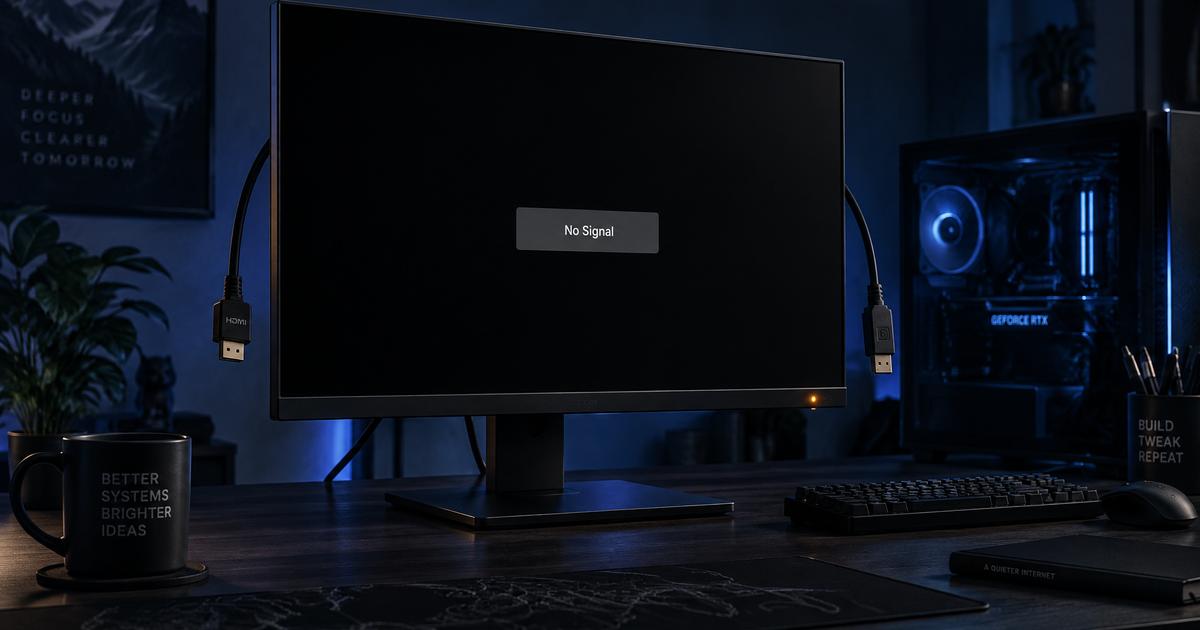
When your PC powers on (fans spin, lights come on) but the monitor shows nothing — no BIOS splash, no Windows logo, just a black or "No Signal" screen — the problem is between the motherboard's video output and the display. The trick is figuring out which link in that chain is broken.
Work through these checks in order. Each one rules out one category of failure.
Having this problem on your own PC?
Describe what's happening and get a real AI diagnosis in seconds — no account needed.
Step 1: Check the Monitor and Cable
Before assuming the worst, rule out the display itself:
Is the monitor on? Check the power LED — it should be on (usually blue or white), not amber/orange (standby)
Try a different input — press the monitor's input/source button and cycle through HDMI, DisplayPort, VGA, etc.
Try a different cable — HDMI and DisplayPort cables can fail silently. Swap with a known-good cable
Try a different monitor or TV — this rules out a dead panel
Check cable seating — unplug both ends and reseat firmly. DisplayPort cables have a latch — press it before pulling
If the monitor works with another device (game console, laptop), the monitor is fine. Move to Step 2.
Step 2: Listen for Beep Codes
Most motherboards emit diagnostic beep codes through a small speaker when POST (Power-On Self-Test) fails. No built-in speaker? A USB or chassis speaker connected to the motherboard header will work.
Common patterns:
| Beep Pattern | Meaning (AMI BIOS) |
|---|---|
| 1 short | Normal POST (should show display) |
| 1 long, 2 short | Video card / GPU failure |
| 1 long, 3 short | Video memory failure |
| 3 long | RAM failure |
| Continuous beeping | RAM not detected or not seated |
If your motherboard has debug LEDs (small labeled LEDs like DRAM, VGA, CPU, BOOT), check which one stays lit — it tells you exactly where POST is failing.
Step 3: Reseat the RAM
Loose or poorly seated RAM is the single most common cause of a no-display boot.
Power off and unplug the PC
Press the power button once to drain residual charge
Open the case and find the RAM sticks
Push the clips on both sides outward to release each stick
Pull the stick out, then firmly press it back in until both clips snap closed
Try one stick at a time — if you have two sticks, test each one individually in the first slot
If the PC boots with one stick but not the other, you have found a bad RAM module.
Step 4: Reseat the Graphics Card
If you have a dedicated GPU (NVIDIA or AMD graphics card):
Power off and unplug
Unlatch and remove the GPU from its PCIe slot
Inspect the gold contacts — clean with an eraser or isopropyl alcohol if they look tarnished
Reseat the card firmly until the latch clicks
Reconnect power cables — many GPUs need 6-pin or 8-pin power connectors from the PSU. A loose power cable is a common miss
Try a different PCIe slot if your motherboard has one
Important: Make sure your monitor cable is plugged into the GPU's output (the card in the expansion slots), NOT the motherboard's video port. Plugging into the motherboard when a dedicated GPU is installed often gives no display because the integrated graphics are disabled.
Step 5: Try Integrated Graphics
If your CPU has integrated graphics (Intel Core i-series, AMD Ryzen with "G" suffix):
Power off, remove the dedicated GPU entirely
Connect the monitor cable to the motherboard's video output (HDMI/DisplayPort port near the USB ports at the back)
Power on
If you get display now, your GPU may be dead or its PCIe slot may be faulty.
If your CPU does not have integrated graphics (AMD Ryzen 5 5600, Intel F-series), the motherboard video ports will never produce a signal — you need a working GPU.
Step 6: Clear CMOS (Reset BIOS)
A misconfigured BIOS setting (wrong display output, bad overclock, incompatible memory profile) can prevent display output.
Power off and unplug
Find the CMOS battery on the motherboard (a silver coin cell, CR2032)
Remove it, wait 60 seconds, then put it back
Alternatively, use the Clear CMOS jumper (check your motherboard manual)
Power on — BIOS resets to defaults
This also resets any XMP/EXPO memory overclocking profiles that may have caused instability.
Step 7: Check CPU Power and Seating
Less common but possible:
Verify the CPU power cable (4-pin or 8-pin EPS connector near the top of the motherboard) is plugged in. Missing CPU power = fans spin but no POST
If you recently installed or upgraded the CPU, remove the cooler and check that the CPU is properly seated and no pins are bent (AMD) or socket contacts damaged (Intel)
Step 8: Test the Power Supply
A failing PSU can deliver enough power to spin fans but not enough for the GPU or CPU to POST:
Check if the PSU fan is spinning
Try a different PSU if you have one available
Use a PSU tester (available for ~$15) or the paperclip test (jumper the green wire to any black wire on the 24-pin ATX connector) to verify it turns on
Step 9: Minimal Boot Test
Strip the PC down to the bare minimum needed to POST:
Remove all drives, extra RAM sticks, USB devices, and expansion cards
Keep only: CPU + cooler, one RAM stick (first slot), GPU, and PSU connections
Power on — if you get display, add components back one at a time until the problem returns
This isolates a short circuit or defective component.
When It Is a Software Problem (Not Hardware)
If you see the BIOS splash screen but Windows never appears:
The problem is likely a corrupted display driver or a Windows boot failure, not a hardware issue
Boot into Safe Mode (interrupt boot 3 times to reach WinRE → Troubleshoot → Startup Settings → Enable Safe Mode)
In Safe Mode, uninstall the GPU driver (Device Manager → Display Adapters → right-click → Uninstall device → check "Delete driver software")
Restart and let Windows install a generic driver
Our guide on Windows 11 black screen after login covers this scenario in detail.
Still No Display? Get a Targeted Diagnosis
If you have worked through every step and still see nothing, the failure may be specific to your motherboard, CPU, or an unusual hardware combination. Describe what happens (power LED, fan behavior, beep codes, debug LEDs) at DiagnoseMyPc — the AI uses your symptoms to narrow down the failing component. The first diagnosis is free.
Found this helpful?
Share it with someone who could use it.
DiagnoseMyPC Team
Expert PC diagnostics and troubleshooting guides to help you keep your Windows system running smoothly.
Get the free Windows Troubleshooting Checklist
Subscribe and instantly download our 50-point Windows troubleshooting checklist — plus practical fixes, performance tips, and security alerts from the DiagnoseMyPC team.
No spam. Unsubscribe anytime.
Frequently Asked Questions
How do I find out exactly what's causing my PC problem?
The fastest way is to let an AI analyzer read your actual system data instead of guessing. You can paste an error message, upload a screenshot, or run a quick diagnostic and get the specific cause ranked by severity. Try a free AI diagnosis at diagnosemypc.com — no account needed to get started.
Is it safe to run fix commands on my own PC?
Yes, as long as you understand what each command does. DiagnoseMyPc always shows you the exact fix script first so you stay in full control of what runs on your computer — nothing is executed automatically without your review.
Do I need to reinstall Windows to fix this?
Usually not. Most performance, crash, driver, and startup problems can be fixed with targeted steps once you know the real cause. A full reinstall should be a last resort — start with a proper diagnosis before wiping anything.
When should I take my PC to a repair shop instead?
If a diagnosis points to failing hardware (a dying drive, bad RAM, or overheating components) and you're not comfortable opening the case, a shop is worth it. For software, driver, and configuration issues, you can almost always fix it yourself with step-by-step guidance.