Why Windows Update Gets Stuck
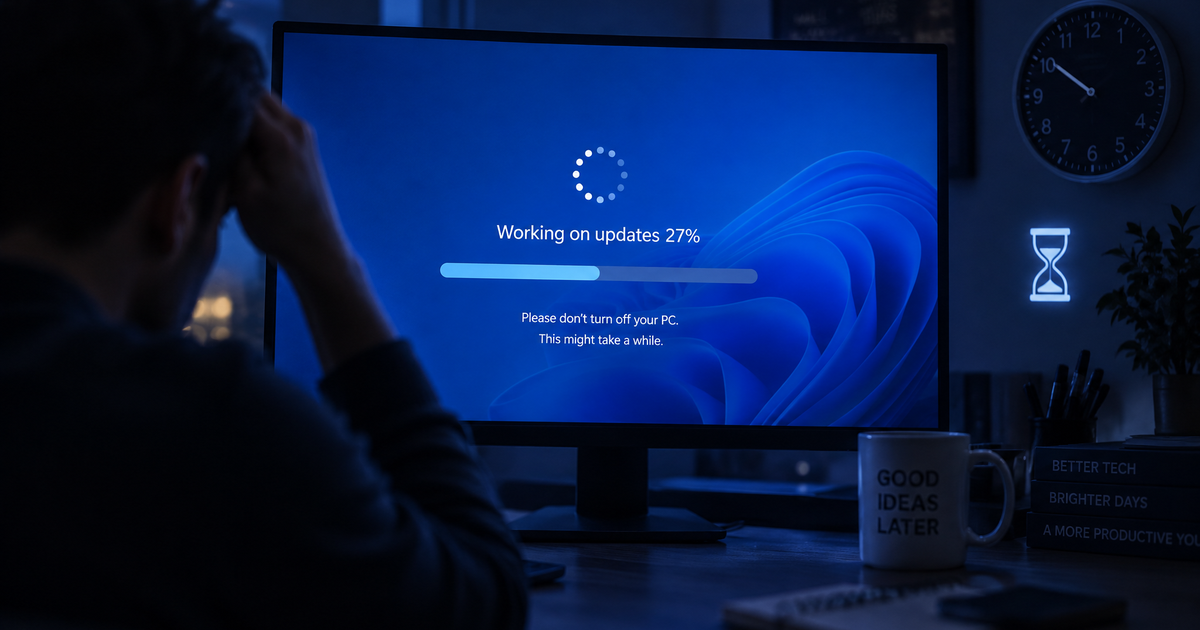
Windows Update can freeze at any point — stuck downloading at 0%, hung "Installing" at 27%, or looping through restarts. The root cause is usually one of these:
Corrupted update cache — partial downloads blocking the queue
Background Intelligent Transfer Service (BITS) stuck in an error state
Conflicting software — VPNs, firewalls, or third-party antivirus interfering
Not enough disk space — updates need working room
Metered connection setting — Windows pauses updates over metered networks
Before you try anything complex, check the basics:
Restart your PC — this clears many transient lock-ups
Check your internet — open a browser and confirm you are online
Check free disk space — you need at least 10 GB free on C:
Disable metered connection — Settings → Network → your connection → toggle off "Metered connection"
If the update is still stuck after a restart, work through the steps below.
Having this problem on your own PC?
Describe what's happening and get a real AI diagnosis in seconds — no account needed.
Step 1: Run the Windows Update Troubleshooter
Microsoft's built-in troubleshooter fixes many common issues automatically.
Open Settings → System → Troubleshoot → Other troubleshooters
Click Run next to Windows Update
Follow the prompts and apply any suggested fixes
This resets several update components and clears minor configuration issues. It works about 40% of the time on its own.
Step 2: Clear the Update Cache
Corrupted cached files are the most common cause of a frozen download. Clearing the cache forces Windows to download the update fresh.
Open Command Prompt as Administrator and run these commands one by one:
net stop wuauserv
net stop bits
net stop cryptSvc
ren C:\Windows\SoftwareDistribution SoftwareDistribution.old
ren C:\Windows\System32\catroot2 catroot2.old
net start wuauserv
net start bits
net start cryptSvc
Then go to Settings → Windows Update and click Check for updates again. Windows will rebuild the cache from scratch.
Step 3: Reset Windows Update Components Completely
If clearing the cache was not enough, a full component reset is the next step. Open PowerShell as Administrator:
# Stop all update-related services
Stop-Service -Name wuauserv, bits, cryptSvc, msiserver -Force

# Delete BITS queue
Remove-Item "$env:ALLUSERSPROFILE\Application Data\Microsoft\Network\Downloader\*" -Force -ErrorAction SilentlyContinue

# Reset Winsock and proxy
netsh winsock reset
netsh winhttp reset proxy

# Restart services
Start-Service -Name wuauserv, bits, cryptSvc, msiserver
Restart your PC after running this.
Step 4: Manually Install the Stuck Update
If a specific KB number is stuck:
Note the KB number from Settings → Windows Update (e.g., KB5034441)
Go to the Microsoft Update Catalog
Search for the KB number
Download the correct version for your architecture (x64 for most PCs)
Double-click the downloaded .msu file to install manually
This bypasses the normal update pipeline entirely.
Step 5: Fix "Working on Updates" Boot Loop
If your PC restarted during an update and is now stuck on the "Working on updates" screen:
Wait at least 2 hours. Some updates genuinely take a long time, especially cumulative or feature updates. If it has been more than 2 hours with no progress:
Hard power off — hold the power button for 10 seconds
Turn the PC back on — Windows should detect the failed update and roll back automatically
If it boots to the lock screen, open Settings → Windows Update → Update history to see the failed update
If it loops back to "Working on updates" after the hard restart:
Boot into Windows Recovery Environment (hold Shift and click Restart, or interrupt boot 3 times)
Go to Troubleshoot → Advanced Options → Uninstall Updates
Choose Uninstall latest quality update (or feature update)
Step 6: Check for Disk Errors
Corrupted system files can prevent updates from installing:
sfc /scannow
DISM /Online /Cleanup-Image /RestoreHealth
Run sfc first. If it finds and repairs files, run Windows Update again. If sfc reports it could not fix some files, run the DISM command — it downloads clean copies from Microsoft's servers — then run sfc a second time.
Step 7: Temporarily Disable Third-Party Software
VPNs, firewalls, and third-party antivirus (especially Norton, McAfee, and Kaspersky) are known to interfere with Windows Update downloads. Temporarily disable them, run the update, then re-enable.
How This Differs From Update Error Codes
If Windows Update gives you a specific error code (like 0x80070002 or 0x800f081f), our guide on fixing Windows Update errors covers those specific codes in detail. This guide is for when the update just freezes — no error, just stuck.
Still Stuck? Get AI Help
If you have worked through every step and updates still will not install, the cause may be specific to your PC's configuration — a conflicting driver, a group policy, or a damaged component store that DISM cannot reach. Describe what is happening at DiagnoseMyPc and get a targeted fix. The first diagnosis is free.
Found this helpful?
Share it with someone who could use it.
DiagnoseMyPC Team
Expert PC diagnostics and troubleshooting guides to help you keep your Windows system running smoothly.
Get the free Windows Troubleshooting Checklist
Subscribe and instantly download our 50-point Windows troubleshooting checklist — plus practical fixes, performance tips, and security alerts from the DiagnoseMyPC team.
No spam. Unsubscribe anytime.
Frequently Asked Questions
How do I find out exactly what's causing my PC problem?
The fastest way is to let an AI analyzer read your actual system data instead of guessing. You can paste an error message, upload a screenshot, or run a quick diagnostic and get the specific cause ranked by severity. Try a free AI diagnosis at diagnosemypc.com — no account needed to get started.
Is it safe to run fix commands on my own PC?
Yes, as long as you understand what each command does. DiagnoseMyPc always shows you the exact fix script first so you stay in full control of what runs on your computer — nothing is executed automatically without your review.
Do I need to reinstall Windows to fix this?
Usually not. Most performance, crash, driver, and startup problems can be fixed with targeted steps once you know the real cause. A full reinstall should be a last resort — start with a proper diagnosis before wiping anything.
When should I take my PC to a repair shop instead?
If a diagnosis points to failing hardware (a dying drive, bad RAM, or overheating components) and you're not comfortable opening the case, a shop is worth it. For software, driver, and configuration issues, you can almost always fix it yourself with step-by-step guidance.