Why Is My Laptop Fan So Loud?
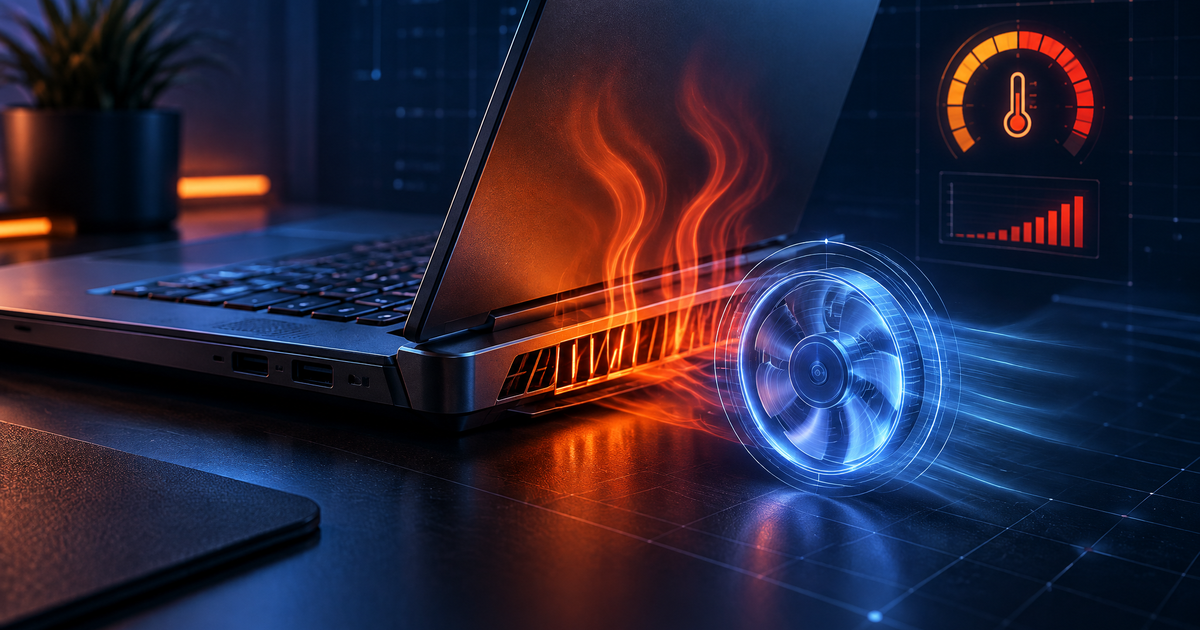
A loud or constantly running fan means your laptop is working hard to cool itself. That is normal during heavy gaming or video rendering — but if the fan roars during basic tasks like browsing or typing, something is wrong.
The four most common causes:
A runaway process eating CPU or GPU in the background
Dust buildup blocking airflow inside the chassis
Dried-out thermal paste between the CPU and heatsink
Aggressive fan curves or a missing fan profile in BIOS/UEFI
Having this problem on your own PC?
Describe what's happening and get a real AI diagnosis in seconds — no account needed.
Step 1: Check What Is Using Your CPU
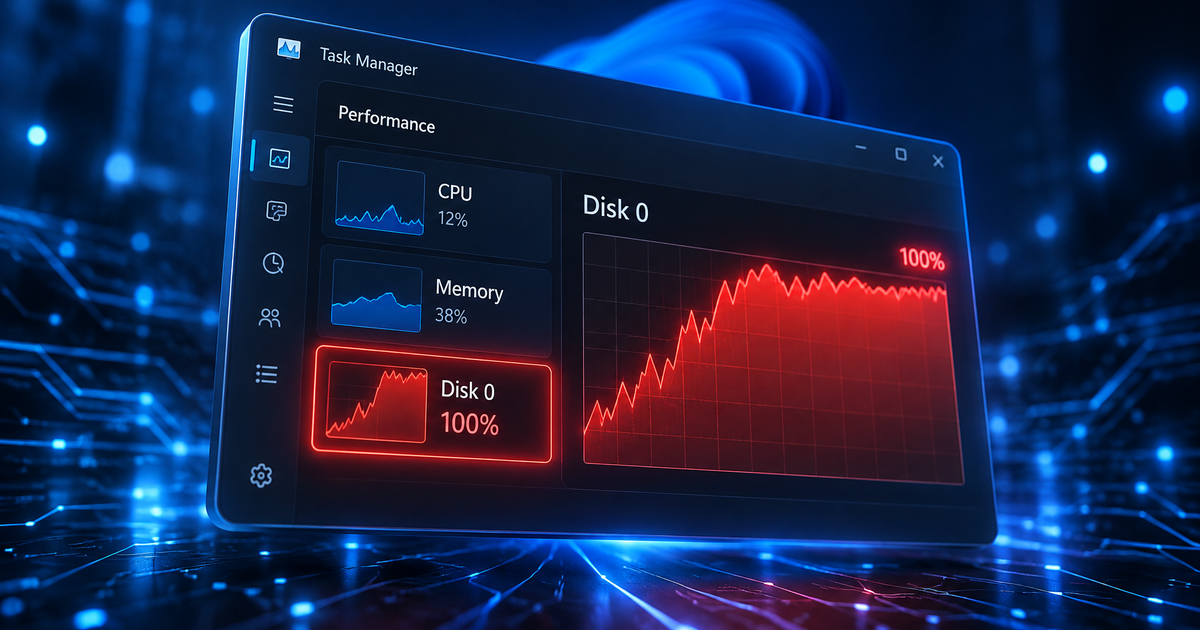
Open Task Manager (Ctrl+Shift+Esc) and sort by CPU. A healthy idle laptop should sit below 5–10% CPU usage.
Common culprits:
| Process | What It Means |
|---|---|
| MsMpEng.exe | Windows Defender running a scan |
| SearchIndexer.exe | Rebuilding search index |
| WmiPrvSE.exe | WMI activity (often a bug) |
| Chrome / Edge (GPU Process) | Hardware acceleration issue |
| svchost.exe (multiple) | Windows Update downloading |
If a process is stuck above 30% for minutes, right-click → End Task and see if the fan calms down. If it does, you have found your cause.
Step 2: Check Your Thermals
Even if CPU usage is low, high temperatures trigger the fan. You can check temps with your manufacturer's utility:
Dell: Dell SupportAssist → Hardware Scan
Lenovo: Lenovo Vantage → Hardware Scan
HP: HP Support Assistant → Tests
ASUS: MyASUS → System Diagnosis
Normal idle temperature is 35–50°C. If you are seeing 70–90°C at idle, the problem is physical — dust or thermal paste.
You can also use free tools like HWiNFO64 or Core Temp for detailed sensor readings.
Step 3: Clean the Dust
Dust accumulation is the #1 physical cause of a loud laptop fan. Over time, dust clogs the intake vents and heatsink fins, forcing the fan to spin faster to compensate.
What you need: a can of compressed air.
Shut down the laptop and unplug it
Find the exhaust vent (usually on the side or back edge)
Hold the can upright and blast short bursts into the vent
Also blow into the intake vents (usually on the bottom)
Avoid tilting the can — liquid propellant can damage components
For a deeper clean, remove the bottom panel (check your laptop's service manual) and carefully blow out the fan blades and heatsink directly.
Step 4: Reapply Thermal Paste
If your laptop is 3+ years old and cleaning the dust did not help, the thermal paste between the CPU die and heatsink may have dried out and cracked, losing its heat transfer ability.
Signs thermal paste needs replacing:
Fan runs loudly even at idle after cleaning
CPU temps spike quickly under light load
Laptop was manufactured more than 2–3 years ago
How to do it:
Remove the bottom panel and disconnect the battery
Unscrew the heatsink/fan assembly (note the screw order — often numbered)
Clean old paste from both the CPU die and heatsink with isopropyl alcohol (90%+)
Apply a pea-sized drop of new thermal paste (Arctic MX-6 or Noctua NT-H2 are safe choices)
Reassemble in reverse order, tightening screws in a cross pattern
> Warning: This voids the warranty on some laptops. Check your warranty status first.
Step 5: Adjust Your Fan Profile
Some laptops run fans at maximum by default. You can change this:
In Windows:
Open Settings → System → Power & battery
Set power mode to Best power efficiency (throttles CPU slightly, dramatically reduces fan noise)
In BIOS/UEFI:
Restart and press F2 / Del / F10 (varies by manufacturer)
Look for Fan Control, Thermal Management, or Cool & Quiet
Switch from "Performance" to "Balanced" or "Quiet"
Manufacturer utilities:
Dell: Dell Power Manager → Thermal Management → Quiet
Lenovo: Lenovo Vantage → Thermal Mode → Quiet
HP: HP Command Center → Thermal Profile → Cool
ASUS: Armoury Crate → Fan Profile → Silent
Step 6: Update Your BIOS and Drivers
Manufacturers periodically release BIOS updates that fix fan curve bugs. Check your laptop model's support page and install any available BIOS and chipset driver updates.
Important: Always plug in your charger during a BIOS update — a power loss during the flash can brick your laptop.
Step 7: Rule Out a Failing Fan
If the fan makes grinding, clicking, or rattling noises (not just loud whooshing), the fan bearing may be failing. A failing fan cannot cool effectively, so the system pushes it harder, making it louder.
Replacement laptop fans are typically $15–$40 and can be swapped by following a disassembly guide for your model on iFixit.
Still Loud? Get an AI Diagnosis
If none of these steps resolved the noise, the cause may be a specific driver conflict, a hidden background service, or a sensor reporting incorrect temperatures. Describe the problem at DiagnoseMyPc — the AI analyzes your system data and tells you exactly what is triggering the fan. First analysis is free.
Found this helpful?
Share it with someone who could use it.
DiagnoseMyPC Team
Expert PC diagnostics and troubleshooting guides to help you keep your Windows system running smoothly.
Get the free Windows Troubleshooting Checklist
Subscribe and instantly download our 50-point Windows troubleshooting checklist — plus practical fixes, performance tips, and security alerts from the DiagnoseMyPC team.
No spam. Unsubscribe anytime.
Frequently Asked Questions
How do I find out exactly what's causing my PC problem?
The fastest way is to let an AI analyzer read your actual system data instead of guessing. You can paste an error message, upload a screenshot, or run a quick diagnostic and get the specific cause ranked by severity. Try a free AI diagnosis at diagnosemypc.com — no account needed to get started.
Is it safe to run fix commands on my own PC?
Yes, as long as you understand what each command does. DiagnoseMyPc always shows you the exact fix script first so you stay in full control of what runs on your computer — nothing is executed automatically without your review.
Do I need to reinstall Windows to fix this?
Usually not. Most performance, crash, driver, and startup problems can be fixed with targeted steps once you know the real cause. A full reinstall should be a last resort — start with a proper diagnosis before wiping anything.
When should I take my PC to a repair shop instead?
If a diagnosis points to failing hardware (a dying drive, bad RAM, or overheating components) and you're not comfortable opening the case, a shop is worth it. For software, driver, and configuration issues, you can almost always fix it yourself with step-by-step guidance.