What Is RAM? How Memory Affects Your PC's Speed
If your PC feels sluggish when you open too many browser tabs, switch between apps, or run demanding software, your RAM could be the culprit. Random Access Memory (RAM) is the short-term workspace your computer uses to juggle active tasks — and understanding it is the first step toward a faster, more responsive system.
In this guide, we'll break down exactly what RAM is, how it works, how much you need, and how to diagnose memory-related slowdowns using PC Diagnostic Analyzer.
Having this problem on your own PC?
Describe what's happening and get a real AI diagnosis in seconds — no account needed.
What Is RAM and What Does It Do?
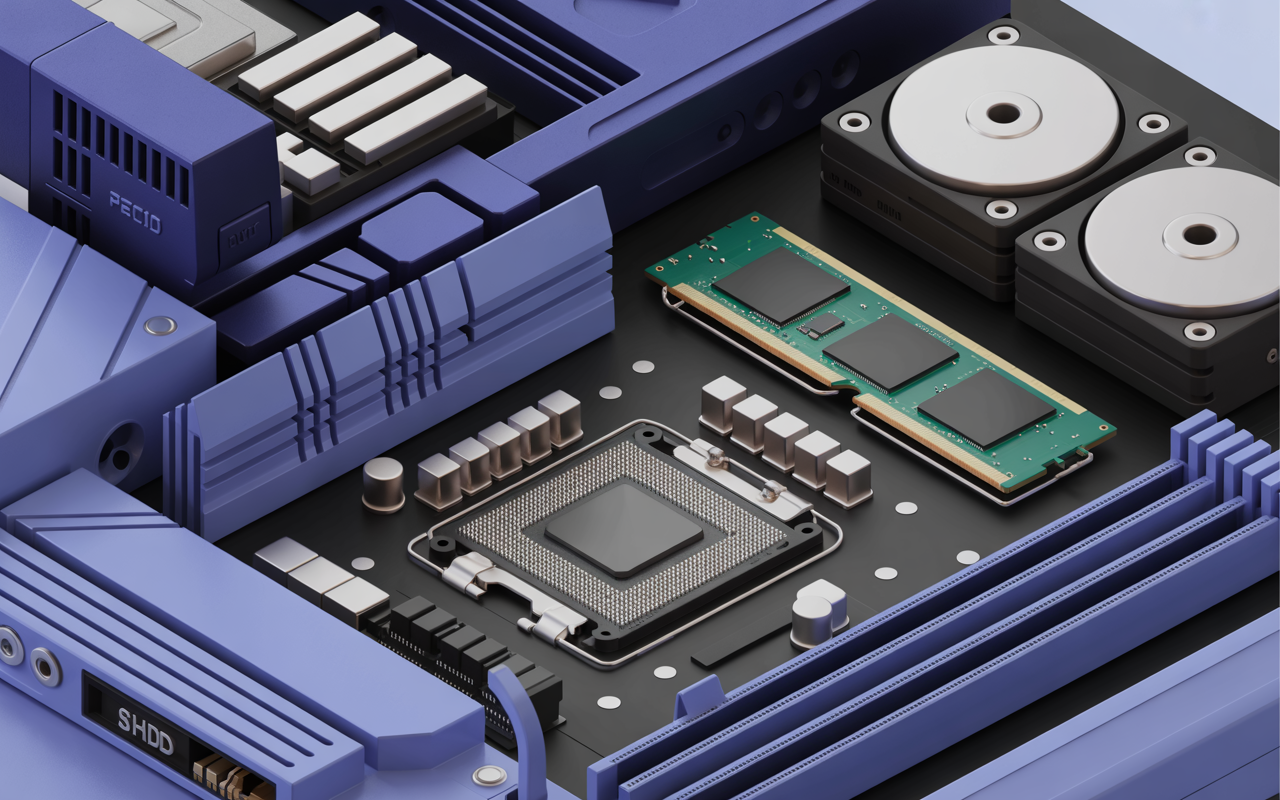
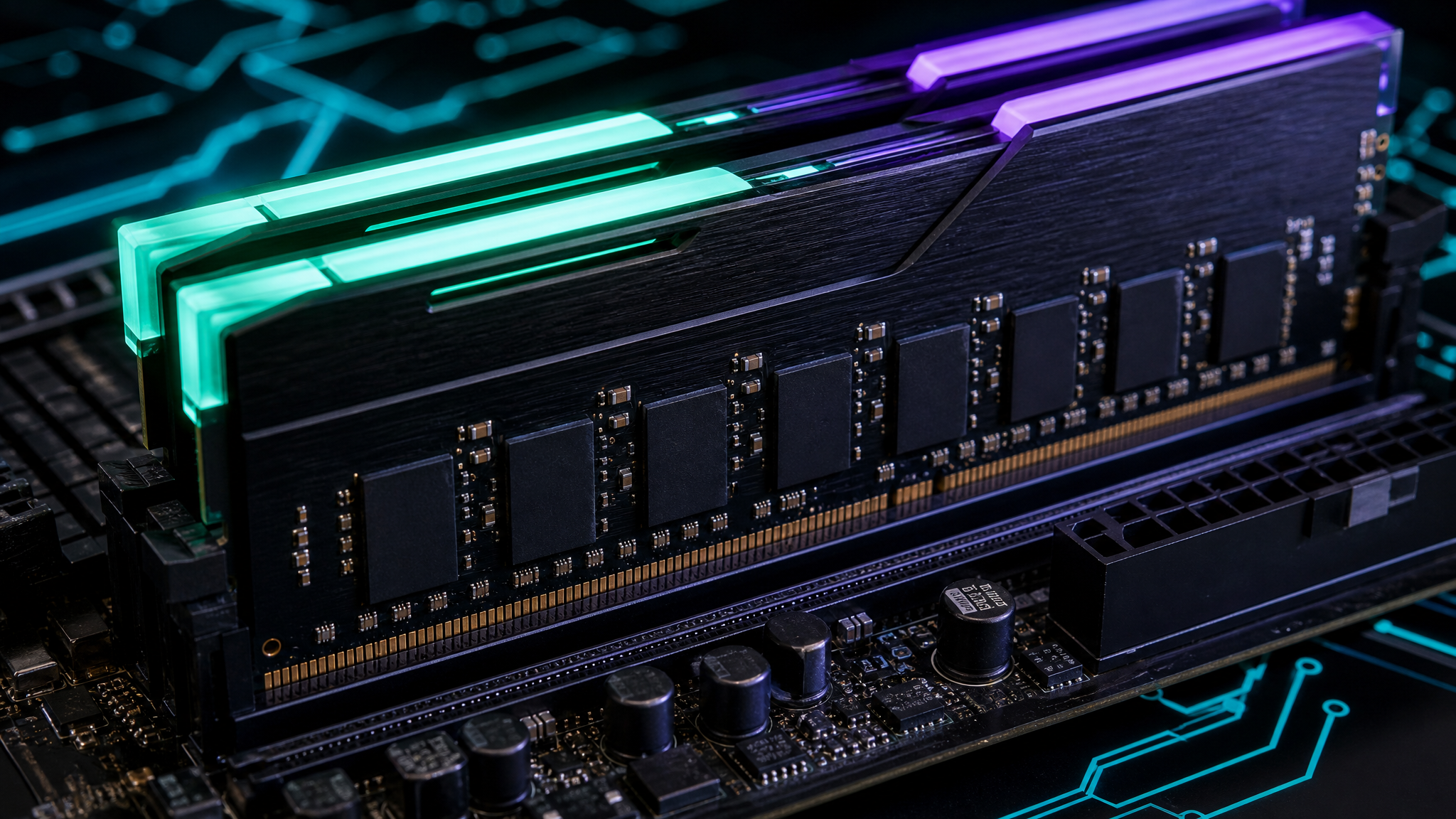
RAM stands for Random Access Memory. Unlike your hard drive or SSD — which store files permanently — RAM is temporary, high-speed storage that your CPU uses to hold data it's actively working with.
Think of it this way:
Your hard drive is like a filing cabinet — it stores everything long-term
Your RAM is like your desk — it holds only what you're currently working on
Your CPU is like your brain — it reads from and writes to the desk constantly
When you open a program, Windows loads it from your storage drive into RAM so the CPU can access it quickly. The more RAM you have, the more programs and data can sit on that "desk" at once — without your PC having to constantly swap data in and out of slower storage.
How RAM Affects PC Performance
RAM has a direct, measurable impact on how your PC feels day-to-day. Here's how:
Multitasking
Every open application consumes RAM. A web browser with 10 tabs, a word processor, a music player, and a background antivirus scan can easily consume 6–8 GB of RAM. If your system only has 4 GB, Windows starts using your hard drive as overflow — a process called paging or virtual memory — which is dramatically slower.
Application Load Times
When RAM is full, launching a new app forces Windows to evict older data to disk. This is why your PC might feel fast with one or two apps open, but crawl when you add a third.
Gaming Performance
Modern games load textures, maps, and assets into RAM. Insufficient RAM causes stuttering, frame drops, and long loading screens — even on a powerful GPU.
Browser Performance
Chrome and Edge are notorious RAM consumers. Each browser tab runs as a separate process. With 20 tabs open, you could be using 3–4 GB of RAM just for your browser.
Types of RAM: What the Specs Mean
When checking your system specs, you'll encounter several terms:
DDR4 vs DDR5 — The generation of RAM. DDR5 is newer and faster, but requires a compatible motherboard. Most PCs built before 2022 use DDR4.
Speed (MHz) — Higher MHz means faster data transfer. Common DDR4 speeds are 2400 MHz, 3200 MHz, and 3600 MHz.
Capacity (GB) — The total amount of memory. 8 GB is the modern minimum; 16 GB is recommended for most users.
Dual Channel — Installing RAM in matched pairs (e.g., 2×8 GB instead of 1×16 GB) can improve performance by up to 20% on some workloads.
To check your current RAM specs on Windows, open Task Manager (Ctrl + Shift + Esc), click the Performance tab, then select Memory.
How Much RAM Do You Need?
Here's a practical breakdown by use case:
4 GB — Bare minimum for Windows 11; expect slowdowns with more than a few apps open
8 GB — Adequate for light use: web browsing, email, Office apps
16 GB — Recommended for most users; handles multitasking, gaming, and streaming comfortably
32 GB — Ideal for video editing, 3D rendering, virtual machines, and heavy multitasking
If you're running Windows 10 or 11 with 8 GB and notice slowdowns, upgrading to 16 GB is often the single most cost-effective performance upgrade you can make.
Signs Your PC Is Running Low on RAM
Watch for these warning signs that your RAM is a bottleneck:
Constant hard drive activity — Your HDD or SSD light blinks non-stop even when idle
Slow app switching — Clicking between open windows causes a noticeable delay
"Your PC is low on memory" warnings — Windows alerts you when RAM is critically low
Browser tabs reloading — Chrome or Edge reloads tabs when you switch back to them
High RAM usage in Task Manager — If the Memory graph shows 80–90%+ at idle, you're RAM-constrained
You can check RAM usage right now by pressing Win + R, typing resmon, and pressing Enter to open Resource Monitor. Click the Memory tab to see exactly which processes are consuming the most RAM.
How to Free Up RAM Without Upgrading
Before buying new RAM, try these steps to reclaim memory:
Close unused applications — Check the system tray for background apps you don't need
Disable startup programs — Open Task Manager → Startup tab → disable non-essential entries
Scan for malware — Malicious software often consumes RAM silently in the background
Update your drivers — Outdated or buggy drivers can cause memory leaks
Restart regularly — RAM accumulates fragmented data over time; a restart clears it
Diagnosing RAM Problems With PC Diagnostic Analyzer
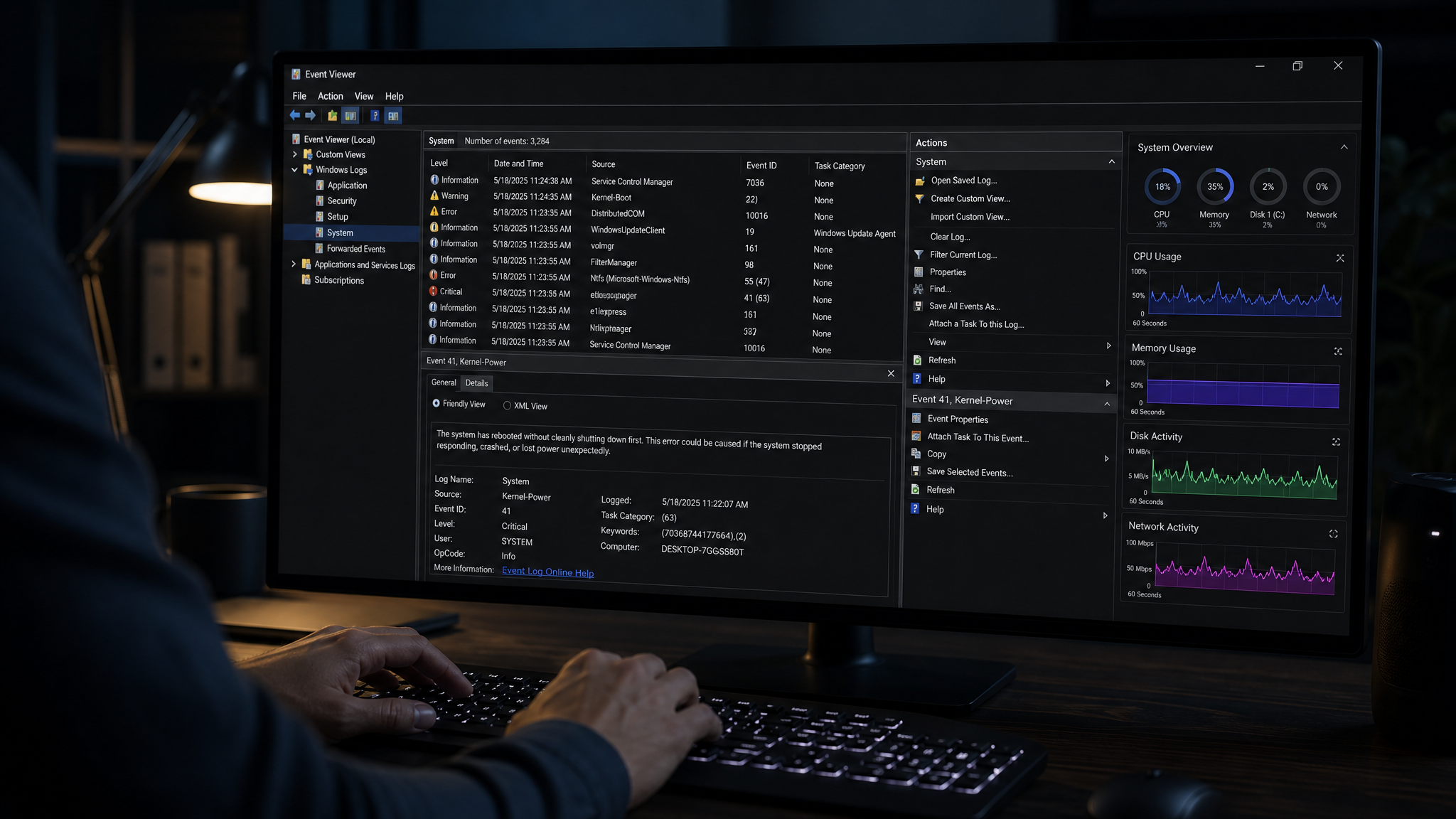
Sometimes RAM issues go beyond simple capacity — you might have a failing memory module causing crashes, freezes, or the dreaded Blue Screen of Death (BSOD). PC Diagnostic Analyzer can help you identify these problems quickly.
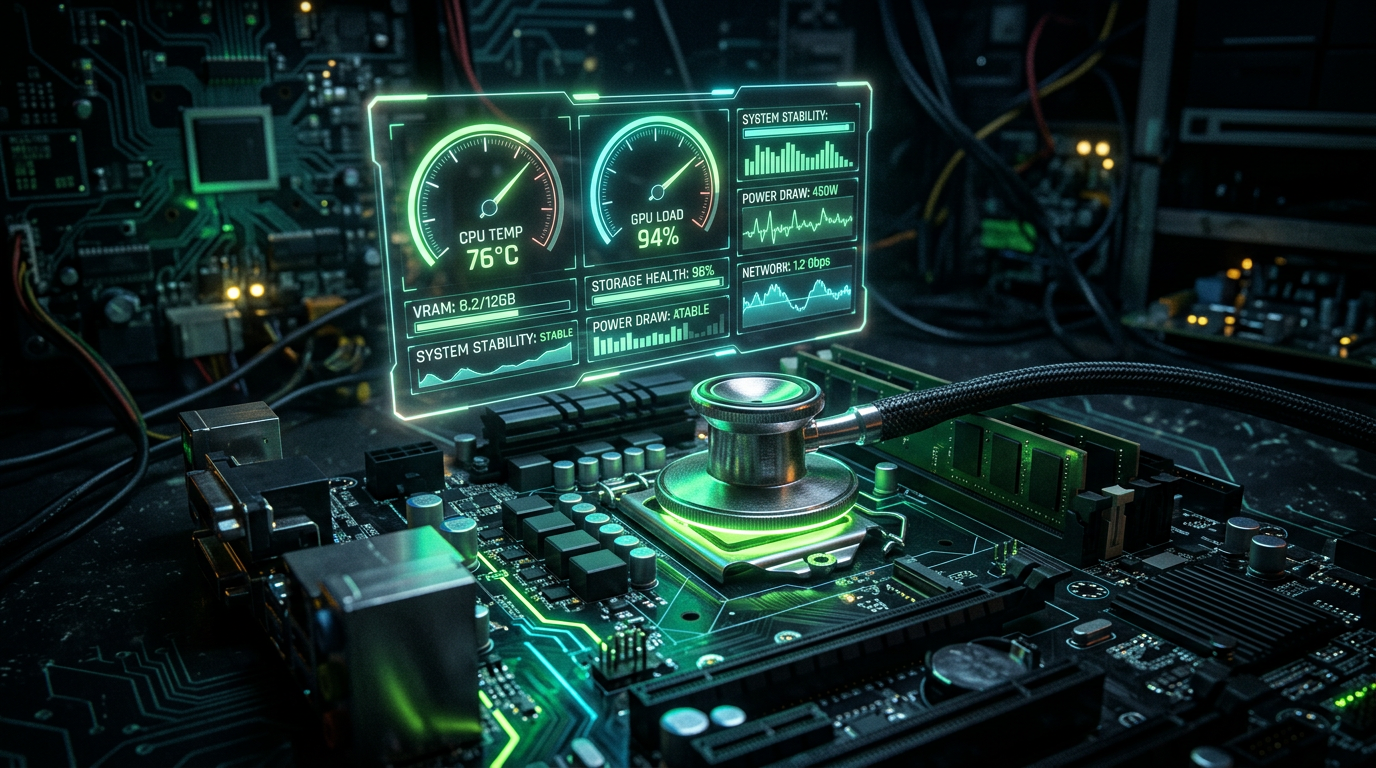
When you run a diagnostic, PC Diagnostic Analyzer scans your system's memory usage patterns, flags processes consuming abnormal amounts of RAM, and highlights potential hardware issues. Instead of manually digging through Event Viewer logs or running obscure command-line tools, you get a clear, prioritized report showing exactly what's wrong and how to fix it.
For hardware-level memory testing, Windows includes a built-in tool:
Win + R → mdsched.exe → Restart now and check for problemsThis runs the Windows Memory Diagnostic tool, which tests your RAM modules for errors during the next boot. If errors are found, one or more RAM sticks may need to be replaced.
You can also check installed RAM details via PowerShell:
Get-WmiObject -Class Win32_PhysicalMemory | Select-Object Manufacturer, Speed, CapacityConclusion
RAM is the unsung hero of PC performance. Whether you're a casual user frustrated by slow multitasking or a gamer chasing smoother frame rates, understanding your memory — and keeping it healthy — makes a real difference.
Ready to find out if RAM is holding your PC back? Try PC Diagnostic Analyzer for free today. In minutes, you'll get a complete picture of your system's health, including memory usage, potential bottlenecks, and actionable recommendations to get your PC running at its best. Don't guess — diagnose.
Found this helpful?
Share it with someone who could use it.
DiagnoseMyPC Team
Expert PC diagnostics and troubleshooting guides to help you keep your Windows system running smoothly.
Get the free Windows Troubleshooting Checklist
Subscribe and instantly download our 50-point Windows troubleshooting checklist — plus practical fixes, performance tips, and security alerts from the DiagnoseMyPC team.
No spam. Unsubscribe anytime.
Frequently Asked Questions
I'm not technical — can I still use a PC diagnostic tool?
Absolutely. PC Diagnostic Analyzer is built for non-experts: you paste an error or run a quick scan, and it explains what's wrong in plain language with clear next steps. No jargon or technical background required.
Do I need to install anything to get a diagnosis?
No. You can paste an error message, upload a screenshot, or paste command output and get an instant AI diagnosis right in your browser. There's an optional lightweight collector for a deeper analysis, but it's not required to start.
How is this different from just asking a regular AI chatbot?
It's purpose-built for Windows troubleshooting. Instead of generic advice, you get issues ranked by severity, findings tied to your actual system data, and ready-to-run fix scripts — not guesswork.
Is it really free to try?
Yes. You can run a free AI diagnosis with no account, and a free account gives you 5 full scans every month. One-click fix scripts and detailed guides are available with an affordable one-time $4.99 Fix Pass or a Pro plan.