Published on DiagnoseMyPc.com
A Quick Word Before We Start
If your Windows 11 PC is slow, crashing, or throwing random errors, you're not alone — and the good news is that Windows already ships with more diagnostic power than most people ever use. The built-in tools (Reliability Monitor, Event Viewer, Performance Monitor, Windows Memory Diagnostic, DISM, SFC, and Startup Repair) can pinpoint a surprising number of problems. Here's the honest catch: knowing which tool to run and how to read the results takes experience. That's where a guided analysis like the FREE one at DiagnoseMyPc.com comes in — it does the triage for you, so you start in the right place instead of poking around blind. This guide walks you through the best built-in tools, what each one genuinely can and cannot do, and when a guided analysis is the smarter move.
Having this problem on your own PC?
Describe what's happening and get a real AI diagnosis in seconds — no account needed.
Before You Change Anything
Take a few minutes to protect your system before you run any diagnostic or repair step. These habits save more PCs than any single tool:
Back up important files to an external drive or cloud service before running repair commands like DISM or SFC.
Create a restore point (search "Create a restore point") so you can roll back any change that goes wrong.
Write down what's happening — the exact error message, when it started, and what you were doing. This is gold for later.
Save open work and close unnecessary programs before running memory or startup diagnostics.
Don't run two repair tools at once — SFC and DISM can interfere with each other if they overlap.
Plug in a charger on a laptop; some diagnostics take a while and you don't want the battery to die mid-scan.
Confirm You Have This Problem
Before you dig in, confirm you're actually dealing with the issue you think you are. A slow PC could be a hard drive issue, too much startup software, or a failing memory stick — and each has a very different fix. Ask yourself:
Is the slowness constant, or only after startup or when running specific apps?
Have you gotten blue screen (BSOD) errors, and if so, what error code?
Do problems get worse under heavy load (gaming, video editing, many browser tabs)?
Are there loud clicking or grinding sounds from the machine? (That points to hardware no software tool can permanently fix.)
Did the trouble start right after a Windows update, a new install, or a hardware change?
If you're not sure you've got it right, that's exactly the moment to let a guided AI analysis sort out the symptoms for you.
Possible Causes
| Evidence Observed | Likely Cause | Next Check |
|---|---|---|
| Slow startup, many programs at boot | Too much startup software | Task Manager → Startup apps |
| Random crash or freeze under load | Overheating or memory issue | Windows Memory Diagnostic |
| Repeated blue screen with error code | Driver or system file corruption | Event Viewer logs, then SFC/DISM |
| "System file" errors after an update | Corrupted system files | SFC and DISM |
| General sluggishness all the time | Low disk space or failing drive | Disk usage in Task Manager / Performance Monitor |
| Freezes tied to one specific app | Problematic application | Reliability Monitor for repeated failures |
Step-by-Step Diagnostic
Work through these steps from lowest risk to highest. Stop as soon as you find the culprit — don't run every tool on every problem.
Step 1 — Check the basics first (lowest risk)
Open Task Manager (Ctrl+Shift+Esc) and look at the Performance tab. Is a component — CPU, Memory, Disk, or GPU — sitting at 95–100% while the PC sits idle? Check the Startup tab and disable anything you don't need at boot. Then free up disk space: open Settings → System → Storage and let Storage Sense clear temp files. A full drive causes more confusion than you'd expect.
Step 2 — Read the event logs and reliability history
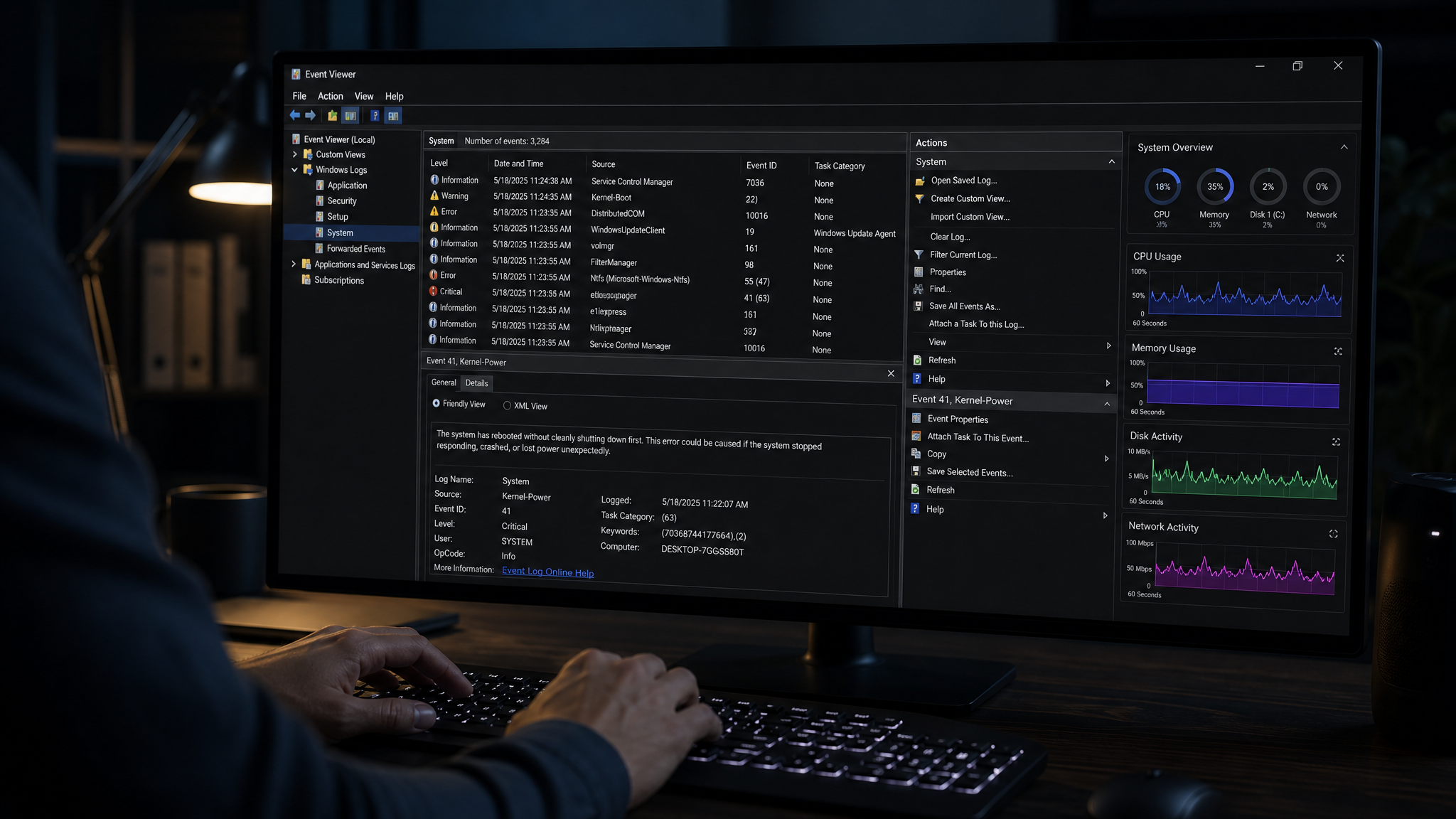
Open Event Viewer (search it in the Start menu) and check Windows Logs → System for red error entries around the time of your problem. It's powerful but noisy — you'll see warnings that are harmless. The friendlier option is Reliability Monitor: search "Reliability Monitor" (or "View reliability history") and look at the timeline, which dates system errors and critical events on a graph that's far easier to read than raw logs.
> What it can do: Event Viewer and Reliability Monitor give you the timeline and error codes you need to know when and what failed.
> What it cannot do: raw logs don't tell you the fix. They name the symptom, not the cure — and interpreting them is where most people get stuck.
Step 3 — Run the Windows Troubleshooters
Windows 11 includes several built-in troubleshooters. Go to Settings → System → Troubleshoot → Other troubleshooters, then run the one that matches your symptom (e.g., "Windows Update," "Audio," "Internet Connections"). These are great for common, well-defined issues.
> What it can do: automated, hands-free fixes for a range of common problems.
> What it cannot do: they only cover the scenarios Microsoft scripted. For anything unusual, they'll often say "we couldn't identify the problem" and leave you exactly where you were.
Still unsure what's causing the issue? Try a free guided diagnosis
Still unsure what's causing the issue? Run a free AI diagnosis at DiagnoseMyPc.com — no download required, 5 free analyses per month.
You've now run the low-risk checks and maybe hit a wall. This is the smart point to stop guessing. A guided analysis looks at your symptoms, error codes, and logs together to point you at the most likely cause — which keeps you from running risky repairs on the wrong thing.
Step 4 — Verify system file integrity (SFC and DISM)
If corruption is suspected, run the two standard Windows repair commands. First SFC (System File Checker): open Command Prompt as Administrator and run:
sfc /scannowSFC scans and repairs protected system files. If it reports corruption it can't fix, follow up with DISM (Deployment Imaging Service and Management Tool) to repair the system image that SFC relies on:
DISM /Online /Cleanup-Image /RestoreHealth> What they can do: repair corrupted Windows system files — the fix for many BSODs and update failures.
> What they cannot do: they won't touch driver bugs, failing hardware, or a genuine disk crash. They only repair Windows' own protected files, so a clean report doesn't mean your PC is fine.
Step 5 — Test your memory (Windows Memory Diagnostic)
As risk rises toward the hardware end, test your RAM. Search "Windows Memory Diagnostic," choose Restart now and check for problems, and the PC reboots into a memory test.
> What it can do: catch a failing memory stick, which commonly causes random freezes and blue screens.
> What it cannot do: if the test passes, memory is likely fine — but it can't detect every hardware fault, and a clean result only rules one thing out.
Step 6 — Startup Repair for boot problems
If Windows 11 won't boot normally at all, use Startup Repair: reboot repeatedly to enter Windows Recovery Environment (WinRE), then go to Troubleshoot → Advanced options → Startup Repair. It attempts to fix boot files that are stopping Windows from starting.
> What it can do: repair common boot-loop and black-screen scenarios.
> What it cannot do: if the drive itself is dead or the boot failure is hardware-driven, Startup Repair can't fix it — and over-relying on it while ignoring a failing drive can cost you your data.
Step 7 — Performance Monitor for deeper analysis (highest risk, use sparingly)
Performance Monitor can log detailed counters over time (CPU, memory, disk I/O) via Data Collector Sets — useful if you have a slow, intermittent problem you can't reproduce. It's powerful but the least approachable tool on this list.
> What it can do: long-term logging that can surface patterns in intermittent performance problems.
> What it cannot do: it doesn't diagnose or fix anything on its own — it just gathers numbers you have to interpret, which is a research project most people don't need.
Dealing with this one-time? The $4.99 Fix Pass gives you 7 days of full Pro access — no subscription needed.
If you're a home user working through a single frustrating issue, you don't want a recurring plan. The Fix Pass unlocks guided, step-by-step repairs for a week without locking you into a subscription — enough time to get this PC working again.
How to Know It's Fixed
You'll know you've fixed it when the specific symptom is gone and stays gone under normal use:
The blue screen or error no longer appears, including under heavy load.
The PC boots and runs at an acceptable speed for the apps you actually use.
The problem doesn't return after several normal restarts over a day or two.
Reliability Monitor shows no new critical errors around the time of your old issues.
If you ran memory or file tests, they now complete cleanly.
One clean restart isn't proof — a genuinely fixed PC stays stable through repeated daily use.
When to Stop and Get Help
There are times when pushing on alone is the wrong call. Stop and get professional help if:
You hear clicking or grinding from the hard drive — stop using the PC and back up data immediately; a dying drive is an emergency.
Multiple memory or hardware tests fail, pointing to hardware that software can't repair.
The PC won't boot and Startup Repair can't fix it.
You're not comfortable running elevated Command Prompt commands, or you've attempted a fix and made things worse.
The problem keeps coming back no matter what you do — repeated unresolved failures are a sign to hand it off.
And a note from two-plus decades of IT support: when you're deep in a rabbit hole and honestly not sure what's wrong anymore, that's not failure. The smartest techs know when to use a guided tool to get an objective read instead of guessing. DiagnoseMyPc gives you that second set of eyes — free, no download, right from your browser.
Found this helpful?
Share it with someone who could use it.
DiagnoseMyPC Team
Expert PC diagnostics and troubleshooting guides to help you keep your Windows system running smoothly.
Get the free Windows Troubleshooting Checklist
Subscribe and instantly download our 50-point Windows troubleshooting checklist — plus practical fixes, performance tips, and security alerts from the DiagnoseMyPC team.
No spam. Unsubscribe anytime.
Frequently Asked Questions
I'm not technical — can I still use a PC diagnostic tool?
Absolutely. PC Diagnostic Analyzer is built for non-experts: you paste an error or run a quick scan, and it explains what's wrong in plain language with clear next steps. No jargon or technical background required.
Do I need to install anything to get a diagnosis?
No. You can paste an error message, upload a screenshot, or paste command output and get an instant AI diagnosis right in your browser. There's an optional lightweight collector for a deeper analysis, but it's not required to start.
How is this different from just asking a regular AI chatbot?
It's purpose-built for Windows troubleshooting. Instead of generic advice, you get issues ranked by severity, findings tied to your actual system data, and ready-to-run fix scripts — not guesswork.
Is it really free to try?
Yes. You can run a free AI diagnosis with no account, and a free account gives you 5 full scans every month. One-click fix scripts and detailed guides are available with an affordable one-time $4.99 Fix Pass or a Pro plan.